
Table of Contents
- The Quick Answer
- Why Passwords Are So Hard to Remember
- Method 1: Use a Password Manager (Best Overall)
- Method 2: Use Passphrases — Long Passwords You Can Actually Remember
- Method 3: Let Chrome Save Your Passwords
- Method 4: Make Your iPhone Remember Passwords
- Method 5: Memory Tricks That Make Passwords Stick
- Method 6: A Written Backup (Done Right)
- Which Method Should You Use? (Comparison)
- 7 Password Mistakes That Get People Hacked
- Frequently Asked Questions
The average person has over 100 online accounts — and almost nobody can remember 100 unique passwords. So people reuse the same two or three everywhere, and that’s how one small leak turns into a full account takeover.
This guide shows you how to remember your passwords without the sticky-note chaos: six proven methods, from password managers to memory tricks, plus the mistakes to avoid.
The Quick Answer
To remember your passwords reliably: install a password manager (Bitwarden, 1Password, or Apple’s built-in one), save every login in it, and memorize just one strong master password. For that master password — and any password you type by hand — use a passphrase: four or more random everyday words, like correct-horse-battery-staple. Long, memorable, and extremely hard to crack.
Short on time? Turn on Chrome’s or your iPhone’s built-in password saving today (methods 3 and 4) — two minutes, and most of your accounts are covered. Upgrade to a password manager when you’re ready.
Why Passwords Are So Hard to Remember
It’s not your memory failing you — it’s math. Security experts recommend a unique, long password for every account — 100+ random strings your brain was never designed to hold.
So people take shortcuts, and every shortcut is a vulnerability:
- Reusing one password everywhere. If one site leaks it, attackers automatically try it on your email, bank, and social accounts.
- Tiny variations (Password1, Password2, Password!). Cracking tools try these patterns in seconds.
- Personal info (birthdays, pet names). Anyone who can see your social media can guess these.
- Writing them in an unprotected notes app. Convenient — and readable by anyone who picks up your unlocked phone.
The fix isn’t a better memory — it’s a better system: remember one thing, let technology remember the rest. Here are the six methods that actually work.
Method 1: Use a Password Manager (Best Overall)
A password manager is an app that stores all your logins in an encrypted vault. You remember one master password; it remembers everything else and fills logins in automatically.
This is what security professionals actually use — and the best answer to “how do I remember all my passwords,” because you don’t have to remember them at all. The manager generates a unique random password for every site, so a leak at one site can’t touch the others.
How to start (15 minutes, once)
- Pick a manager. Bitwarden (free, open-source), Apple’s iCloud Keychain (free on iPhone/Mac), Google Password Manager (free in Chrome), or 1Password (paid, polished).
- Create your account and choose a master password. Make it a passphrase (Method 2 below) — the one password you truly memorize.
- Install the browser extension and phone app, and turn on autofill in your phone’s settings.
- Save logins as you go. Don’t migrate everything at once — let the manager offer to save each password the next time you log in somewhere. Within a week, most accounts are in the vault.
- Turn on two-factor authentication for the manager itself, so your vault has a second lock.
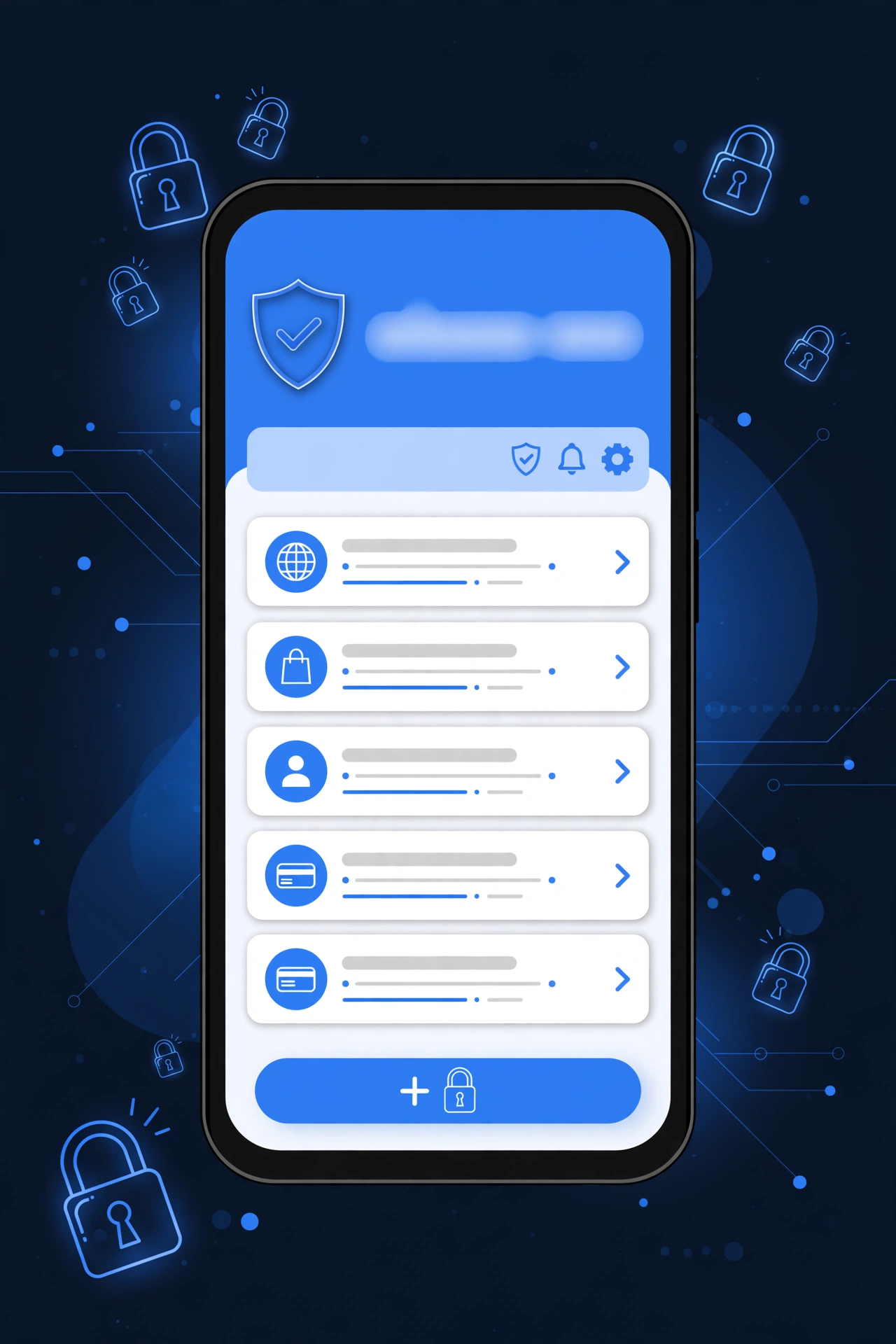
Tip: When the manager offers to generate a password during signup on a new site, say yes. A 20-character random string you never see is far stronger than anything you’d invent. Reputable managers use zero-knowledge encryption — even a server breach exposes only scrambled data your master password alone can unlock.
Method 2: Use Passphrases — Long Passwords You Can Actually Remember
Some passwords you must type by hand — your master password, your computer login, your Apple ID. For those, use a passphrase: four or more random everyday words joined together, e.g. correct horse battery staple — 28 characters, memorizable in a minute, far harder to crack than Tr0ub4dor&3.
Important: The words must be random — from a generator or dice, not chosen by you. Humans pick predictable words. Randomness is what makes passphrases strong. Use our free strong password generator to create one.
How to make a passphrase memorable
- Picture it. apple river piano tiger — imagine a tiger playing piano on a riverbank while eating an apple. Absurd images stick.
- Type it 10 times when you first create it. Muscle memory takes over fast.
- Don’t reuse it. Each hand-typed password gets its own passphrase.

Want the full walkthrough on building unbreakable logins? Read our guide on how to create a strong password — then use this guide’s methods to remember the ones you make.
Method 3: Let Chrome Save Your Passwords
If you use Chrome on a computer or Android phone, you already have a free password manager built in — Google Password Manager. It saves logins, fills them in, and syncs across your devices.
How to save passwords in Chrome
- Open Chrome — three-dot menu — Settings — Autofill and passwords — Google Password Manager.
- Turn on “Offer to save passwords” and “Auto sign-in.”
- Click Save whenever Chrome offers — that’s the whole workflow.
- Manage everything later at passwords.google.com, including the built-in Password Checkup that flags reused or compromised passwords.
Tip: Turn on a screen lock for your computer and phone, and enable two-factor authentication on your Google account. Anyone who unlocks your device can otherwise open your saved passwords.
Chrome’s manager covers the “remember passwords” need for most casual users. Its limit: it works best inside Google’s ecosystem. It’s a great starting point — a dedicated manager (Method 1) is the upgrade path.
Method 4: Make Your iPhone Remember Passwords
iPhone and Mac users get Apple’s equivalent free: iCloud Keychain (called “Passwords” in newer iOS versions). It saves logins, generates strong passwords, and fills them with Face ID.
How to remember passwords on iPhone
- Settings — [your name] — iCloud — Passwords: turn on “Sync this iPhone.”
- Settings — General — AutoFill & Passwords: turn on AutoFill Passwords.
- Tap “Save Password” when logging in — Face ID fills it in from then on.
- Open the Passwords app (iOS 18+) to view and audit all saved logins.
Note: iCloud Keychain is weakest outside Apple’s ecosystem — on a Windows PC or Android phone, your passwords are hard to reach. Multi-platform users are better served by a cross-platform manager (Method 1).
Method 5: Memory Tricks That Make Passwords Stick
For the handful of passwords you type regularly, these techniques genuinely work:
- The story method. Turn passphrase words into a tiny story: ocean clock guitar mango — “The ocean swallowed a clock while a guitar played for a mango.” Tell yourself the story twice; you’ll recall the words for months.
- Chunking. Break a long password into groups of 3–4 characters, like a phone number: X7#k-9mQ2-vB4! becomes three small pieces instead of one impossible string.
- Spaced repetition. Type the new password from memory after 1 hour, then after a day, then after three days. Each successful recall roughly doubles how long it sticks.
Tip: These tricks are for your master password and 2–3 typed logins — pair them with a manager (Method 1): tricks for the few, technology for the many.
Method 6: A Written Backup (Done Right)
A written backup kept somewhere physically secure beats a forgotten password — or a reset email an attacker can intercept.
The rules for writing passwords down
- Paper, not digital. A notebook can’t be hacked remotely. Never store passwords in an unprotected notes app, spreadsheet, or email draft.
- Keep it where a burglar won’t look — a locked drawer or safe, not taped under the keyboard.
- This is a backup, not the system. Use it for recovery codes and your master password — the things that lock you out of everything if lost.
Important: Always save your recovery/backup codes (the one-time codes given when you enable two-factor authentication) on paper in your secure spot. If you lose your phone, these codes are your only way back in.
Which Method Should You Use? (Comparison)
You don’t have to pick just one — combine a primary method with a backup:
| Method | Security | Convenience | Cost | Best for |
|---|---|---|---|---|
| Password manager app | ★★★★★ | ★★★★★ (after setup) | Free–~$3/mo | Everyone — the complete solution |
| Passphrases | ★★★★★ | ★★★★☆ | Free | Master passwords + logins you type |
| Chrome password saving | ★★★★☆ | ★★★★★ | Free | Chrome/Android users wanting zero setup |
| iPhone iCloud Keychain | ★★★★☆ | ★★★★★ | Free | Apple-only households |
| Memory tricks | ★★★★☆ | ★★★☆☆ | Free | A handful of frequently typed passwords |
| Written backup | ★★★☆☆ | ★★☆☆☆ | Free | Recovery codes + emergency backup only |
Our recommendation: password manager + one memorized passphrase as the master password + paper backup of recovery codes — daily logins, the typed password, and disaster recovery, all covered.
7 Password Mistakes That Get People Hacked
- Reusing passwords across sites. The #1 cause of account takeovers — one breach plus automated “credential stuffing” topples every account sharing that password.
- Using personal information. Pet names, birthdays, anniversaries — all guessable from social media.
- Keyboard patterns like qwerty or 123456 — the first things cracking tools try.
- Never updating old passwords after breaches. If a site you use was breached and you never changed the password, assume attackers have it.
- Skipping two-factor authentication. Even a perfect password can leak — 2FA means the password alone isn’t enough.
- Staying logged in on shared devices. Always log out on library computers or a friend’s tablet, and never save passwords there.
- Ignoring breach alerts. When Chrome, Apple, or your manager flags a compromised password, change it that day.
Tip: Check whether your email has appeared in known breaches at haveibeenpwned.com (free). If it has, change that password — and anywhere you reused it — immediately.
Frequently Asked Questions
What is the best way to remember your password?
Use a password manager (Bitwarden, 1Password, Apple Passwords, or Google Password Manager). You memorize one strong master passphrase; the manager stores and autofills the rest. It’s what security professionals recommend.
How do I remember my password if I forgot it?
Use the site’s “Forgot password” link to reset it via your email — then save the new one in a password manager or your browser. Turn on password saving in Chrome (Settings — Autofill and passwords) or iPhone (Settings — General — AutoFill & Passwords) so it doesn’t happen again.
How can I remember a password I forgot?
First check your saved spots: passwords.google.com for Chrome, the Passwords app on iPhone, or your manager’s vault. If it’s nowhere, reset it via “Forgot password” — then store the new one properly this time.
Is it safe to write down my passwords?
A paper notebook in a physically secure place (locked drawer or safe) is reasonably safe — it can’t be hacked remotely. What’s unsafe: unprotected notes apps, spreadsheets, emails, or chat messages. Use paper as a backup for recovery codes and your master password, not as your whole system.
Are password managers safe from hackers?
Yes — reputable managers use zero-knowledge encryption: your vault is encrypted on your device, and the company can’t read it. A server breach exposes only scrambled data. The realistic risks are a weak master password or malware on your own device.
What should I do if I forget all my passwords?
Recover systematically. Start with your email (password resets go there), then banking, then social media, then everything else. Save each new password in a manager as you reset it — within a day you’ll have an organized vault instead of chaos.
How do I choose a password you can remember?
Choose a passphrase, not a single word: four or more random everyday words, like apple river piano tiger — long, memorable, and far harder to crack than a short complex password. Make the words random (from a generator, not chosen by you), picture them as one absurd image to remember them, and type the passphrase 10 times when you first create it. Give each important account its own passphrase, and store the rest in a password manager — you only need to memorise the master one.
Stop relying on memory alone — set up a password manager today, memorize one great passphrase, and let the system handle the rest.