
Quick answer
To flip text upside down, put it in a text box and rotate it 180 degrees. In Word: Insert > Text Box, type your text, then Shape Format > Rotate > More Rotation Options, set Rotation to 180°. In Google Docs: Insert > Drawing > + New, add a text box, and drag its circular rotation handle until the text inverts.
For a paste-anywhere trick that works in bios and messages, use an upside-down text generator — it converts normal text into flipped Unicode characters (like ¡pꓤoM ollǝH) that you can copy into Instagram, WhatsApp, Discord, or any app. At Zyrro we cover every method below, step by step, from Word and Docs to Excel, Canva, and your phone.
Upside-down text is a Unicode trick: special characters that look like rotated Latin letters replace the normal ones, and the string is reversed so it reads left-to-right when viewed upside down. Flip your phone or tilt your head and it reads perfectly. The result is plain text, not an image, so it works anywhere text does. Here is how the most common letters map:
| Normal | Flipped | Unicode source |
|---|---|---|
| a | ɐ | U+0250, Latin small letter turned a |
| e | ǝ | U+01DD, Latin small letter turned e |
| n | u | U+0075 (lookalike) |
| r | ɹ | U+0279, Latin small letter turned r |
| ! | ¡ | U+00A1, inverted exclamation mark |
| ? | ¿ | U+00BF, inverted question mark |
| o, l, H | o, l, H | unchanged — already symmetric |
For example, Hello World! becomes ¡pꓤoM ollǝH. Letters without a rotated twin — accented letters like é and ñ, emoji, and most non-Latin scripts — have no flipped Unicode form and are left unchanged (but still moved to their reversed position).
Contents
- How to flip text upside down in Word
- How to flip text upside down in Google Docs
- How to flip text upside down in Excel
- How to flip text upside down in Canva
- How to use an upside-down text generator (fastest way)
- How to flip text upside down on iPhone and Android
- All methods compared: which one should you use?
- The bottom line
- Frequently asked questions
How do I flip text upside down in Microsoft Word?
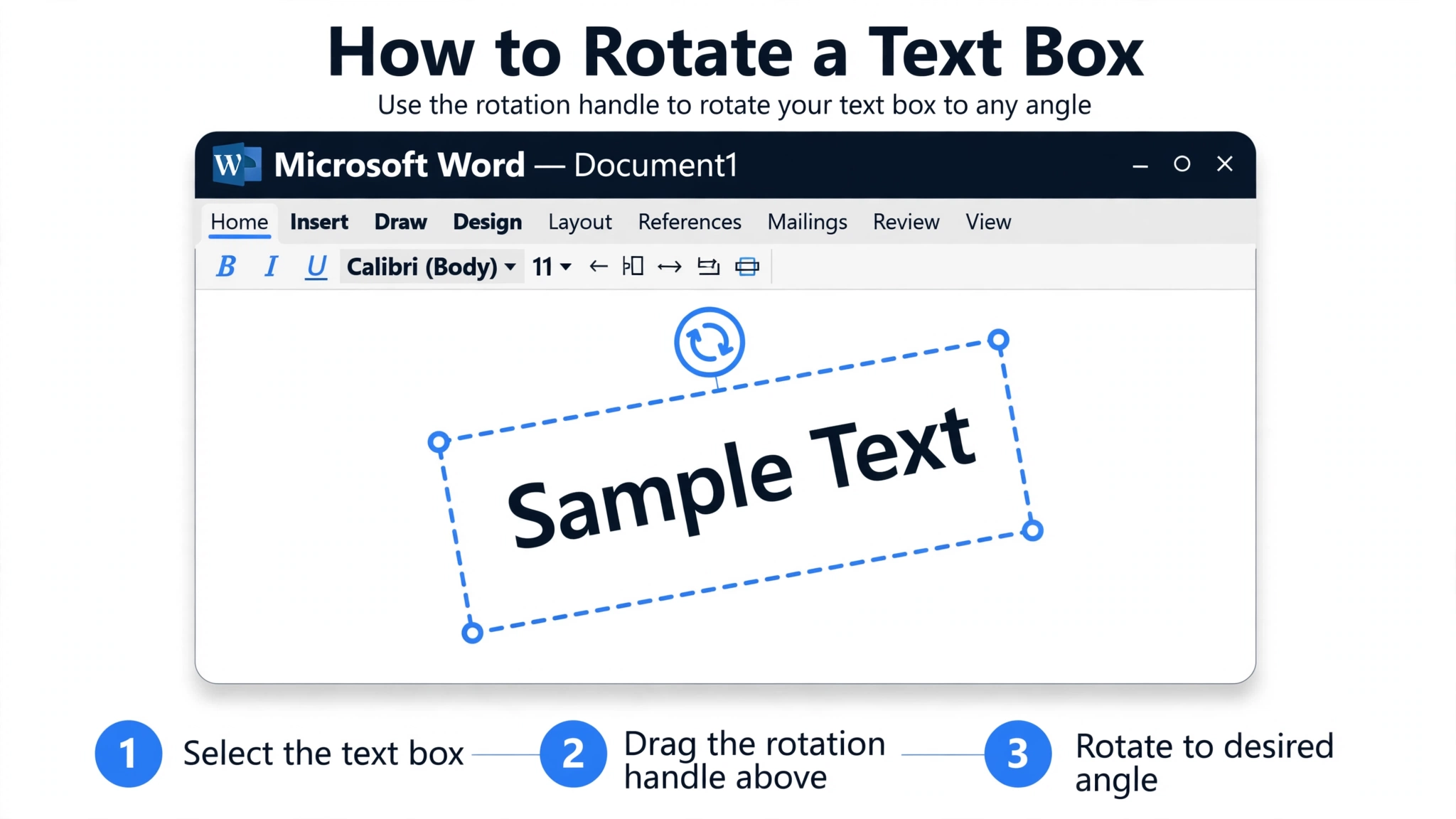
Word cannot rotate normal paragraph text, so you put the text in a text box and rotate the box 180 degrees. This works in Word 2016, 2019, 2021, and Microsoft 365.
- Click Insert > Text Box > Draw Text Box and drag to draw a box.
- Type your text and format it (font, size, color).
- Click the box border to select the whole box.
- On the Shape Format tab, click Rotate > More Rotation Options.
- In the Size settings, set Rotation to 180° and click OK.
- Remove the border if you want a clean look: Shape Format > Shape Outline > No Outline.
Want a mirror image rather than upside down? Use Rotate > Flip Horizontal on the same text box — that gives you backwards text, while the 180° rotation gives the upside-down look.
Can I flip text with WordArt instead?
Yes. Insert > WordArt, pick a style, type your text, then use Format > Rotate and set 180°. WordArt is useful when you want styled, decorative upside-down text for invitations or posters, since it supports gradients and outlines that plain text boxes do not.
How do I flip text upside down in Google Docs?
Google Docs hides text rotation inside its Drawing tool. Open your document, click Insert > Drawing > + New, then click the text box icon (a “T” inside a box), draw the box, and type your text. Select the box and drag the circular handle at the top until the text is upside down, then click Save and Close. The drawing appears in your document and can be dragged to position.
Unlike Word, Docs does not let you type an exact 180° rotation value, so drag slowly and use the angle tooltip to land on 180°. If you need pixel-perfect control, rotate in Word and paste the result as an image into Docs.
Can you flip text upside down in Excel?
Yes — Excel rotates cell text via the alignment controls. Select the cell(s), then use Home > Alignment > Orientation (the “ab” with an arrow icon) and choose Vertical Text or Rotate Text Up / Down.
Note: this only rotates up to ±90° — the Format Cells Degrees field accepts values from -90 to 90, so cell text alone cannot go fully upside down. For a true 180° flip, insert a text box instead: Insert > Text Box, type your text, then right-click the box border and set the rotation to 180° in the Format Shape pane, exactly like the Word method above.
Common mistakes
- Trying to rotate normal paragraph text in Word: impossible — use a text box or WordArt.
- Forgetting to remove the text box border: select the box, Shape Format > Shape Outline > No Outline for a clean look.
- Using Flip Vertical expecting a perfect 180° turn: Rotate > Flip Vertical also turns text upside down in current Word versions, but results vary by version — the 180° rotation is the reliable method.
- Expecting pasted flipped text to stay editable as a shape: generator output is plain Unicode text — great for sharing, but you cannot rotate it back in Word.
How do I flip text upside down in Canva?
Canva makes this easy. Select the text element, click Position in the top toolbar, and use the rotate slider — or simply drag the circular rotate handle beneath the text box — to 180°. Canva shows the live angle as you drag, so flipping a headline for a poster or invitation takes seconds.
For the social-media trick (flipped text that people can copy and paste, not an image), Canva’s rotation won’t help — you need the generator method below, then paste the flipped Unicode text into Canva as normal text.

How do I use an upside-down text generator?
This is the fastest method, and the only one that produces copy-pasteable flipped text for social media and chat:
- Type or paste your text into the input box of Zyrro’s free reverse text generator.
- Choose the upside-down (flip) mode. The tool reverses the string and swaps each letter for its Unicode lookalike — for example,
Hello World!becomes¡pꓤoM ollǝH. - Click Copy and paste the result anywhere: Instagram bios, TikTok captions, WhatsApp messages, Discord chats, email subject lines.
The same generator also makes mirror (backwards) text and plain reversed text — handy for puzzles, party invites, and classroom demos of how Unicode works.
How do I flip text upside down on iPhone or Android?
There is no built-in iPhone or Android keyboard button for upside-down text, so the generator method above is the way: open the upside-down text generator in your phone’s browser, type your text, copy the flipped result, and paste it into any app. It works in iMessage, WhatsApp, Instagram, TikTok, and Snapchat because flipped text is ordinary Unicode, not an image.
For documents on mobile, use the app’s own tools: Google Docs on mobile supports inserting a drawing with a rotatable text box, and Canva’s mobile app has the same rotate handle as the desktop version.
Which method should I use? (comparison)
| Method | Best for | Copy-pasteable? | Difficulty |
|---|---|---|---|
| Word text box + 180° rotation | Documents, place cards, print | No (image/box) | Easy |
| Google Docs drawing | Cloud documents, invites | No | Easy |
| Excel orientation / Format Cells | Spreadsheets, headers | No | Easy |
| Canva rotate handle | Posters, social graphics | No (graphic) | Very easy |
| Upside-down text generator | Social bios, chats, anywhere | Yes | Very easy |
Rule of thumb: need it in a document? Use the text-box method in your app. Need it as text people can copy? Only a generator works.
The bottom line
Flipping text upside down is easy once you know which tool fits the job: rotate a text box 180° for documents in Word, use the drawing tool in Google Docs, the rotate handle in Canva, or cell orientation for simple spreadsheet tilts. And when you need flipped text that travels — bios, chats, captions — Zyrro’s free upside-down text generator does it in one click, with no installs and nothing to sign up for.
Frequently asked questions
What is the upside-down text trick called?
It is usually called “upside-down text” or “flip text.” Technically it is a Unicode substitution trick: each Latin letter is replaced with a character that looks like it rotated 180°, drawn from sets like the International Phonetic Alphabet (for example, ɐ for a, ǝ for e, ɹ for r). The string is then reversed so it reads left to right when viewed upside down.
Does upside-down text work on Instagram and WhatsApp?
Yes. Instagram bios, captions, comments, WhatsApp messages, Discord chats, and TikTok captions all accept Unicode text, so flipped characters paste and display fine. The exception is username fields and anywhere that only allows plain letters and numbers — those will reject the special characters.
Can I flip text upside down in Word without a text box?
No. Word cannot rotate ordinary paragraph text at all — text boxes (or WordArt) are the only objects with rotation controls. Insert a text box, then use Shape Format > Rotate > More Rotation Options and set 180°. This is a long-standing limitation of Word, confirmed across Word 2016 through Microsoft 365.
Why do some letters show as boxes when flipped?
A few flipped capitals use glyphs from less common scripts, such as Canadian Aboriginal Syllabics. If the device or app lacks a font for those characters, it shows an empty box (tofu). Lowercase letters use far more common characters and display almost everywhere, so lowercase text is the safest choice.
Can screen readers read upside-down text?
Not usefully. A screen reader announces each lookalike character by its own name or skips it, so a person using one hears nonsense. Keep important information in normal text and treat upside-down text as decoration only.
How is flipping text different from a fancy text generator?
Both use Unicode substitution, but a fancy text generator swaps letters for stylish variants (bold, script, bubble letters), while an upside-down generator swaps them for rotated lookalikes and reverses the order. You can even combine them — for example, change uppercase to lowercase first for a cleaner flip.