

Table of Contents
- How do you strikethrough text in Microsoft Teams?
- How do you strikethrough text in Teams chat?
- What is the strikethrough shortcut in Teams?
- How do you cross out text in Teams on mobile?
- How do you remove strikethrough in Teams?
- Which strikethrough method should you use?
- Why is strikethrough not working in Teams?
- FAQs
Short answer: To strikethrough in Microsoft Teams, select your text and click the strikethrough (S) button in the formatting toolbar, or type a single tilde before and after the text, like ~this~. Teams has no built-in keyboard shortcut for strikethrough in chat. On mobile, use the Format button, because typed markdown does not generate formatting there.
Strikethrough is a horizontal line drawn through text to show that something is corrected, completed, or replaced — without deleting it. It is perfect for updating a task list, correcting a price in a team channel, or showing what changed in a decision. This Zyrro guide covers every working method on desktop, web, and mobile, and clears up the single most common mistake: the wrong number of tildes.
How do you strikethrough text in Microsoft Teams?
There are two reliable ways to strikethrough text in Microsoft Teams: the formatting toolbar button and the tilde syntax. Both work in chats and channel posts on the desktop and web apps. Use whichever feels faster — the result is identical.
Method 1: The strikethrough toolbar button
- Click the message box and type your message.
- Click the Format button below the compose box (the “A” with a pen icon) to expand the formatting toolbar.
- Select the text you want to cross out.
- Click the strikethrough button (the “S” with a line through it) in the toolbar.
- Send the message. The selected text now shows a line through it.
This is the easiest method if you prefer clicking to typing symbols, and it is the method to teach teammates who do not want to memorize syntax.
Method 2: The single-tilde syntax
- Type a single tilde ~ before the text.
- Type the text you want to cross out.
- Type a single tilde ~ right after the text, with no spaces inside the tildes.
- Teams shows a live preview of the struck-through text in the compose box before you send it.
For example, typing ~old deadline Friday~ renders as old deadline Friday. Microsoft’s own Teams documentation confirms this syntax: strikethrough in Teams uses one tilde on each side, and you get a live preview as you type. If you make a mistake, press Ctrl + Z (or Cmd + Z on a Mac) to undo the formatting.
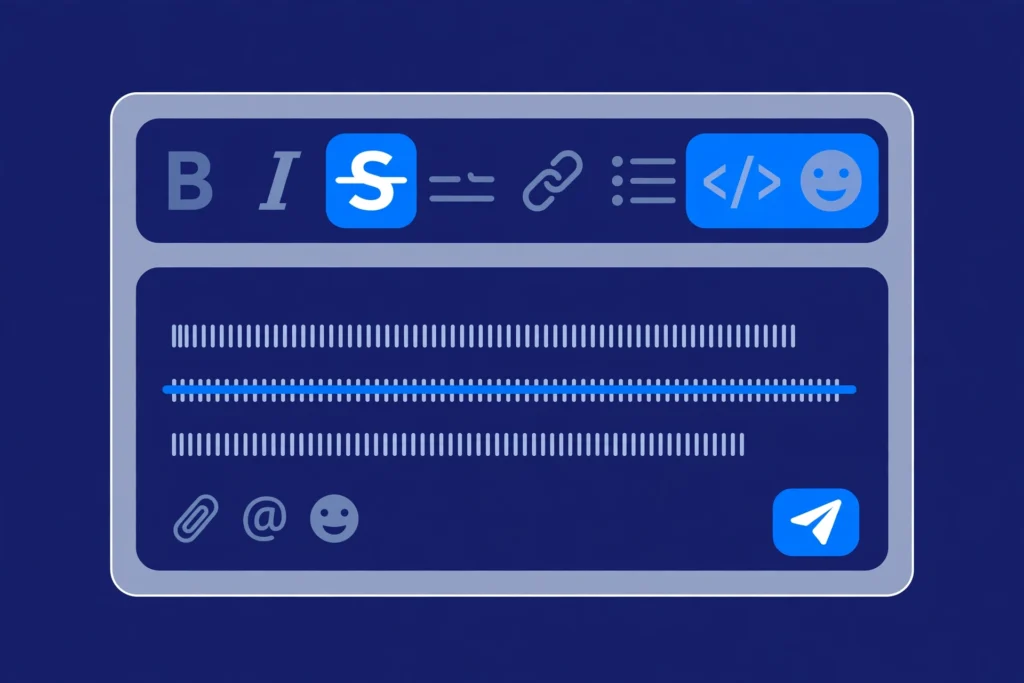
⚠️ Important: Do not use double tildes (~~text~~). That is standard Markdown, and it is what most blog guides wrongly recommend for Teams — but Teams does not render it as strikethrough. In Teams, bold uses a single asterisk (*text*), italic uses a single underscore (_text_), and strikethrough uses a single tilde (~text~). One character each. If your strikethrough shows literal tildes instead of a line, you almost certainly typed two.
How do you strikethrough text in Teams chat?
Strikethrough in Teams chat works exactly the same as anywhere else in Teams: select the text and click the strikethrough button, or wrap it in single tildes. The steps do not change between a one-to-one chat, a group chat, and a channel conversation — the compose box is the same.
The one difference is in channel posts. When you click New post in a channel, Teams opens a larger editor with the full formatting toolbar already visible, so the strikethrough button is right there without expanding anything. In a regular chat, you may need to click the Format button first to reveal it. Either way, the tilde syntax works in both places, which is why it is the fastest method once you know it.
What is the strikethrough shortcut in Teams?
There is no built-in keyboard shortcut for strikethrough in Microsoft Teams chat. Unlike Slack, which uses Ctrl + Shift + X, or Google Docs, which uses Alt + Shift + 5, Teams simply never added one for strikethrough. If a guide tells you a Teams strikethrough shortcut, it is usually describing another app.
What Teams does offer are shortcuts for the other common formats. These work in the desktop and web apps:
| Format | Windows shortcut | Mac shortcut |
|---|---|---|
| Bold | Ctrl + B | Cmd + B |
| Italic | Ctrl + I | Cmd + I |
| Underline | Ctrl + U | Cmd + U |
| Undo formatting | Ctrl + Z | Cmd + Z |
| Strikethrough | No shortcut — use the toolbar button or ~tilde~ syntax | No shortcut — use the toolbar button or ~tilde~ syntax |
💡 Tip: The fastest keyboard-only workflow is to type the tildes as you write: type ~, then your text, then ~ again, and keep typing. No mouse, no toolbar, no shortcut to remember. It becomes muscle memory after a day.
How do you cross out text in Teams on mobile?
Crossing out text in Teams on mobile takes one extra step, because of a real platform limit: on the Teams mobile app, you can view markdown-formatted messages but you cannot generate formatting by typing markdown syntax. Typing ~text~ on your phone will just send literal tildes. Microsoft documents this limitation, and it trips up a lot of people who switch between desktop and mobile.
Here is what works on iPhone and Android:
- Open the Teams mobile app and go to the chat or channel.
- Tap the message box.
- Tap the Format button (the “A” with a pen icon) to open the formatting options.
- Type your message, select the text, and tap the strikethrough button.
- Send the message as normal.
If the formatting toolbar does not show a strikethrough button on your version of the app, use the guaranteed workaround: Zyrro’s free strikethrough text generator. It creates Unicode struck-through text — characters with a line built in — which you can paste into any Teams message on any device. It renders everywhere because it is plain text, not formatting. The trade-off is that it cannot be un-formatted with a button later, so use it for messages you will not need to edit.

How do you remove strikethrough in Teams?
To remove strikethrough in Teams, select the crossed-out text and click the strikethrough button again — formatting buttons in Teams are toggles, so a second click removes the line. If you used the tilde syntax, you can also just delete the two tilde characters from around the text before sending. And if you only just applied the formatting, pressing Ctrl + Z (or Cmd + Z on a Mac) undoes it instantly.
To fix a message you already sent, hover over it (or long-press on mobile), choose Edit, select the struck text, click the strikethrough button to toggle it off, and save. The edited message keeps an “(edited)” label, but the line through the text will be gone. Note that you cannot remove strikethrough from Unicode generator text with a button — you have to retype those characters as normal text.
Which strikethrough method should you use?
Each method has a best situation. Pick from this comparison:
| Method | Best for | Works on | Watch out for |
|---|---|---|---|
| Toolbar strikethrough button | Beginners, teaching teammates, channel posts | Desktop, web, mobile (Format button) | Button is hidden until you expand the compose box in chat |
| Single-tilde syntax (~text~) | Fast typing, power users, long messages | Desktop, web | Does not generate formatting on mobile; double tildes do not work |
| Strikethrough text generator | Mobile gaps, subjects, anywhere formatting is missing | Everywhere (plain text) | Cannot be toggled off with a button later |
For most people, the answer is simple: learn the tilde syntax for desktop, use the Format button on mobile, and keep the free strikethrough text generator bookmarked for the odd case where neither works. If you also write in other apps, the same idea transfers — our guide to strikethrough in Gmail covers that app’s shortcut and hidden toolbar button, and our guide to formatting text in Telegram covers bold, italic, and more there.
Why is strikethrough not working in Teams?
If your strikethrough is not showing, one of these five causes is almost always responsible:
| Problem | Why it happens | Fix |
|---|---|---|
| Literal tildes visible in the sent message | You typed double tildes (~~text~~), standard Markdown syntax that Teams does not use | Use a single tilde on each side: ~text~ |
| Tildes show on mobile but no line appears | Typed markdown does not generate formatting on the Teams mobile app | Use the mobile Format button, or paste Unicode struck-through text from a generator |
| No strikethrough button visible | The formatting toolbar is collapsed in chat view | Click the Format button (A with pen icon) below the compose box to expand it |
| Pasted ~~text~~ or **bold** stays literal | Teams does not parse pasted Markdown; its compose box is a rich-text editor | Retype the formatting with tildes, or paste already-formatted rich text from Word |
| Formatting disappeared after copying | Copying as plain text strips formatting | Copy from the formatted message itself, not from a plain-text preview, or re-apply the formatting |
💡 Tip: When in doubt, trust the live preview. If the compose box shows the line through your text before you hit Send, the recipient will see it too. If it shows literal tildes, fix the syntax before sending — editing after the fact is possible, but getting it right first time saves the “(edited)” label.
FAQs
How do I strikethrough text in Teams chat?
Select your text and click the strikethrough (S) button in the formatting toolbar, or type a single tilde before and after the text, like ~this~. Click the Format button (A with a pen icon) below the compose box first if the toolbar is hidden. Both methods work in one-to-one chats, group chats, and channel posts.
Is there a keyboard shortcut for strikethrough in Microsoft Teams?
No, Microsoft Teams has no built-in keyboard shortcut for strikethrough in chat. Ctrl + Shift + X belongs to Slack and Google Docs, not Teams. Teams does offer Ctrl + B for bold, Ctrl + I for italic, and Ctrl + U for underline. For strikethrough, use the toolbar button or type single tildes around your text.
How do you cross out text in Teams on mobile?
On the Teams mobile app, tap the message box, tap the Format button (A with a pen icon), type your message, select the text, and tap the strikethrough button. Typed markdown does not generate formatting on mobile, so ~text~ alone will not work there. As a fallback, paste Unicode struck-through text from a strikethrough generator, which renders on any device.
How do I remove strikethrough in Teams?
Select the crossed-out text and click the strikethrough button again, since it works as a toggle. If you used tilde syntax, deleting the two tildes also removes it, and Ctrl + Z undoes formatting applied just now. For an already-sent message, use Edit, toggle the button off, and save.
Why is my strikethrough not showing in Teams?
The most common cause is double tildes: Teams uses a single tilde (~text~), while standard Markdown uses two, and many guides get this wrong. Other causes include typing markdown on mobile, where it does not generate formatting, and pasting Markdown text, which Teams leaves literal. Check the live preview in the compose box before sending.
How do you put a line through text in Teams?
Putting a line through text is the same as strikethrough: select the text and click the strikethrough button, or wrap it in single tildes. If you need a line through text somewhere Teams formatting cannot reach, such as a subject line, use Zyrro’s free strikethrough text generator to create Unicode text with the line built into the characters themselves.
Strikethrough is a small format with an outsized effect: it lets a team see what changed without losing the original wording. Once you know the single-tilde rule and the mobile exception, you will never fight it again — and the next time a teammate asks how to cross something out, you will have the answer in one sentence. For more text-formatting help across your apps, explore Zyrro’s free tools, including the strikethrough text generator used in this guide.