

To strikethrough in Slack, put one tilde (~) on each side of the text, like ~this~, or select the text and press Cmd+Shift+X on a Mac or Ctrl+Shift+X on Windows. Slack renders the text with a line through it as soon as you send the message. The toolbar button works too.
Strikethrough is one of those small formatting tricks that makes Slack messages much clearer. Instead of deleting an old deadline or a changed plan, you cross it out and leave it visible, so everyone can see what changed. This guide from Zyrro covers every method: the tilde syntax, the keyboard shortcut, the toolbar button, and mobile, plus removal and troubleshooting.
Table of contents
- What is strikethrough in Slack?
- How do you strikethrough text in Slack with the tilde method?
- How do you strikethrough in Slack with the keyboard shortcut?
- How do you strikethrough a message in Slack with the toolbar button?
- How do you strikethrough in Slack on mobile?
- How do you remove strikethrough in Slack?
- Why is strikethrough not working in Slack?
- Slack vs Discord vs Teams: how does strikethrough differ?
- When should you use strikethrough in Slack?
- Frequently asked questions
What is strikethrough in Slack?
Strikethrough in Slack is text with a horizontal line through it, used to show that something is outdated, corrected, or completed without deleting it. Slack’s lightweight markup language, called mrkdwn, uses a single tilde on each side of the text: ~crossed out~.
That single-tilde detail matters, because it differs from most other apps. Discord and standard Markdown use two tildes, like ~~this~~. Slack uses one, so typing two tildes out of habit can leave a stray tilde showing in your sent message.
How do you strikethrough text in Slack with the tilde method?
To strikethrough text in Slack with the tilde method, type one tilde (~) before the text and one tilde after it, with no spaces between the tildes and the words. Slack formats the text the moment you send the message.
- Click into the message box in any channel, direct message, or thread.
- Type a tilde (~) where the crossed-out text should start.
- Type the words you want to cross out, for example: meeting moved to Friday.
- Type a closing tilde (~) right after the last word.
- Press Enter to send. Your message shows the words with a line through them.
Here is what it looks like before and after sending:
| What you type | What everyone sees |
|---|---|
| ~Meeting moved to Friday~ The new time is 3 pm. | |
| The ~old report~ new report is attached. | The |
Tip: the tilde key is usually at the top-left of your keyboard, on the same key as the backtick (`). On most layouts you press Shift plus that key to type a tilde.
If you need crossed-out text outside Slack, where formatting is not available, a strikethrough text generator creates the same look with Unicode characters that work anywhere.
How do you strikethrough in Slack with the keyboard shortcut?
To strikethrough in Slack with the keyboard shortcut, highlight the text first and then press Cmd+Shift+X on a Mac or Ctrl+Shift+X on Windows or Linux. This is the fastest method when you have already typed the message.
- Type your message as normal in the compose box.
- Click and drag to highlight exactly the words you want to cross out.
- Press Cmd+Shift+X (Mac) or Ctrl+Shift+X (Windows or Linux).
- Send the message as usual.
| Device | Strikethrough shortcut |
|---|---|
| Mac | Cmd + Shift + X |
| Windows | Ctrl + Shift + X |
| Linux | Ctrl + Shift + X |
These shortcuts come from Slack’s own keyboard-shortcut reference, which lists “cross out selected text (strikethrough)” as Cmd+Shift+X on Mac and Ctrl+Shift+X on Windows and Linux. Pressing the same shortcut again on selected struck-through text removes the formatting.
Important: the shortcut only works while your cursor is in the message field and text is selected. If nothing is selected, pressing it does nothing, which is the most common reason people think the shortcut is broken.
How do you strikethrough a message in Slack with the toolbar button?
To strikethrough a message in Slack with the toolbar button, highlight the text and click the strikethrough button (an S with a line through it) in the formatting toolbar. If you do not see the toolbar, click the Aa button next to the message box to reveal it.
- Type your message in the compose box.
- Highlight the words you want to cross out.
- Click the Aa button if the formatting toolbar is hidden.
- Click the strikethrough button in the toolbar. The highlighted text is crossed out.
- Send the message.
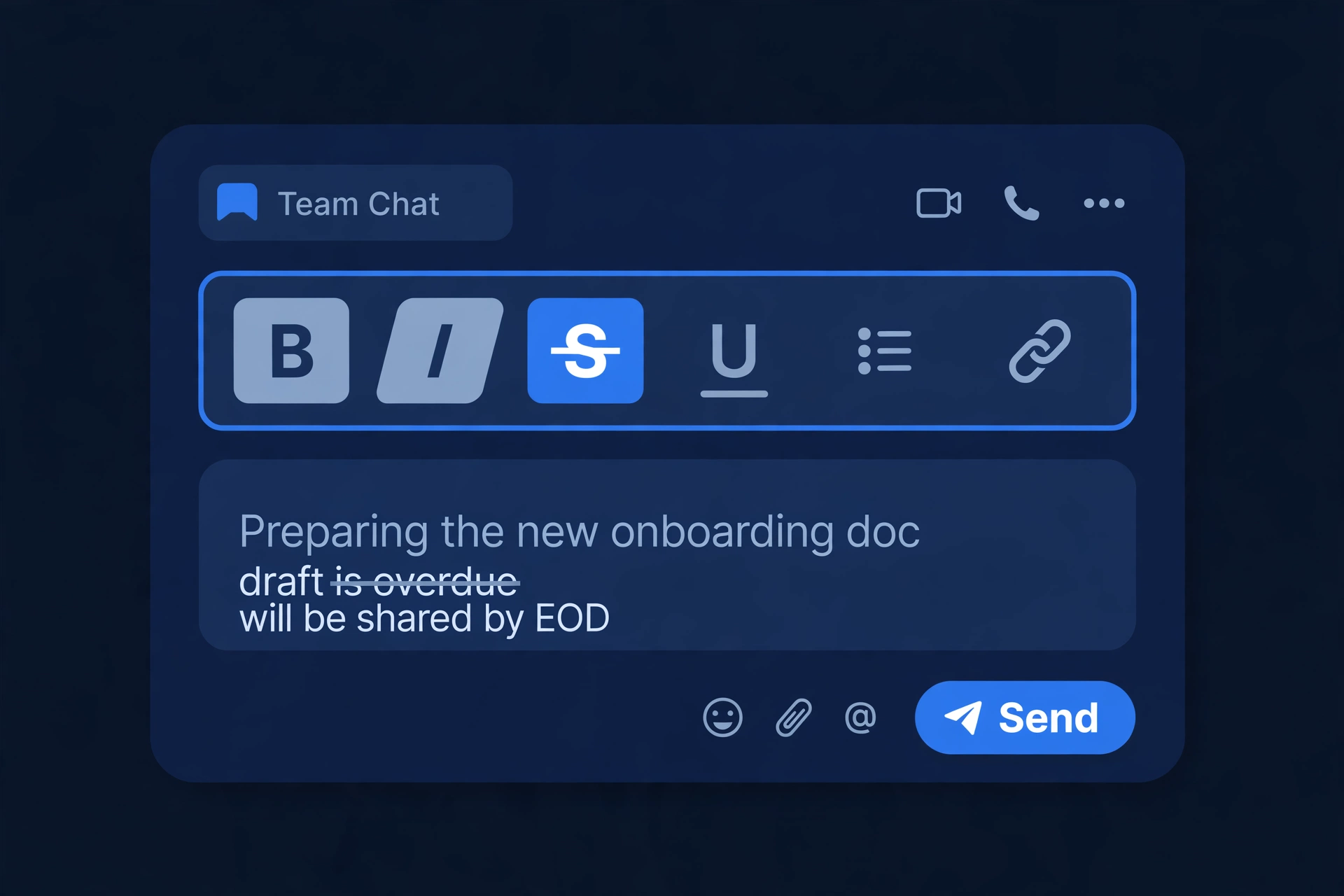
You can also click the strikethrough button first and then type: everything you type afterwards is crossed out until you click the button again. The toolbar method works the same in the Slack desktop app and in a web browser.
How do you strikethrough in Slack on mobile?
To strikethrough in Slack on mobile, tap the Aa button to open the formatting panel, highlight the text, and tap the strikethrough button. Slack’s own formatting guide confirms the Aa button reveals the formatting panel in both the desktop and mobile apps.
- Open the Slack app and go to the channel or direct message.
- Tap the message box and type your message.
- Tap the Aa button to reveal the formatting panel.
- Highlight the words you want to cross out.
- Tap the strikethrough button, then send the message.
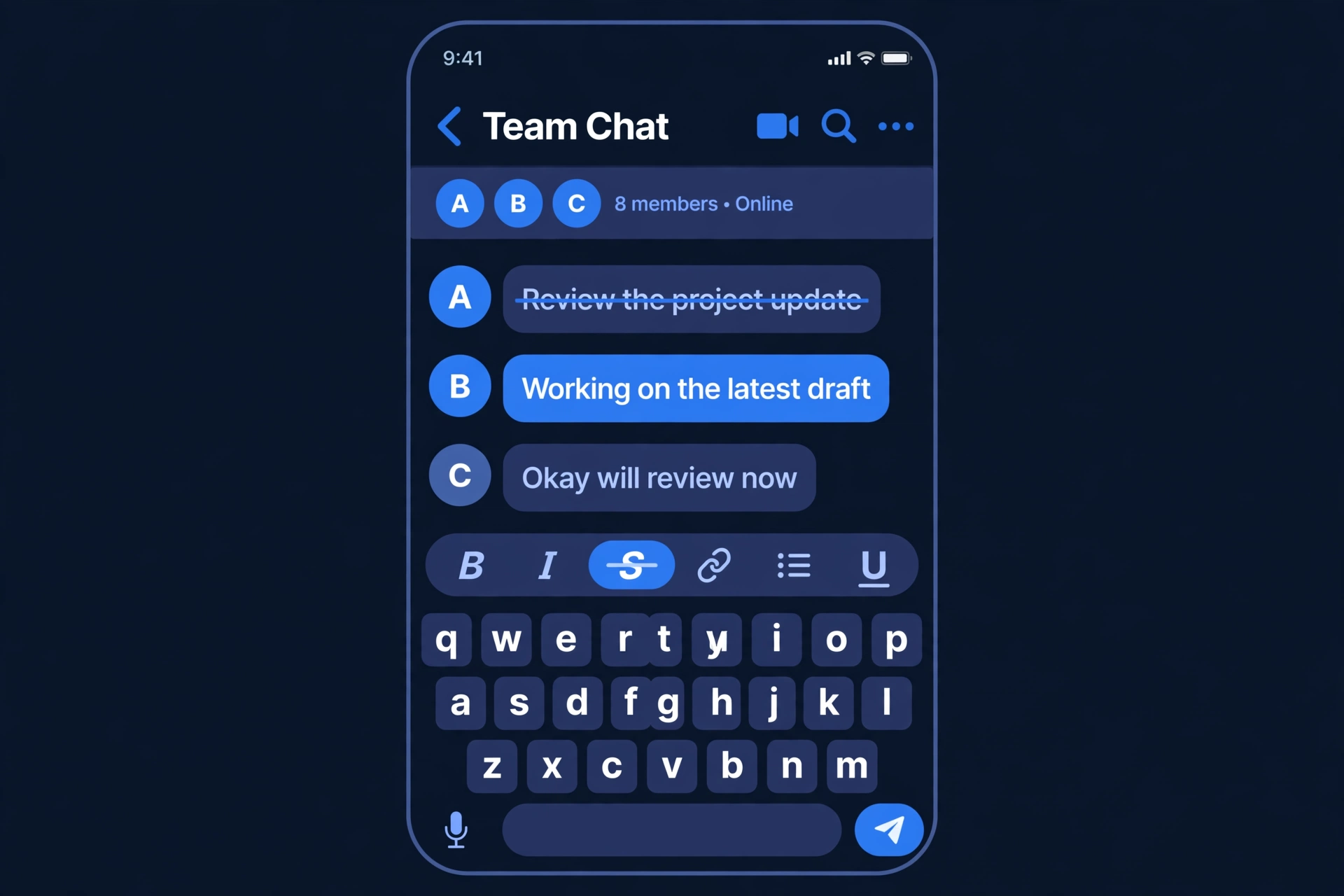
If you prefer typing syntax on your phone, the tilde method works on mobile too: switch to the symbols keyboard and put one tilde on each side of the words.
How do you remove strikethrough in Slack?
To remove strikethrough in Slack before sending, highlight the crossed-out text and press the same shortcut or toolbar button again to toggle it off. If the message is already sent, edit it and remove the formatting there.
- Before sending: highlight the struck-through words and press Cmd+Shift+X or Ctrl+Shift+X again, or click the strikethrough toolbar button again.
- After sending: hover over your message, click Edit message, and highlight the crossed-out text.
- Toggle the formatting off with the shortcut or the toolbar button, or delete the two tilde characters if you typed them by hand.
- Save the edit. The line through the text disappears.
Note: Slack does not automatically strike through old text when you edit a message; an edited message just shows an “(edited)” label. To show what changed, strike through the old wording yourself in the edit and add the new wording after it.
Why is strikethrough not working in Slack?
Strikethrough usually fails in Slack for one of a handful of small reasons, and almost all of them are easy to fix. Work through this table from top to bottom before assuming Slack is broken.
| Problem | Fix |
|---|---|
| You used two tildes (Discord style) | Use one tilde per side: ~text~, not ~~text~~. |
| A space sits between the tilde and the word | Remove the space: ~text~, not ~ text ~. |
| The closing tilde is missing | Add a closing tilde after the last word. |
| Nothing is selected when you press the shortcut | Highlight the words first, then press Cmd+Shift+X or Ctrl+Shift+X. |
| The toolbar is hidden | Click the Aa button to reveal the formatting panel. |
| The text is inside a code block | Code blocks show characters literally, so remove the backticks around the text. |
If none of these apply, send a test message with just ~test~ to yourself. If that renders crossed out, the problem is with the original message, not Slack.
Slack vs Discord vs Teams: how does strikethrough differ?
Slack, Discord, and Microsoft Teams all support strikethrough, but they use different syntax, and mixing them up is the single biggest cause of failed formatting.
| App | Strikethrough syntax | Keyboard shortcut |
|---|---|---|
| Slack | ~text~ (one tilde) | Cmd+Shift+X / Ctrl+Shift+X |
| Discord | ~~text~~ (two tildes) | None built in |
| Microsoft Teams | ~text~ (one tilde) | None in chat |
Slack and Teams agree on the single tilde, while Discord is the odd one out with its double tilde. If you move between Slack and Discord all day, the toolbar button is your safest method, since it never depends on remembering which app wants how many tildes.
For the full Teams method, including its toolbar steps and mobile limits, see our guide on how to strikethrough in Microsoft Teams.
When should you use strikethrough in Slack?
Strikethrough works best when the old information is still useful for context. Good uses include:
- Changed plans: ~Meeting at 2 pm~ Meeting moved to 4 pm. Everyone sees both the old and new time.
- Completed checklist items: strike through finished tasks in a shared channel message, so progress stays visible.
- Corrected figures: ~Budget $500~ Budget $750. The correction is transparent instead of silent.
- Cancelled items: cross out a cancelled agenda point while keeping the rest of the agenda intact.
Do not overuse it: if every other sentence is crossed out, readers start ignoring the lines. Strike through only the words that changed, and bold the replacement text so it stands out.
Frequently asked questions
Can you strikethrough text in Slack?
Yes, you can strikethrough text in Slack in any channel, direct message, or thread. Put one tilde on each side of the text, like ~this~, or highlight the text and use the toolbar strikethrough button or the Cmd+Shift+X or Ctrl+Shift+X shortcut. Slack renders the line through the text when you send the message.
What is the Slack strikethrough shortcut?
The Slack strikethrough shortcut is Cmd+Shift+X on a Mac and Ctrl+Shift+X on Windows or Linux. Highlight the text you want to cross out first, then press the shortcut while your cursor is in the message field. Pressing it again on selected struck-through text removes the formatting, so it works as a toggle.
How do you cross out words in Slack?
To cross out words in Slack, type one tilde before the words and one tilde after them, with no spaces next to the tildes, for example ~old plan~. Alternatively, highlight the words and click the strikethrough button in the formatting toolbar, which you can reveal with the Aa button if it is hidden.
How do you strikeout text in Slack on mobile?
To strikeout text in Slack on mobile, tap the Aa button to open the formatting panel, highlight the words, and tap the strikethrough button. You can also type the tilde syntax on your phone by switching to the symbols keyboard and placing one tilde on each side of the words before sending.
Why is my strikethrough not working in Slack?
Strikethrough usually fails because of two tildes instead of one, a space next to a tilde, a missing closing tilde, or no text selected when pressing the shortcut. It also fails inside code blocks, which show characters literally. Check those causes first, then test with a simple ~test~ message to yourself to confirm Slack itself is working.
How do you slash out text in Slack?
Slashing out text in Slack means the same thing as striking it through, and the method is identical. Put one tilde on each side of the text, like ~slashed out~, or highlight it and use the strikethrough toolbar button or keyboard shortcut. The result is a horizontal line drawn through the words.
Strikethrough is a tiny skill, but it makes Slack messages noticeably clearer, and once you know the single-tilde rule you will never mistype it again. Keep Zyrro’s formatting guides bookmarked, and for text that needs crossing out outside Slack, our strikethrough text generator creates crossed-out text you can paste anywhere.