
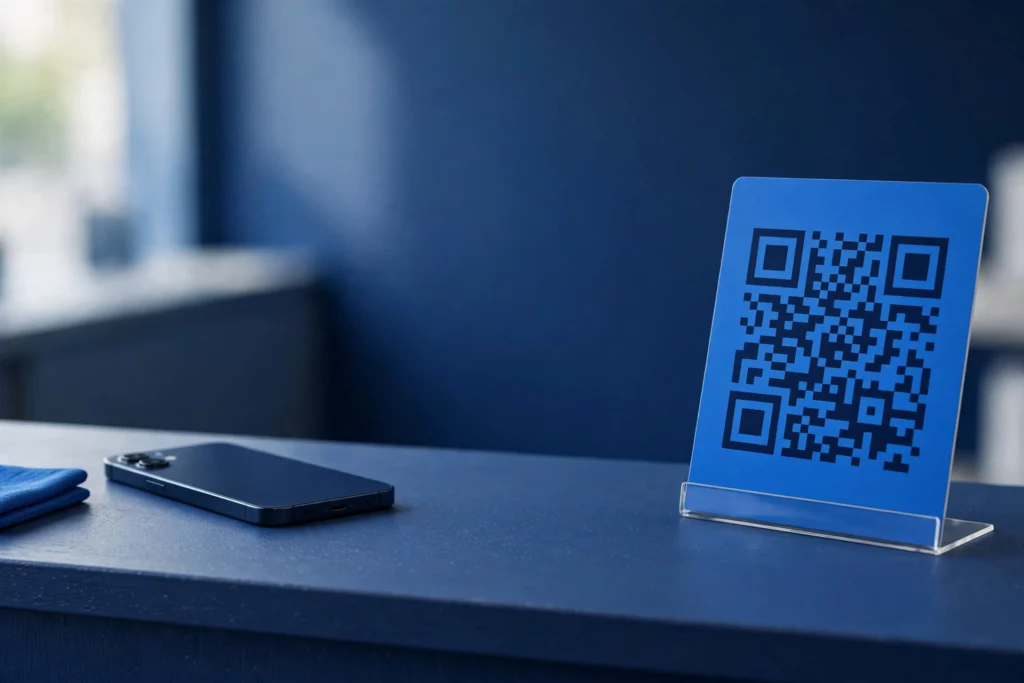
Quick answer: To make a QR code for a Facebook Page, copy your Page’s public link, paste it into a free QR code generator, and download the code as a PNG or SVG. It takes about a minute, costs nothing, and anyone who scans it lands straight on your Page.
A printed QR code turns a shop counter, a business card, or a flyer into a Follow button: a customer points their phone camera at the code and your Page opens. This guide from Zyrro shows you the three free ways to make one, and how to print a code that scans.
A Facebook Page QR code is a square barcode that stores your Page’s web address. When a phone camera reads it, the phone opens that address in a browser or in the Facebook app. The code never expires, and it works for any public Page.
Table of Contents
- How Do You Make a QR Code for a Facebook Page?
- How to Make a QR Code for a Facebook Page Free
- How Do I Get the QR Code from the Facebook App?
- How Do I Make a QR Code for a Facebook Page on My Computer?
- How to Copy a Link to a Facebook Page
- How to Make a QR Code for a Facebook Business Page
- How to Make a QR Code for a Facebook Page on Android
- Static vs Dynamic QR Codes: Which One Do You Need?
- Where Should You Put Your Facebook Page QR Code?
- Why Won’t My Facebook QR Code Scan?
- Frequently Asked Questions
How Do You Make a QR Code for a Facebook Page?
To make a QR code for a Facebook Page, turn the Page’s public link into a code with a generator, with the Facebook app, or with Chrome. All three are free and take under five minutes. The generator method is the most flexible — you can style the code and download a print-ready file.
| Method | Best for | Custom colours or logo | Needs a Facebook login |
|---|---|---|---|
| Free QR generator (Zyrro) | Printed flyers, cards, menus | Yes | No |
| Facebook app built-in code | Quick sharing on your phone | No | Yes, as Page admin |
| Chrome’s built-in QR code | Fast desktop download | No | No |
How to Make a QR Code for a Facebook Page Free
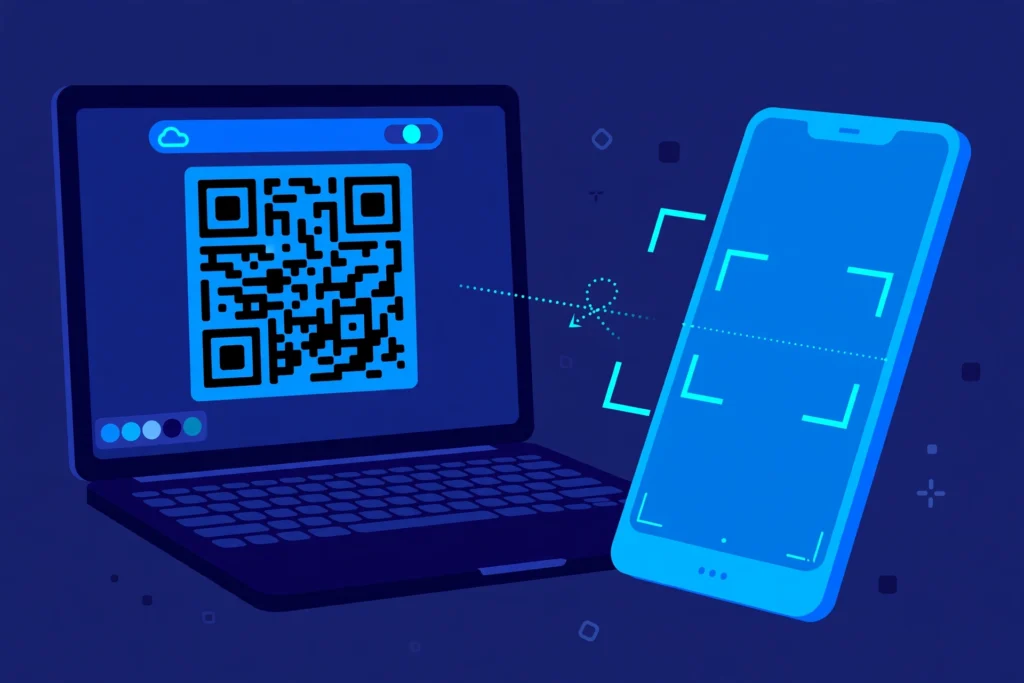
To make a QR code for a Facebook Page free, paste the Page link into a free generator and download the finished code. Zyrro’s free QR Code Generator needs no account, adds no watermark, and builds the code in your browser, so your link is never uploaded anywhere.
- Copy your Facebook Page link. On a computer, open your Page and copy the address from the browser bar — it looks like facebook.com/YourPageName. (Full steps are in the copy your Page link section.)
- Open the QR Code Generator and stay on the Text or URL tab.
- Paste the link. The code appears in the live preview straight away.
- Style it if you want. Pick from six dot styles, set your brand colours, or add your logo. Keep dark dots on a light background — the tool warns you if the contrast is too low.
- Download the code. Choose the 2048×2048 PNG for everyday printing, or SVG for a large poster, where a vector stays sharp at any size.
- Test it before you print. Point your phone camera at the code — no app needed — and check that it opens the right Page.
Tip: Use the public Page address, not a Business Suite or Ads Manager link. Dashboard links only work for people logged in to your account.
How Do I Get the QR Code from the Facebook App?
To get the QR code from the Facebook app, open your Page in the app and look for the QR Code option in the More menu. Facebook builds the code for you.
- Open the Facebook app and switch to your Page.
- Tap More (the three dots) under the cover photo.
- Look for QR Code in the menu and tap it.
- Download the image or share it from the app.
Two caveats. First, the option does not appear for every Page type or app version — if you cannot find it, your Page does not offer it, and the generator method above is the way to go. Second, Facebook’s own code is plain black and white, with no colours or logo.
How Do I Make a QR Code for a Facebook Page on My Computer?
To make a QR code for a Facebook Page on your computer, use Chrome’s built-in sharing feature. Open your public Page in Chrome, click the three-dot menu in the top-right corner, choose Cast, save, and share, then Create QR code. Click Download to save the PNG. This works for any public Page, even one you do not own. The trade-off is the same as the Facebook app’s code: no colours, no logo, and a standard-size PNG.
How to Copy a Link to a Facebook Page
To copy a link to a Facebook Page, open the Page and copy its public address. On a computer: copy the address from the browser bar. It should read facebook.com/YourPageName. If your Page has no username set, the address looks like facebook.com/profile.php?id=123456789 — that works exactly the same way. In the Facebook app: open the Page, tap the three dots, and choose Copy link (wording varies by app version). Before you generate the code, open the copied link in a private browser window and check it shows the Page a stranger would see.
How to Make a QR Code for a Facebook Business Page
To make a QR code for a Facebook business Page, use the same steps as for any Page. What matters is the Page’s public link — the address customers see, not the one you see inside Meta Business Suite.
Two details matter. First, set a username for your Page if you have not already (Page settings → Page setup) — a short address like facebook.com/CoffeeHouseLahore is easier to check than a long numeric ID. Second, think about where the code sends people: a Page link opens the Page itself, which is what you want for follows and messages. If you want scanners to land on your menu instead, generate the code from that link. Our guide to making a QR code for a menu covers the restaurant version.
How to Make a QR Code for a Facebook Page on Android
To make a QR code for a Facebook Page on Android, use the generator method in your mobile browser: copy the Page link from the Facebook app, paste it into Zyrro’s QR Code Generator in Chrome, and download the PNG to your phone.
If you would rather use Facebook’s own code, open the Page in the Facebook app, tap the three dots under the cover photo, and look for the QR Code option — it only appears on some Pages.
Static vs Dynamic QR Codes: Which One Do You Need?
A static QR code stores your Page link directly inside the code, while a dynamic QR code stores a short redirect link. For a Facebook Page, static is almost always the right choice.
| Static QR code | Dynamic QR code | |
|---|---|---|
| What it stores | Your Page link itself | A redirect link to your Page |
| Cost | Free | Usually a paid subscription |
| Change the destination later | No — print a new code | Yes, without reprinting |
| Scan tracking | No | Yes, counts scans |
| Expires | Never, while the Page is live | When the subscription ends |
Your Facebook Page address rarely changes, so the static code’s one weakness — a fixed destination — hardly matters. Pay for a dynamic code only if you need scan counts, or if the destination might change after printing.
Where Should You Put Your Facebook Page QR Code?
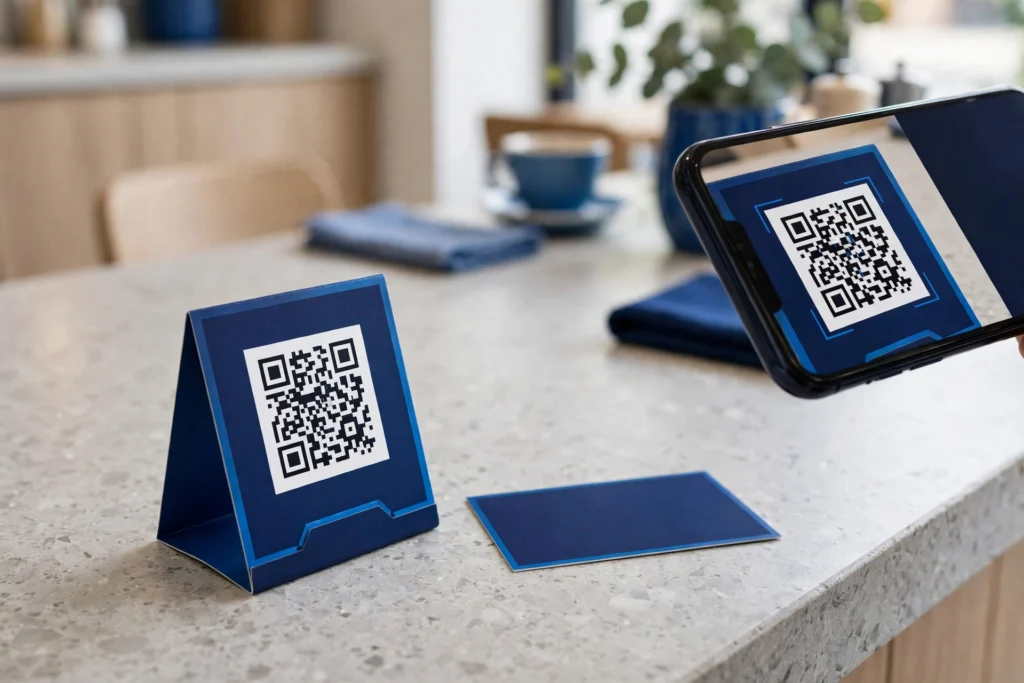
Put your Facebook Page QR code where customers already look: a counter stand, a receipt, a business card, a shop window, a menu, a flyer, or your packaging. Add a short line next to it — “Scan to follow us” — because a bare code gives people no reason to scan it. Print it at least 2 cm (about 0.8 inches) square, bigger the further away people stand. Always test the printed version at the real distance before ordering a full print run.
Why Won’t My Facebook QR Code Scan?
If your Facebook QR code won’t scan, the cause is usually one of these five things.
- The code is too small. A code printed under 2 cm square is hard for cameras to read. Print it larger.
- Low contrast. Light dots on a dark background fail on most phones. Codes need dark dots on a light background.
- A damaged or cropped code. If the corners are cut off, or a logo covers too much of the centre, the phone cannot decode it. Keep logos small and corners intact.
- The wrong link is inside. Scan the code and read the link preview. If it opens a login page or a different Page, regenerate the code from the public Page address.
- The phone camera can’t focus. Glare from glossy paper, a curved surface, or a dirty lens all break the scan. Try a matte print and a clean lens.
Important: A QR code cannot get around Facebook’s own rules. If your Page has age or country restrictions, visitors may still be asked to log in — the code opens the Page, it does not unlock it.
Frequently Asked Questions
Can I create a QR code for my FB page?
Yes. Copy your Page’s public link, paste it into a free QR code generator, and download the code. Zyrro’s QR Code Generator does this in about a minute with no account and no watermark. Facebook’s app also offers a built-in QR code on many Pages, but it is plain black and white.
Is there a free QR code generator that I can use without signing up?
Yes. Zyrro’s free QR Code Generator needs no account or signup: paste any link, style the code, and download it as a high-resolution PNG or SVG. The code is built in your browser, so nothing you enter is uploaded or stored. Other free options exist, but many ask for an account before you can download.
Do QR codes cost money?
No — a basic static QR code is free. Free generators make static codes that store your link directly and never expire while the Page is live. You only pay for a dynamic code, which lets you change the destination after printing and counts scans.
Can I generate a QR code myself?
Yes, anyone can generate a QR code in under a minute. You need only the link you want the code to open — for a Facebook Page, that is the Page’s public address. Paste it into a free generator, download the image, and print it. You do not need to own the Page.
Do Facebook QR codes expire?
No. A static QR code for a Facebook Page has no expiry date and works for as long as the Page stays live at the same address. If you rename the Page’s username, the old address stops working and the code stops with it, so generate a fresh code after any rename.
Which is the safest free QR code generator?
The safest free QR code generator builds the code in your browser without asking for an account, an email address, or an upload of your link. Zyrro’s QR Code Generator works this way — your link never leaves your device. Avoid generators that force a signup for a basic static code, and test the finished code yourself before printing.
Making a QR code for a Facebook Page takes about a minute: copy the Page’s public link, paste it into a generator, download the code, and test it with your phone. The free static code never expires, and a printed copy on your counter or card keeps working for every customer. Make yours with Zyrro’s free QR Code Generator.