

Quick answer: To italicize text on WhatsApp, wrap the words in one underscore on each side — type _text_ and send. It works on iPhone, Android, WhatsApp Web, and the desktop app, in one-to-one and group chats. You can also select typed text and choose Italic from the Format menu on iPhone or the three-dot menu on Android.
You have seen it in a group chat: a book title in slanted letters, a quoted line set apart, or a single word leaning just enough to catch the eye. Italic text is slanted text used for emphasis, quotations, titles, and foreign words — a quieter emphasis than bold, and the right one when you want a word noticed rather than announced. WhatsApp has a built-in italic format that takes two characters to use, and this guide from Zyrro shows you every way to do it, plus the places where it does not work and the workaround for those.
Table of Contents
- How to Italicize Text on WhatsApp
- How to Italic Text on WhatsApp on iPhone
- How to Italic Text on WhatsApp on Android
- How to Make Text Italic on WhatsApp Web and Desktop
- What Are Some Text Style Codes for WhatsApp?
- How to Italicize Text in a WhatsApp Group Name
- Can You Italicize Text in a WhatsApp Status?
- How to Write Cursive in WhatsApp
- Italic and Bold in WhatsApp
- Why Is Italic Not Working on WhatsApp?
- Frequently Asked Questions
How to Italicize Text in WhatsApp
Put one underscore (_) directly before the first word and one directly after the last word, with no spaces between the underscores and the text. Type _text_, send the message, and WhatsApp slants the words — the underscores disappear.
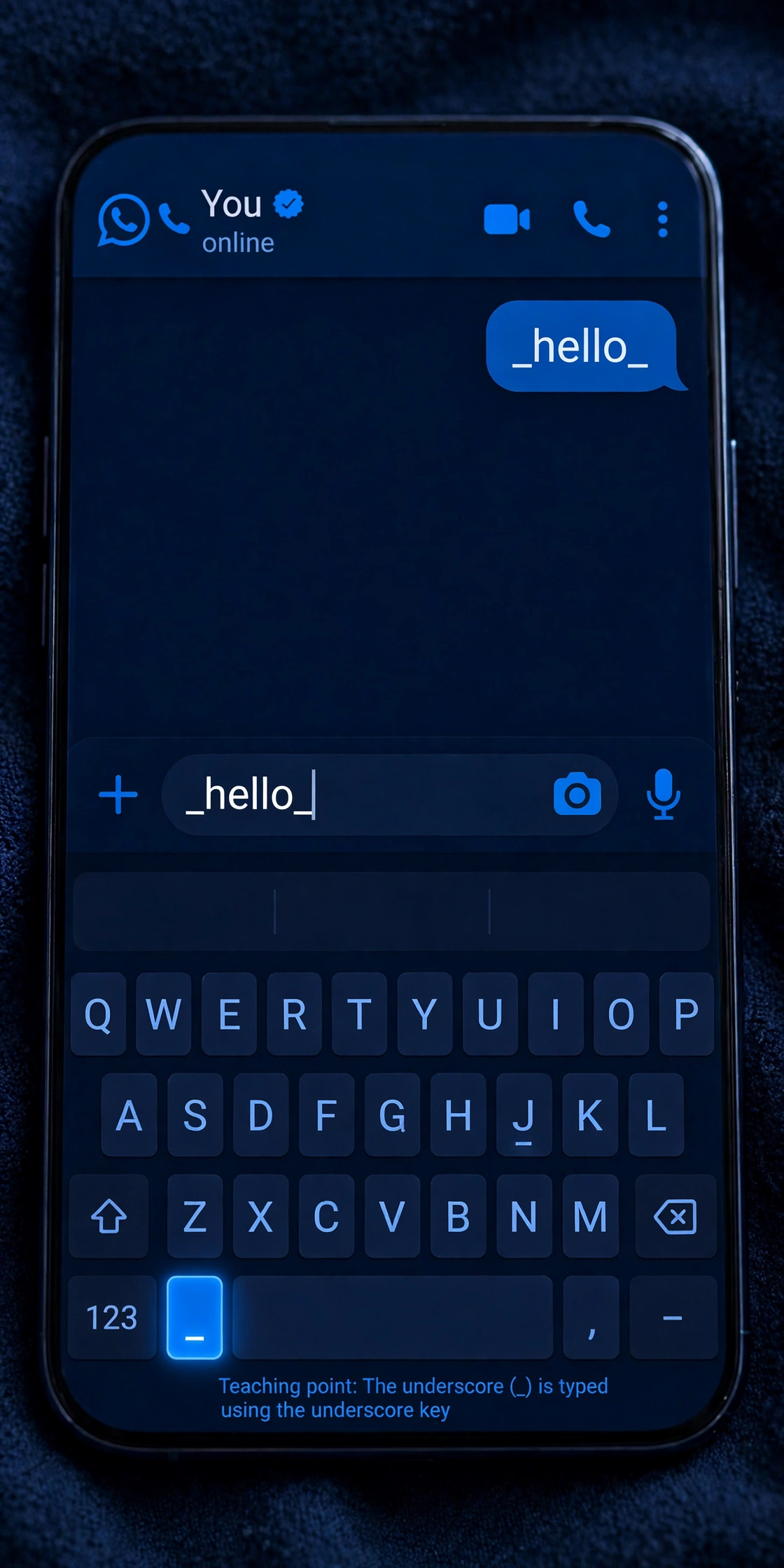
- Open any chat. It works in one-to-one and group chats, and in the WhatsApp Business app exactly the same way.
- Type an underscore (_) before your words. On a phone it lives on the symbols keyboard; on a computer keyboard it is the key next to the 0, pressed with Shift.
- Type the words, then close with another underscore — for example,
_meeting at 3 PM_. No space after the first underscore or before the second. - Send the message. WhatsApp renders the slant the moment you send.
| What you type | What everyone sees |
|---|---|
_wrong_ right | wrong right |
The book is _Dune_ | The book is Dune |
Please read _this part_ carefully | Please read this part carefully |
You can italicize a single word or a whole message — most often to emphasize one word, mark a book, film, or song title, quote someone, or set a foreign word apart.
Tip: The underscores must touch the text: _ text _ will not work — WhatsApp sends it as plain text with visible underscores.
How to Italic Text on WhatsApp on iPhone
On iPhone you have two options: type the underscores, or use the built-in Format menu — easier if you cannot find the underscore key, because you type normally and format afterwards. If you do not see Format, update WhatsApp from the App Store — very old versions only support the underscore method.
Method 1: Type the underscores
Open the chat, tap the message box, then tap 123 for the numbers and symbols keyboard. The underscore (_) sits on the second symbols page, under #+=. Type _, your words, then _ again, and send.
Method 2: Use the Format menu
Type normally, long-press to select the words, drag the handles over them, then tap Format in the pop-up menu and choose Italic. On older WhatsApp versions the same option sits under the BIU button. Send the message and the selected words appear slanted.
How to Italic Text on WhatsApp on Android
On Android, italic works the same way in every chat, including group chats and WhatsApp Business.
Method 1: Type the underscores
Open the chat, tap the message box, then tap ?123 for the symbols keyboard. On Gboard the underscore (_) is on the symbols page — on some keyboards tap =< for the second symbols page first. Type _, your words, then _ again, and send.
Method 2: Use the three-dot menu
Type normally, long-press to select the words, drag the handles over them, then tap the three-dot menu (⋮) in the pop-up toolbar and choose Italic. Send the message.
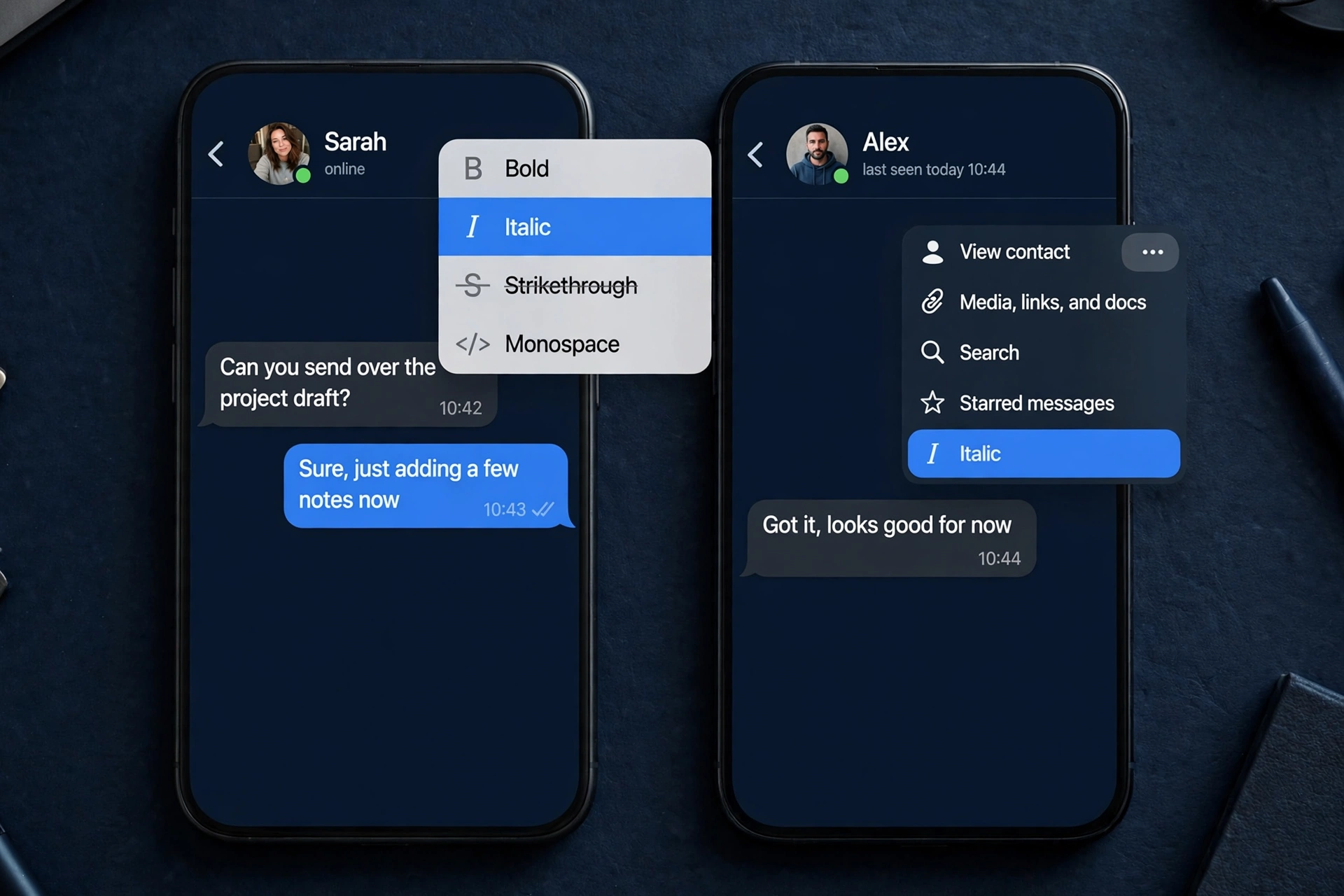
On Samsung phones the steps are identical — Samsung Keyboard also puts the underscore under ?123, and the three-dot menu appears the same way. If the menu does not show Italic, update WhatsApp from the Play Store, or use the underscore method, which has worked on Android for years.
How to Make Text Italic on WhatsApp Web and Desktop
On WhatsApp Web and the desktop app for Windows and Mac, italic works exactly as on the phone: type _text_ and send.
- Open WhatsApp Web or the desktop app and click into a chat.
- Type an underscore before your words and one after them — on a Windows or Mac keyboard it is the key next to the 0, pressed with Shift.
- Press Enter to send. The slant appears for everyone in the chat.
You can also use the formatting toolbar on WhatsApp Web: select text in the message box and click the italic I button.
Important: WhatsApp Web has no reliable Ctrl+I shortcut for italic, so underscores remain the fastest method at a keyboard. If a guide tells you to press Ctrl+I in WhatsApp Web, it will do nothing — the underscore is the shortcut.
What Are Some Text Style Codes for WhatsApp?
Italic is only one of WhatsApp’s built-in formats — bold, strikethrough, monospace, quote blocks, bullet lists, and numbered lists all use simple symbols too. Learn them once and you can format any message without touching a menu.
| Format | Symbol to type | Example |
|---|---|---|
| Bold | Asterisks: *text* | text |
| Italic | Underscores: _text_ | text |
| Strikethrough | Tildes: ~text~ | |
| Monospace | Three backticks: ```text``` | text |
| Quote block | Greater-than sign: > text | A quoted line |
| Bullet list | Hyphen plus space: - item | A bulleted item |
| Numbered list | Number, dot, space: 1. item | A numbered item |
Monospace is worth a special mention: it uses a fixed-width font, ideal for sharing code or aligning prices in columns. For a deeper look at the other formats, see our guides on how to bold text in WhatsApp and how to strikethrough text on WhatsApp.
How to Italicize Text in a WhatsApp Group Name
You cannot italicize text in a WhatsApp group name with the underscore method. Typing _name_ as a group name shows the underscores literally — the name field does not process formatting codes at all. The same is true of profile names and your About line. Formatting codes only render inside messages.
The workaround is Unicode italic text, where the slant is baked into the characters themselves — Group Name in slanted Unicode letters — so WhatsApp displays it anywhere text is accepted, including group names.
- Open Zyrro’s free Fancy Text Generator — no signup, runs on your device.
- Type your group name into the box and pick an italic style from the tool’s 41 Unicode styles — use the Script category filter for cursive.
- Tap Copy, then in WhatsApp open the group, tap its name, and paste the italic text.
- Save. Every member now sees the slanted name.
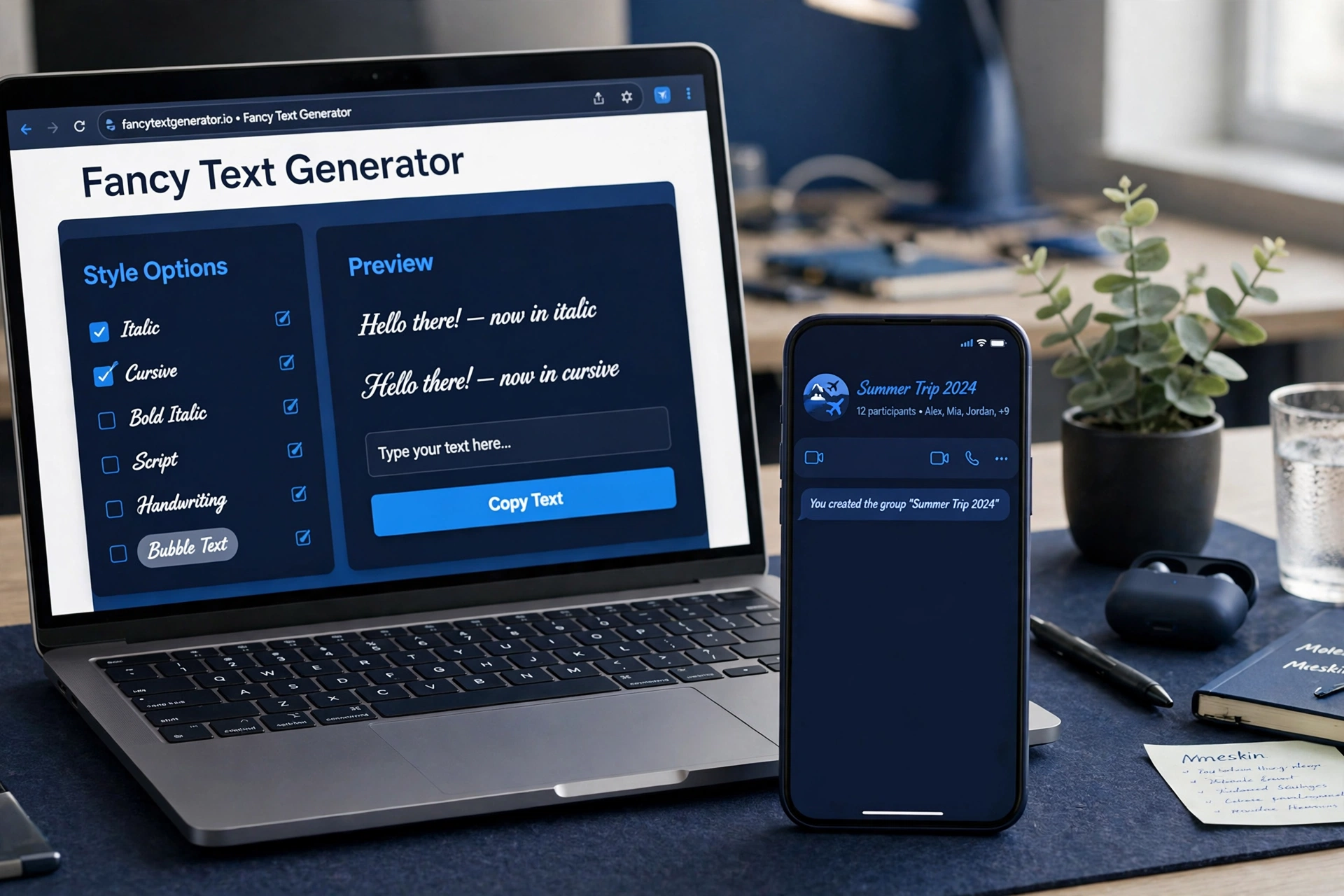
Keep styled group names short: each letter carries an extra invisible character, so a long name eats into WhatsApp’s group-name character limit faster than plain text. Group descriptions are different — on current versions the same formatting codes work in a group description, so an admin can italicize the rules or the meeting link there with plain underscores.
Can You Italicize Text in a WhatsApp Status?
Yes — in a text status, wrap words in underscores the same way as in a chat. Open Status, tap the pencil icon to create a text status, type your update with underscores around the words you want to slant, and post it. The same method works for captions on photo and video statuses. If you ever see literal underscores instead of slanted text, paste italic Unicode text from Zyrro’s Fancy Text Generator instead — the slant shows on every phone because it is part of the characters.
How to Write Cursive in WhatsApp
WhatsApp has no built-in cursive font — the slanted letters you see in other people’s statuses and group names are Unicode script characters, letters drawn in a cursive style any phone can display.
To write cursive in WhatsApp:
- Open Zyrro’s free Fancy Text Generator.
- Type your words and pick a cursive or script style from the Script category — the tool shows all 41 styles live as you type.
- Tap Copy, then paste the cursive text into your WhatsApp chat, status, group name, or About line.
Because the cursive look is part of the characters, it works anywhere text is accepted. Keep in mind that screen readers read styled text letter by letter, and search inside WhatsApp may not match stylized letters — so keep anything people need to find, like a name or a date, in plain text.
Italic and Bold in WhatsApp
You can combine italic with bold — nest the formatting codes inside each other, opening and closing each pair in the correct order. The asterisk goes on the outside, and the underscore goes on the inside.
| Effect | What you type |
|---|---|
| Bold italic | *_text_* |
| Italic strikethrough | ~_text_~ |
| Bold, italic, and strikethrough | ~*_text_*~ |
| Bold and strikethrough (no italic) | *~text~* |
| Italic only | _text_ |
The order matters: *_text_* and _*text*_ can render differently, so if one order fails, try the other. Pairing two styles is the sweet spot: bold italic for a heading nobody can miss (“Please read“), italic strikethrough for a correction.
Why Is Italic Not Working on WhatsApp?
If italic is not working, the cause is almost always one of five things:
- Spaces inside the underscores.
_ text _will not format. The underscores must touch the first and last letters:_text_. This is the most common mistake by far. - A missing underscore. One underscore with no partner does nothing — WhatsApp needs the opening and closing symbol on the same line.
- A lookalike underscore. Some keyboards insert a similar-looking character instead of the standard underscore (_). Delete both and retype them with the standard _ key.
- An old WhatsApp version. The underscore method has worked for years, but the select-text Format menu needs a recent version — update WhatsApp and try again.
- The wrong field. Formatting codes only work inside messages. Group names, profile names, About lines, and sometimes statuses ignore them — use the Unicode generator for those.
Frequently Asked Questions
How do I make my text italic?
Wrap the words in one underscore on each side — type _text_ — and send. On iPhone, find the underscore under 123, then #+=; on Android, under ?123 on the symbols keyboard. Or type normally, select the words, and choose Italic from the Format menu on iPhone or the three-dot menu on Android.
Can you italicize text on WhatsApp?
Yes. WhatsApp has built-in italic formatting: wrap any words in single underscores, like _hello_, and they appear slanted when you send the message. It works on iPhone, Android, WhatsApp Web, and the desktop app, in one-to-one and group chats.
How to write cursive in WhatsApp?
WhatsApp has no built-in cursive font, so use Unicode script characters instead. Open a fancy text generator, type your words, pick a cursive or script style, copy the result, and paste it into your chat, status, or group name. Zyrro’s Fancy Text Generator has 41 styles with a Script category filter.
How to type stylish letters in WhatsApp?
Use Unicode styled text. Type your words into Zyrro’s Fancy Text Generator, choose from 41 styles — italic, cursive, bold, gothic, circled, and more — tap Copy, and paste the result into WhatsApp. The letters are real Unicode characters, so they show in chats, statuses, bios, and group names.
What is the shortcut for italic text in WhatsApp?
The shortcut is the underscore itself: type _, your words, then _. There is no reliable Ctrl+I or Cmd+I shortcut for italic in WhatsApp. On phones, long-press to select, then Format and Italic on iPhone, or the three-dot menu and Italic on Android.
Can you change font style in WhatsApp?
WhatsApp has no font picker, so you cannot change the message font like in a word processor. What you can change is the style: bold with asterisks, italic with underscores, strikethrough with tildes, and monospace with backticks. For anything fancier — cursive, gothic, circled letters — paste Unicode styled text from a fancy text generator.
Italic on WhatsApp is a two-character trick — one underscore on each side — and it works on iPhone, Android, Web, and desktop. For the places it cannot reach, like group names and statuses, Zyrro’s free Fancy Text Generator fills the gap with slanted and cursive text that pastes anywhere.