

How to Make a QR Code for WiFi: The Fastest Method
If you have ever had to read out a 16-character WiFi password letter by letter while a guest squints at their phone, you already know the pain this guide solves. A WiFi QR code packs your network name and password into a single scannable square — your guest points their phone camera at it and joins your WiFi in seconds, with zero typing and zero spelling mistakes.
The fastest way to make one is with our free QR code generator: type your WiFi details in a special format (shown below), and your QR code appears instantly — no sign-up, no app, downloadable as a PNG for printing. This guide covers four methods — the free online method, Android’s built-in sharing, iPhone options, and Windows 11’s native feature — plus troubleshooting and safety tips.
Table of contents
- What Is a WiFi QR Code and How Does It Work?
- What You Need Before You Start
- Method 1: Create a WiFi QR Code Online for Free (2 Minutes)
- Method 2: Share WiFi With a QR Code on Android (Built-In)
- Method 3: Share WiFi on iPhone
- Method 4: Generate a WiFi QR Code on Windows 11 (Built-In)
- All 4 Methods Compared
- Where to Put Your WiFi QR Code
- 5 Pro Tips for a QR Code That Always Scans
- Is Sharing WiFi With a QR Code Safe?
- Frequently Asked Questions
What Is a WiFi QR Code and How Does It Work?
A WiFi QR code is just a normal QR code that stores your wireless network’s login details instead of a website link. When a phone scans it, the camera app recognizes the special format and offers a “Join this network” button. One tap, and the phone connects — the password is filled in automatically, never typed by hand.
Under the hood, the QR code contains a short line of text in a standard format that every modern phone understands:
WIFI:T:WPA;S:YourNetworkName;P:YourPassword;;
T is the security type, S is the network name (SSID), and P is the password. Method 1 shows you exactly how to build it.
What You Need Before You Start
Whichever method you choose, you’ll need three pieces of information about your WiFi network:
- Network name (SSID): the exact name, as it appears in the available-networks list. Case-sensitive.
- Password: the exact WiFi password, also case-sensitive. Check the sticker on your router, or on a connected Windows PC: Settings > Network & internet > Wi-Fi > your network > Show password.
- Security type: usually WPA2 or WPA3 on modern routers — check the router sticker or its admin page. If unsure, WPA/WPA2 is the safe choice.
Pro tip: if your WiFi password is weak, upgrade it now — our guide to creating a strong password you can actually remember shows how, and our free password generator can create one in a single click.
Method 1: Create a WiFi QR Code Online for Free (2 Minutes)
This is the most flexible method: it works on any computer or phone, needs no app, and produces a QR code you can save, print, or reuse anywhere. All you do is format your WiFi details as the special WIFI text and turn it into a QR code.
Step-by-step instructions
- Write out your WiFi details in this exact format, replacing the placeholders with your own information:
WIFI:T:WPA;S:YourNetworkName;P:YourPassword;; - Set the T value to match your router’s security type. Use this table:
Your router’s security What to write for T WPA2 or WPA3 (most common) WPAWPA only (older routers) WPAWEP (very old routers) WEPOpen network, no password nopass(and leave the P part empty) - Open the free QR code generator in your browser.
- Paste your formatted WIFI text into the “Text or URL” box.
- Choose a size — Large (500 px) is best if you plan to print the code.
- Your QR code appears instantly. Click download to save it as a PNG.
- Test it before you share it: point your phone’s camera at the code on your screen. You should see a prompt to join your WiFi network. If it connects, your code is perfect.
Pro tip: if your network name or password contains a semicolon, comma, colon, quote, or backslash, put a backslash in front of it in the WIFI text (for example, a password of co;ffee becomes P:co\;ffee). These characters have special meaning in the format, and escaping them is the number-one fix for QR codes that refuse to connect.

Method 2: Share WiFi With a QR Code on Android (Built-In)
Most Android phones can display a QR code for the WiFi network they’re currently connected to — no generator needed. This is the quickest option when you’re standing next to the person who needs access.
Step-by-step instructions
- Make sure your Android phone is connected to the WiFi network you want to share.
- Open Settings, then tap Network & internet.
- Tap Internet (or Wi-Fi on some phones).
- Tap your connected network’s name or the settings/gear icon beside it.
- Tap Share. Verify your fingerprint, face, PIN, or screen lock if asked.
- A QR code appears on your screen. Your guest scans it with their phone camera and joins instantly.
On Samsung Galaxy phones: go to Settings > Connections > Wi-Fi, tap the gear icon next to your connected network, then tap QR code. Note this method can’t produce a printable file easily — for printed codes, use Method 1.
Method 3: Share WiFi on iPhone
iPhones can scan WiFi QR codes with the built-in Camera app (just point and tap the notification), but iOS has no built-in button to display your own WiFi as a QR code. You have two good options:
Option A: Use the free online method (recommended)
Follow Method 1 above in Safari: build your WIFI text, paste it into the free QR code generator, and save the PNG to your Photos app. It takes two minutes and gives you a code you can keep, print, or AirDrop to anyone.
Option B: Use the Shortcuts app
Open the pre-installed Shortcuts app, add a “Share WiFi” shortcut from the Gallery, run it, and enter your network details when asked. It displays a QR code on screen.
Pro tip: iPhone-to-iPhone sharing is even easier when both devices are nearby and signed in with Apple IDs in each other’s contacts — iOS will offer to share the WiFi password automatically with a single tap, no QR code needed. But that only works iPhone-to-iPhone, while a QR code works for every phone.
Method 4: Generate a WiFi QR Code on Windows 11 (Built-In)
Windows 11 can show a QR code for any WiFi network it knows the password for — handy if your laptop is connected but your phone isn’t:
- Open Settings > Network & internet > Wi-Fi > Manage known networks.
- Click the arrow next to your WiFi network’s name.
- Next to the password, click Show — Windows displays the password and a QR code beside it.
- Screenshot the code, or have your guest scan it directly from your screen.
All 4 Methods Compared
| Method | Best for | Printable? | Works on |
|---|---|---|---|
| Free online generator | Printable codes, guests, businesses | Yes — PNG download | Any device with a browser |
| Android built-in share | Quick sharing with someone next to you | No (screenshot only) | Android phones |
| iPhone (generator/Shortcuts) | iPhone owners sharing with anyone | Yes, via Method 1 | iPhone |
| Windows 11 built-in | Sharing from a connected laptop | No (screenshot only) | Windows 11 PCs |
The bottom line: for a one-time share with someone next to you, use your phone’s built-in option. For anything you want to keep, print, or reuse, the free online method wins because you get a proper downloadable file.
Where to Put Your WiFi QR Code
Put the code where people will actually see it:
- Home: a small framed card in the living room or guest bedroom — guests connect themselves.
- Airbnb or rental: in the welcome booklet and on the fridge. Fewer “what’s the WiFi password?” messages.
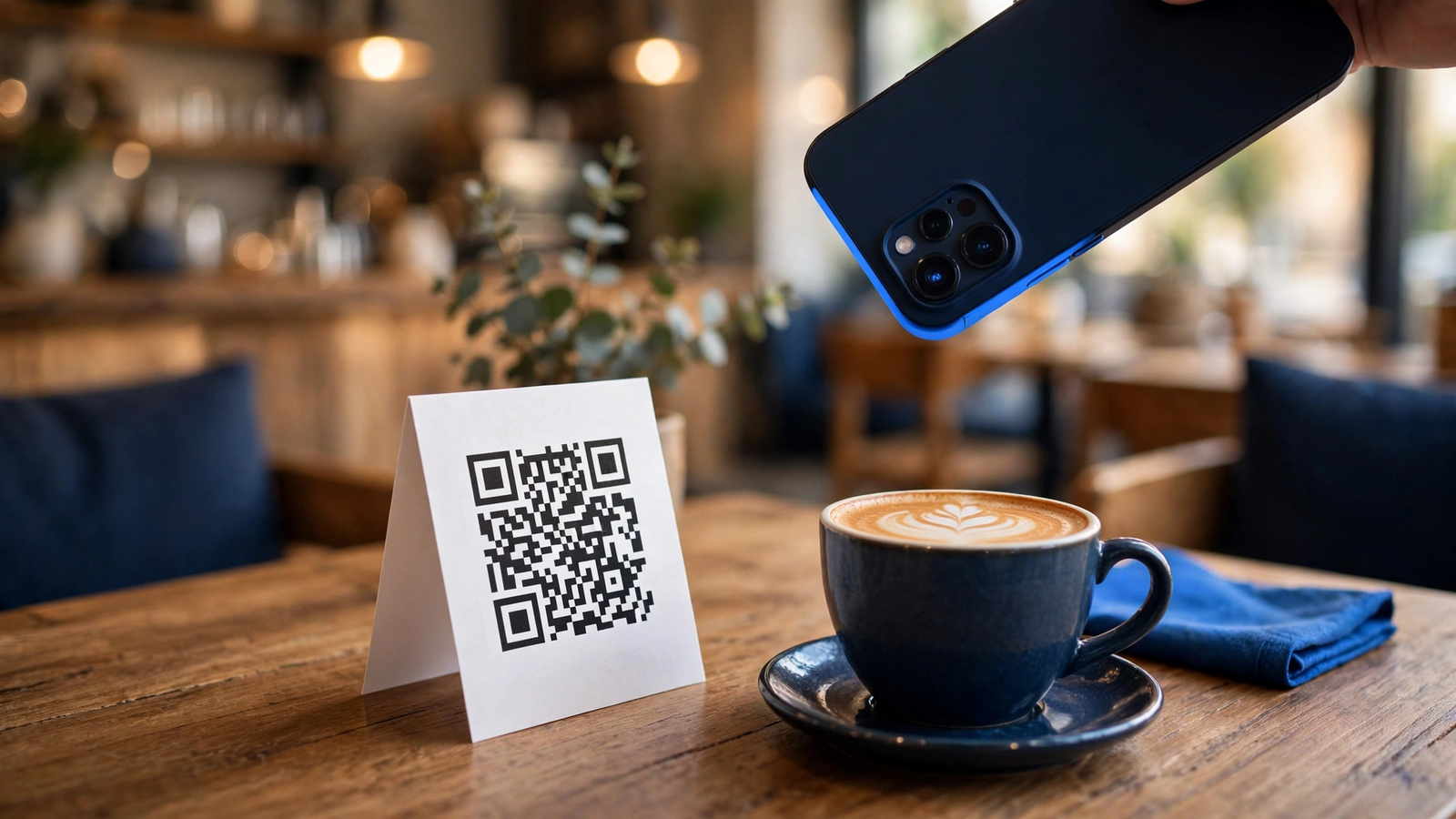
- Cafe, salon, or shop: a table tent or a sign near the counter.
Printing tips: print the code at least 3 × 3 cm (about 1.2 inches) — bigger scans easier from a distance. Use the Large (500 px) download, keep dark-on-white contrast, and avoid glossy lamination (glare defeats phone cameras). Always test-scan the printed copy.
5 Pro Tips for a QR Code That Always Scans
- Double-check for typos. The number-one reason WiFi QR codes fail is a wrong password or network name. Copy them character by character — both are case-sensitive.
- Pick the right security type. If the code scans but won’t connect, the T value is the usual culprit — most home routers need
WPA. - Escape special characters. A semicolon, comma, colon, quote, or backslash in your SSID or password needs a backslash before it (
\;), or the phone will misread the format. - Watch out for hidden networks. If your network doesn’t broadcast its name, add
H:truebefore the final;;. Some phones still struggle with hidden networks, so test first. - Regenerate after a password change. The password is baked into the code. Change your WiFi password, and every printed code stops working — make a new one.
Is Sharing WiFi With a QR Code Safe?
A WiFi QR code contains your actual network password in plain text inside the code — anyone who scans it can join your network. That’s fine for trusted guests, but keep two things in mind:
- Only display codes where you control who sees them. A code on your living-room wall is fine; one posted publicly on the internet is an open invitation.
- Use a guest network for visitors when you can. Most modern routers can create a separate guest network with internet access but no access to your computers or smart-home devices. Display the guest network’s QR code and keep your main network private.
One reassurance: generating the code with a free online QR generator creates the code right in your browser. Still, never type your WiFi password into a site you don’t trust.
Frequently Asked Questions
Does scanning a WiFi QR code reveal my password to the guest?
The phone connects automatically without showing the password on screen in most cases. But the password is encoded inside the QR code, so treat a printed code like a written-down password: fine for trusted guests, not for public posting.
What security type should I choose — WPA, WEP, or nopass?
Choose WPA for WPA2 or WPA3 networks — virtually every home router from the last 15 years. Use WEP only for ancient routers, and nopass for open networks (leave the P section empty).
Can iPhones scan WiFi QR codes?
Yes. On any iPhone running iOS 11 or later, open the built-in Camera app, point it at the code, and tap the notification to join. No extra app needed.
Why does my WiFi QR code scan but not connect?
The three usual causes: a typo in the network name or password, the wrong security type (try WPA), or an unescaped special character (semicolons, commas, and colons need a backslash before them). Rebuild the code and test again.
Do WiFi QR codes work on hidden networks?
They can if you add H:true before the final ;; in the WIFI text. Some phones handle hidden networks poorly even then, so test with your own phone first.
Will the QR code still work if I change my WiFi password?
No — the password is embedded in the code. Generate a fresh code after any password change; it takes two minutes.
How do I generate a QR code for WiFi without a password?
For an open network, build the code with no password in it: write WIFI:T:nopass;S:YourNetworkName;; (leave the P part out entirely), paste it into the free QR code generator, and download the PNG. If you are already connected to that open network, Android’s built-in share (Settings > Network & internet > your network > Share) shows its QR code directly — no password is involved. On iPhone there is no built-in display button, so use the generator method above. Only share an open network’s code with people you trust, and prefer a guest network for visitors.
Conclusion: Share Your WiFi in Seconds
Reading out passwords letter by letter belongs in the past. A WiFi QR code lets guests join your network with a single scan — no typing, no mistakes.
Format your details as WIFI:T:WPA;S:YourNetworkName;P:YourPassword;;, paste it into our free QR code generator, download the PNG, and print it. You’ll never have to spell out a password again.