
Table of Contents
- The Quick Answer
- Method 1: Double Asterisks (Works Everywhere)
- Method 2: The Formatting Toolbar (Desktop & Web)
- Method 3: Keyboard Shortcuts (Ctrl/Cmd + B)
- Method 4: Double Underscores (Alternative Syntax)
- How to Bold Text on Discord Mobile (iPhone & Android)
- Bold Not Working? 6 Common Mistakes
- Beyond Bold: Other Discord Text Formatting
- Make Discord Text Stand Out Even More
- Frequently Asked Questions
Discord is where gaming groups plan raids, study servers share notes, and communities make announcements — and when you want people to actually read something, bold text is your best friend. A bold headline in a server announcement, an emphasized rule in your community guidelines, or a key detail in a long message all get noticed faster.
The good news: making text bold on Discord takes about five seconds once you know the trick. This guide covers every method — on mobile, desktop, and the web app — plus troubleshooting for when formatting doesn’t show up.
The Quick Answer
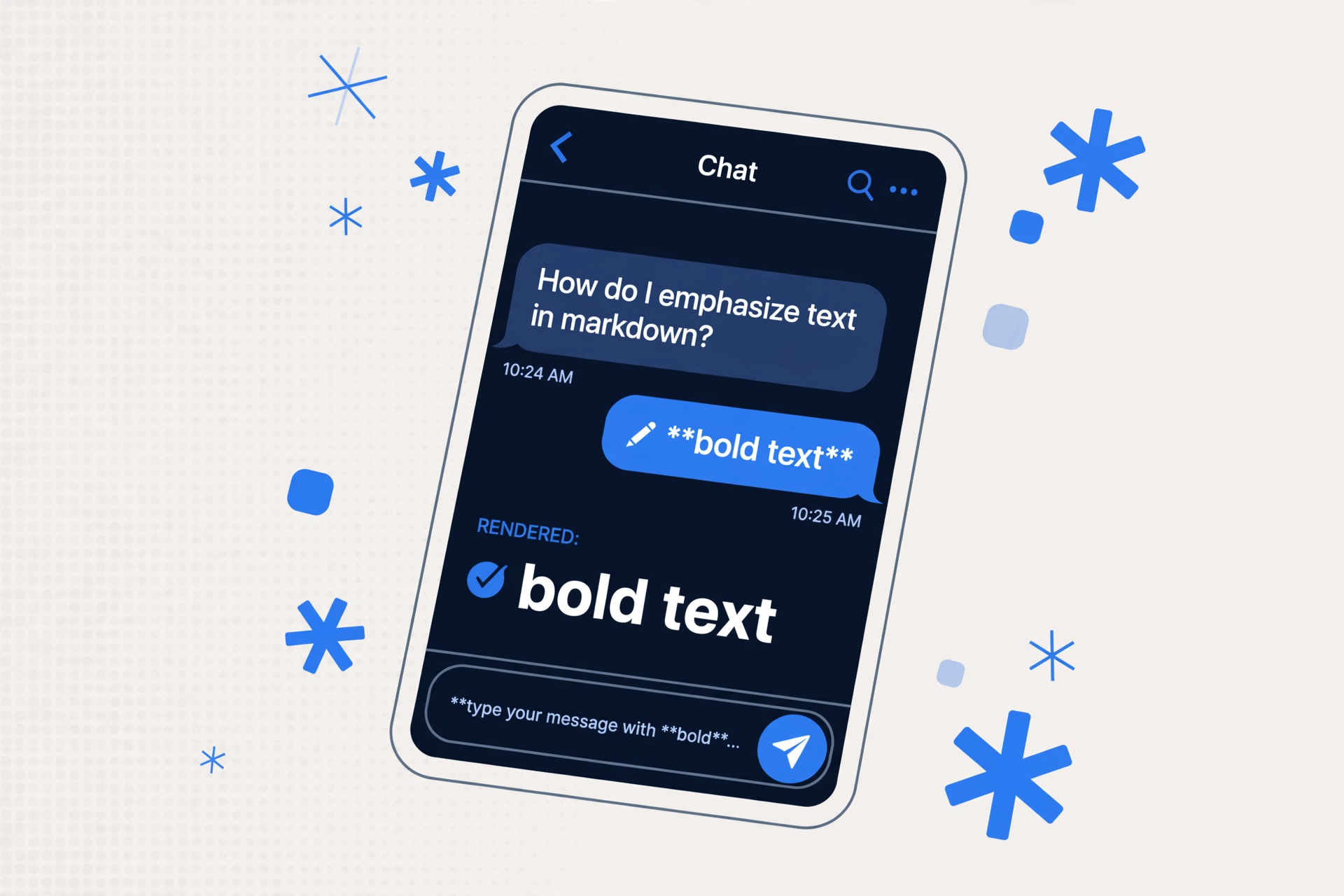
To make text bold on Discord, wrap your words in two asterisks on each side:
**like this**Type that into any Discord chat and press send — Discord automatically renders it as like this. That’s it. No settings to change, no bots to install, and it works on iPhone, Android, Windows, Mac, and the browser version.
Method 1: Double Asterisks (Works Everywhere)
This is the universal method and the one you’ll use most often. It works on every version of Discord because it’s built into how Discord reads messages.
- Click or tap into any Discord chat box (a DM, a server channel, or a group message).
- Type two asterisks with no space:
** - Type the text you want to make bold.
- Close it with two more asterisks:
** - Press send.
So typing **Meeting at 8 PM tonight** sends a message that reads Meeting at 8 PM tonight.
Tip: You can bold part of a longer message too. Just put the asterisks around the specific words: Don't forget to bring your **laptop** tomorrow renders with only “laptop” in bold. Perfect for highlighting dates, names, and key details without shouting the whole message.
Method 2: The Formatting Toolbar (Desktop & Web)
If you’re on the Discord desktop app or the web version (discord.com), you don’t have to memorize any symbols at all. Discord shows a small formatting toolbar right above the message box.
- Type your message normally in the chat box.
- Highlight the words you want to bold with your mouse.
- A popup toolbar appears above the selection — click the B icon.
- Press send.
Behind the scenes, Discord simply adds the double asterisks for you. This method is great if you’re writing long announcements and want to bold several separate phrases quickly — highlight, click B, repeat.
Method 3: Keyboard Shortcuts (Ctrl/Cmd + B)
Keyboard shortcut fans get the fastest workflow of all:
- Windows / Linux: highlight the text and press
Ctrl + B - Mac: highlight the text and press
Cmd + B(on the Mac Discord app)
Like the toolbar method, this wraps your selected text in double asterisks automatically. If you haven’t typed anything yet, just type the asterisks manually (Method 1) — the shortcut needs selected text to work on.
Method 4: Double Underscores (Alternative Syntax)
Discord also accepts double underscores as a bold command:
__like this__This renders identically to **like this**. Most people use asterisks out of habit, but underscores are handy on mobile keyboards where the underscore key is easier to reach than the asterisk. Both are valid — use whichever feels faster for you.
Important: On mobile keyboards, long-pressing certain keys changes the symbol you get. Make sure you’re typing true asterisks (*) or underscores (_) and not lookalike characters from special symbol keyboards — lookalikes won’t trigger formatting.
How to Bold Text on Discord Mobile (iPhone & Android)
Bold text works exactly the same on the Discord mobile app — there’s just no toolbar or keyboard shortcut, so Method 1 is your go-to:
- Open the Discord app and go to the chat where you want to send the message.
- Tap the message box and switch to your keyboard’s symbols page (usually the
?123or123key). - Type
**, then your text, then**again. - Tap send.
Two small mobile-specific notes:
- Autocorrect can break formatting. If your keyboard inserts a space after the asterisk (some keyboards add a space after punctuation), delete it — a space between the asterisks and the text stops bold from working.
- Predictive text previews look plain. The message preview may show the raw
**symbols before you send. Don’t worry — the formatting applies the moment the message is delivered.
Bold Not Working? 6 Common Mistakes
If your message shows up with visible asterisks instead of bold text, one of these is almost always the cause:
- Spaces inside the markers.
** hello**and**hello **won’t render. The asterisks must touch the text directly:**hello**. - Only one asterisk per side. A single asterisk makes italics, not bold. Bold needs two on each side.
- You’re inside a code block. Text wrapped in backticks (
`) shows formatting symbols literally — that’s the whole point of code blocks. Move your text outside them. - Lookalike characters. Fancy asterisk or underscore characters from aesthetic keyboards don’t trigger Discord formatting. Use the standard keyboard symbols.
- Formatting in the wrong order. Nesting like
**_text_**(bold + underline) works, but broken nesting like**_text**_can confuse the parser. Close markers in the reverse order you opened them. - Reading an old message. Formatting renders when a message is sent. If you edited a message to add asterisks, make sure the edit saved — a failed edit keeps the old version.
Beyond Bold: Other Discord Text Formatting
Bold is just the start. Discord uses a lightweight Markdown-style system, and learning the rest takes another minute. Here’s the full cheat sheet:
| Effect | Syntax | Example |
|---|---|---|
| Bold | **text** or __text__ | text |
| Italic | *text* or _text_ | text |
| Bold + Italic | ***text*** | text |
| Underline | __text__ | text |
| Strikethrough | ~~text~~ | |
| Spoiler | ||text|| | hidden until clicked |
| Inline code | `text` | monospaced text |
| Quote | > text | indented quote style |
You can combine these freely. ***__important__*** gives you bold, italic, and underlined text all at once — great for server rules or announcement headers. Just remember to open and close the markers in matching order.
Want crossed-out text as well? Try our free strikethrough text generator — it works anywhere you can paste text.

Make Discord Text Stand Out Even More
Bold is the fastest way to emphasize a message, but sometimes you want your username, server name, or a special announcement to look truly unique. Discord doesn’t support custom fonts directly — but Unicode fancy text does work anywhere Discord accepts text: usernames, channel names, bios, and messages.
With a fancy text generator, you can convert normal text into bold Unicode styles, cursive, gothic blackletter, and dozens of other looks, then copy and paste them straight into Discord. Because these are standard Unicode characters (not images or custom fonts), they display on desktop, mobile, and web identically.
Tip: Use regular bold for everyday messages and announcements, and save fancy Unicode text for usernames, role names, and special event headers. A little goes a long way — a whole server full of fancy text gets hard to read.
And if you run a Discord community, keeping accounts secure matters as much as looking good — a strong, unique password and two-factor authentication protect your server from takeover.
Frequently Asked Questions
How do I make text bold in Discord?
Wrap the text in double asterisks: **your text**. Discord renders it as bold automatically. You can also highlight text and click the B icon on desktop, or press Ctrl+B (Windows) / Cmd+B (Mac).
How do I bold text on Discord mobile?
Type two asterisks before and after your text: **like this**. Switch to your keyboard’s symbols page to find the asterisk key, and make sure there’s no space between the asterisks and the text.
What is the keyboard shortcut for bold in Discord?
Highlight the text and press Ctrl + B on Windows/Linux or Cmd + B on Mac. This works in the Discord desktop app and the web version.
Why is my bold text not working on Discord?
The most common cause is a space between the asterisks and the text — ** hello** won’t render; use **hello**. Other causes include using only one asterisk (that’s italics), typing inside a code block, or using lookalike characters from special keyboards.
Can I combine bold with italic or underline on Discord?
Yes. Use three asterisks for bold italic (***text***), or nest formats like **__text__** for bold underline. Close the markers in the reverse order you opened them.
Does Discord support custom fonts for bold text?
No — Discord doesn’t support custom fonts directly. For a bolder or stylized look beyond regular bold, use Unicode fancy text from a fancy text generator, which works in usernames, messages, and channel names.
How do I bold and underline in Discord?
Nest the two formats: type **__your text__** — double asterisks for bold around double underscores for underline — and close them in reverse order. For bold italic underline together, use ***__your text__***.
Bold text on Discord is one of those tiny skills that pays off every day — clearer announcements, stronger emphasis, and messages people actually read. Now you know all four methods, how to fix it when it breaks, and how to go further with fancy text. Try it in your next message.