

Table of Contents
- The Quick Answer
- What Is a QR Code for a Link?
- Why Use a QR Code Instead of Typing the Link?
- Method 1: Use a Free Online QR Generator (Recommended)
- Method 2: Create One in Chrome (Desktop)
- Method 3: Create One on iPhone or Android
- Static vs Dynamic QR Codes: What’s the Difference?
- 7 Practical Uses for Link QR Codes
- Make Your QR Code Scan Reliably: 7 Rules
- 6 Mistakes That Break QR Codes
- Safety First: QR Code Security Tips
- Frequently Asked Questions
A QR code is the fastest way to get someone from a physical object to a web page. No typing, no misspelled URLs — one scan and the link opens.
This guide shows you exactly how to create a QR code for any link — free, in under a minute, with no account and no app to install. You’ll also learn the difference between static and dynamic codes, where to use them, and the mistakes that make QR codes fail to scan.
The Quick Answer
To create a QR code for a link: paste your URL into a free QR code generator, click generate, and download the image. Most people finish in under 60 seconds.
For a page you’re already viewing in Chrome, there’s an even faster built-in shortcut — right-click the page and choose “Create QR code for this page.” Keep reading for the full walkthrough of every method, plus phone-only options and reliability tips.
What Is a QR Code for a Link?
QR stands for Quick Response. It’s a square barcode that stores information — in this case, a web address. When a phone camera scans it, the phone reads the encoded URL and opens it in the browser.
The key thing to know: the link lives inside the code itself — at least for free, “static” QR codes. Once it’s made, it works forever without any service keeping it alive. We’ll explain the static/dynamic distinction below, because it matters for printing.
Tip: Shorter URLs make simpler, easier-to-scan QR codes. A long link with tracking parameters produces a denser, busier code. If your URL is very long, that’s one case where a URL shortener genuinely helps — just make sure the shortener is reliable and permanent.
Why Use a QR Code Instead of Typing the Link?
Typing a URL from a poster or business card is slow and error-prone. A QR code removes all of that friction:
- Zero typing. One camera scan opens the page — no spelling mistakes.
- Works on print. Menus, flyers, packaging, and signage can’t be tapped. QR codes bridge print and digital.
- Free and instant. Generation takes seconds, and there’s no cost beyond the ink you were already using.
- Universal. Every modern iPhone and Android phone scans QR codes with the built-in camera — no special app needed.
Method 1: Use a Free Online QR Generator (Recommended)
This is the most flexible method — it works on any device and gives you a downloadable image file you can print, email, or post anywhere.
Step-by-step
- Copy the link you want to encode. Make sure it starts with
https://and actually opens the page you intend — test it in a private browser window first. - Open a free QR code generator in your browser.
- Paste the URL into the text field.
- Click Generate. Your QR code appears instantly.
- Download it as a PNG (or SVG for print, if offered — SVG scales to any size without getting blurry).
That’s the whole process. The downloaded file is yours to keep: put it on a flyer, add it to a business card design, paste it into a presentation, or print it on a sticker.

Before you print: test it
Always scan the code yourself before distributing it — with an iPhone and an Android phone if you can — and check it opens the right page.
Important: Free generators create static QR codes — the URL is baked into the code permanently. If you print 500 flyers and later change the link, you’d need new flyers. If your link might change, read the static vs dynamic section before printing.
Method 2: Create One in Chrome (Desktop)
If the page is already open in your desktop Chrome browser, you don’t need any tool at all:
- Right-click anywhere on the page (not on an image or link).
- Choose “Create QR code for this page.”
- A QR code appears in a small popup — click Download to save it as a PNG.
Edge has a similar built-in option. This is the fastest method for a one-off code.
Method 3: Create One on iPhone or Android
No computer? No problem. You have two options on a phone:
- Use an online generator in your mobile browser. Open the generator page, paste your link, and download the image. Save it to your Photos or Files app, then share or print it.
- Use your browser’s share menu. In Chrome on Android or iPhone: open the page, tap the Share icon, and look for “QR Code” in the share sheet. Chrome will generate a code for the current page that you can save or share immediately. (In Safari on iPhone, this built-in option isn’t available — use the online generator instead.)
To scan a code (rather than create one), just point your phone’s default camera at it — a notification banner appears with the link. No app needed on any modern phone.
Tip: If your camera doesn’t react to QR codes, check Settings — some Android phones have a “Scan QR codes” toggle in the camera settings, and on iPhone it’s under Settings → Camera → “Scan QR Codes.”
Static vs Dynamic QR Codes: What’s the Difference?
This is the one concept worth understanding before you print: it determines whether your code can ever be updated.
| Static QR Code | Dynamic QR Code | |
|---|---|---|
| How it works | The URL is encoded directly in the pattern | The code points to a redirect service you control |
| Can you change the link later? | No — never | Yes, without reprinting |
| Cost | Free, unlimited | Usually requires a paid subscription |
| Works offline / forever? | Yes — needs no service to keep working | Only as long as you keep paying for the service |
| Scan analytics | None (the code itself tracks nothing) | Scan counts, locations, devices |
| Best for | Permanent links: homepage, social profile, portfolio, product page | Campaigns, menus that change, A/B tests, anything temporary |
Rule of thumb: if the link will never change (your Instagram profile, a product manual), a free static code is perfect. If the destination might change while the printed code stays in circulation (a restaurant menu, an event page), use a dynamic code — or point a static code at a page you control, so you can update the page itself.
7 Practical Uses for Link QR Codes
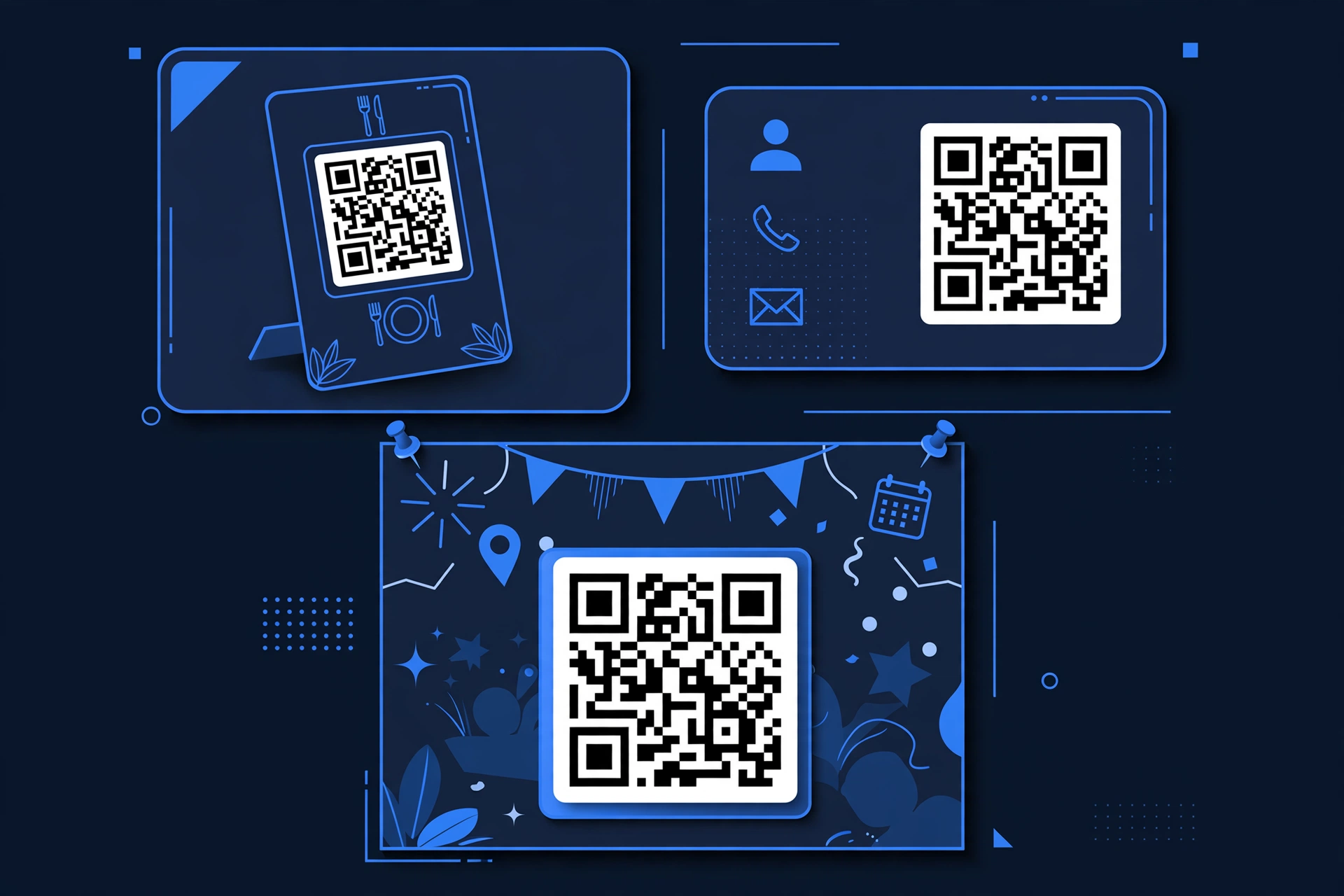
- Restaurant and café menus. A table sticker replaces printed menus and always shows the current one.
- Business cards. A small code linking to your portfolio, LinkedIn, or booking page.
- Product packaging. Link to setup instructions, video tutorials, or warranty registration.
- Event posters and tickets. One scan takes people to the registration page or venue map.
- Classroom materials. Teachers link worksheets, videos, and quizzes from handouts.
- Real estate signs. Passersby scan for photos and virtual tours.
- WiFi sharing — with a twist. You can also encode WiFi credentials directly so guests join without typing a password. See our guide on making a QR code for WiFi.
Make Your QR Code Scan Reliably: 7 Rules
A QR code that doesn’t scan is worse than no QR code. These rules come from how the codes actually work — the scanner needs clear contrast and enough pixels to read the pattern:
- Keep contrast high. Dark code on a light background. Inverted or colorful codes on busy backgrounds often fail.
- Don’t make it too small. Minimum about 2 × 2 cm for close-range scanning; bigger for posters. A good rule: the code should be at least 1/10th of the expected scanning distance.
- Leave a quiet zone. Keep a clear margin around the code — don’t crowd it with text or logos.
- Test in real conditions. Scan it on both iPhone and Android, in the lighting where it will actually be used.
- Use SVG or high-res PNG for print. A blurry or pixelated code won’t scan.
- Shorten long URLs first. Dense codes from very long URLs are harder to scan at small sizes.
- Add a short call-to-action. “Scan for the menu” tells people what to expect — many still need the nudge.
6 Mistakes That Break QR Codes
- Encoding a URL that later breaks. If the page moves or gets deleted, a static code leads nowhere. Link to pages you control.
- Using a URL shortener that expires. Some free shorteners delete inactive links. If the short link dies, the QR code dies with it.
- Forgetting
https://. Most generators handle this, but always verify the scanned link opens correctly. - Printing too small or on textured surfaces. Glossy reflections and tiny sizes are the two most common real-world failures.
- Not testing before a big print run. Scan the actual printed proof, not just the screen version.
- Linking to a desktop-only or slow page. Most scans happen on phones — the destination must be mobile-friendly and fast.
Safety First: QR Code Security Tips
QR codes are convenient, but a code can point anywhere — you can’t see the destination until you scan. This applies both to codes you scan and codes you create:
- When scanning: check the URL preview your phone shows before opening it. If it looks odd, don’t proceed. Stickers placed over legitimate QR codes in public places are a real scam — if a code looks tampered with, don’t scan it.
- When creating: only encode links you trust. If your code will be public, monitor the destination page so you notice if it’s ever compromised.
- For businesses: print codes directly on your materials rather than using stick-on labels someone could swap.
Note: A QR code itself can’t contain malware — it’s just text. The risk is entirely in where the link takes you. Preview the URL, and you’ll be fine.
Frequently Asked Questions
Is it free to create a QR code for a link?
Yes. Static QR codes — the kind most people need — are completely free to generate, with no account and no limits. You only pay if you want dynamic codes (editable links, scan analytics), which require a subscription service.
Do QR codes expire?
Static QR codes never expire — the link is encoded in the pattern itself, so the code works as long as the destination page exists. Dynamic QR codes stop working if you cancel the service that powers their redirects.
Can I create a QR code without an app?
Yes. Use any free online QR generator in your phone or computer’s browser — no app or account needed. Chrome also has a built-in ‘Create QR code for this page’ option on desktop and in its mobile share menu.
How do I scan a QR code?
Open your phone’s default camera app and point it at the code. A banner appears with the link — tap it to open. This works on all iPhones from iOS 11 onward and on virtually all Android phones from the last seven years, with no extra app.
Why won’t my QR code scan?
The most common causes: it’s printed too small, contrast is low, the image is blurry, or there’s no clear margin around the code. Regenerate at a higher resolution, increase the size, and test again.
Can I track how many people scan my QR code?
Not with a free static code — it tracks nothing by itself (though your website analytics will still show the visits). For scan counts, locations, and device stats, you need a dynamic QR service, which is typically paid.
Ready to make yours? It takes less than a minute — paste your link, download the code, and you’re done.