

Table of Contents
- The Quick Answer
- Why Text Gets Stuck in ALL CAPS
- Method 1: Microsoft Word (Shift+F3)
- Method 2: Excel (LOWER Formula)
- Method 3: Google Docs
- Method 4: Google Sheets
- Method 5: Mac
- Method 6: iPhone and Android
- Method 7: Free Online Case Converter (Fastest for Bulk Text)
- Case Types Explained: lowercase, UPPERCASE, Title Case, Sentence case
- 5 Mistakes to Avoid
- Frequently Asked Questions
We’ve all been there: you look up from the keyboard and realize the last three paragraphs came out as THIS. Retyping is a waste of time — and unnecessary. Every major app has a built-in way to change uppercase to lowercase in seconds.
This guide covers all of them: Microsoft Word, Excel, Google Docs, Google Sheets, Mac, iPhone and Android — plus a free one-click online case converter for when you just want it done instantly.
The Quick Answer
The fastest fix for each app:
- Word: select the text and press Shift+F3 (each press cycles: lowercase → UPPERCASE → Capitalize Each Word).
- Excel / Google Sheets: in a new cell type
=LOWER(A1)(replace A1 with your cell) and press Enter. - Google Docs: select text → Format → Text → Capitalization → lowercase.
- Mac (most apps): select text → right-click → Transformations → Make Lower Case.
- Anywhere, instantly: paste into a free online case converter and copy the result back.
Keep reading for the full step-by-step walkthrough of each method.
Why Text Gets Stuck in ALL CAPS
Three culprits cause stuck caps — each needs a different fix:
- Caps Lock was on. The classic. The letters you typed are genuinely uppercase characters. Every method in this guide fixes this.
- “All Caps” formatting is applied. In Word and Excel, text can be formatted to display as uppercase while the underlying characters are actually lowercase. Pressing Shift+F3 or using LOWER() won’t visibly change anything until you remove the formatting (in Word: select the text, open the Font dialog with Ctrl+D, and uncheck “All caps”).
- Pasted text arrived in caps. Text copied from PDFs, databases, or legacy systems often comes in all caps. The paste itself is fine — you just need to convert the characters afterward.
Tip: Not sure which one you have? Turn Caps Lock off and type one letter: if it’s lowercase, the existing text is genuinely uppercase — convert it with the methods below. If it’s still uppercase, check for the All Caps font effect.
Method 1: How to Change Uppercase to Lowercase in Microsoft Word
Word has the best built-in case tools of any word processor, and the shortcut takes one second.
The Shift+F3 shortcut
- Select the text you want to convert (or press Ctrl+A for the whole document).
- Hold Shift and press F3 — each press cycles: lowercase → UPPERCASE → Capitalize Each Word.
Note: On some laptops, the F3 key doubles as a system key (volume, brightness). If Shift+F3 does nothing, hold the Fn key as well: Fn+Shift+F3.
The Change Case button
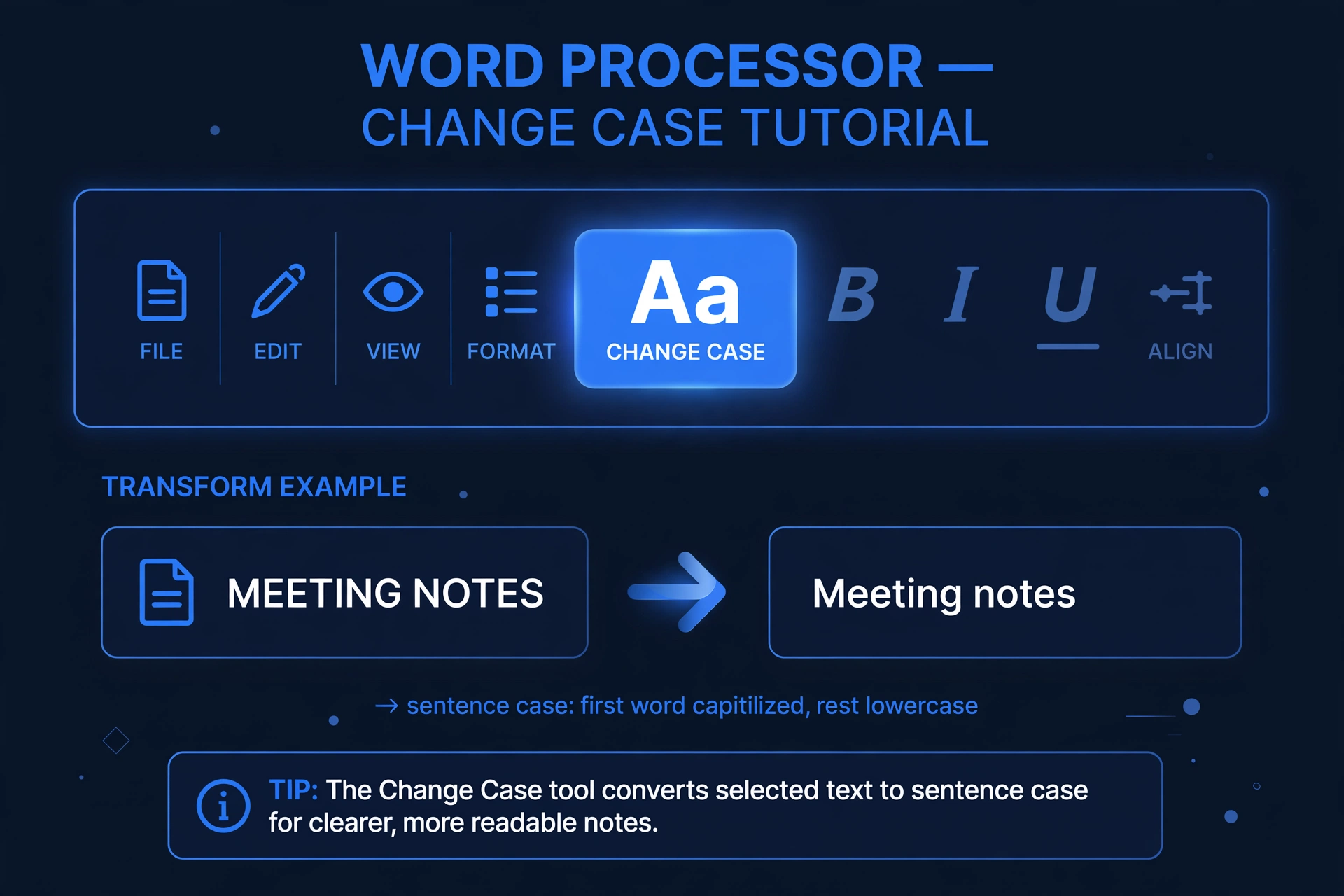
If you prefer the mouse: select your text, go to the Home tab, and click the Aa (Change Case) button in the Font group. A menu offers five options — lowercase, UPPERCASE, Capitalize Each Word, tOGGLE cASE, and Sentence case. Pick lowercase.
Word for Mac
The same Shift+F3 shortcut works in Word for Mac. On MacBooks where function keys control brightness and volume, use Fn+Shift+F3.
Method 2: How to Change Case in Excel
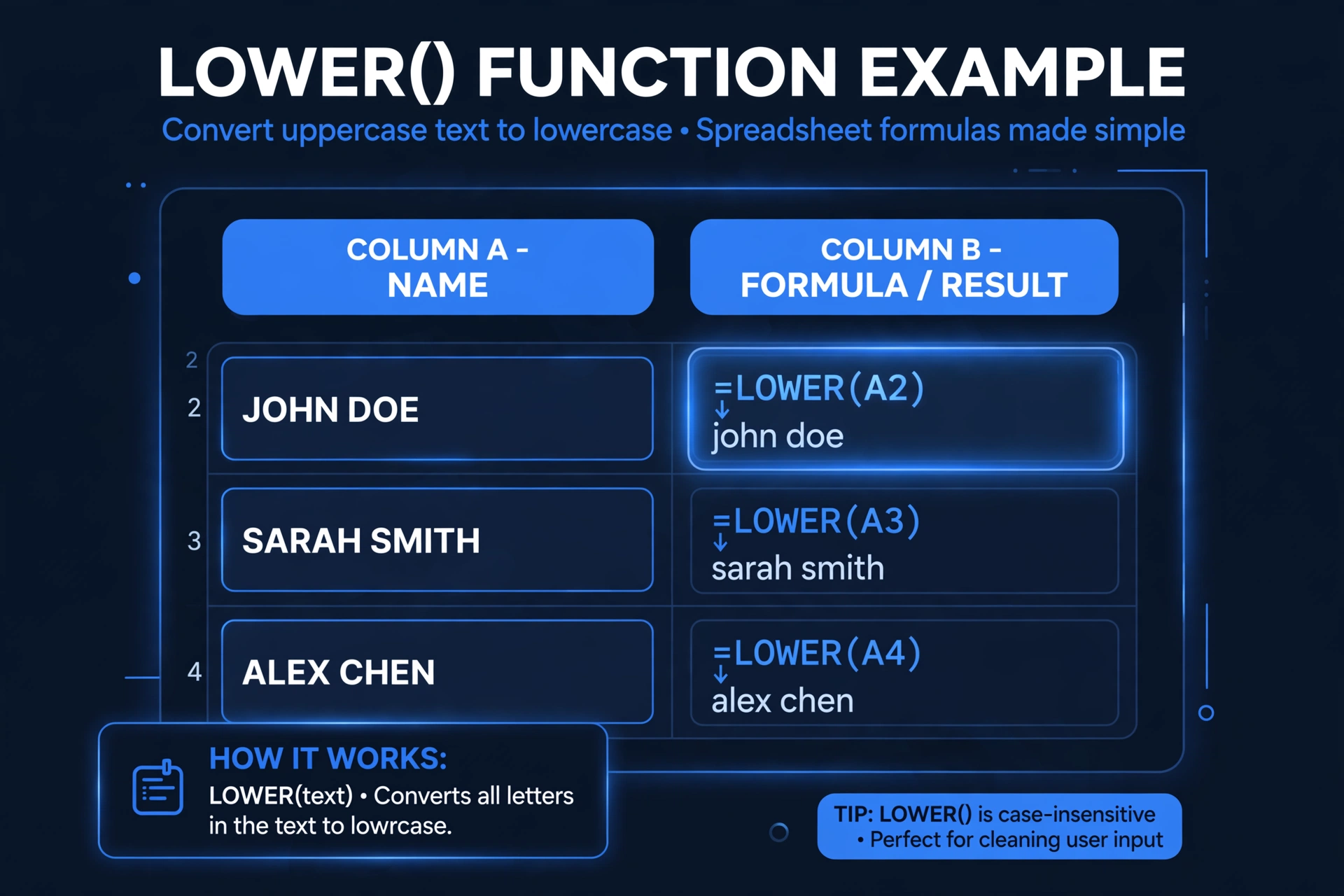
Excel has no Change Case button, so you use formulas. There are three, and they cover every situation:
=LOWER(A1)— converts everything to lowercase: “SALES REPORT” → “sales report”=UPPER(A1)— converts everything to UPPERCASE=PROPER(A1)— capitalizes the first letter of each word: “SALES REPORT” → “Sales Report”
Step-by-step: convert a whole column
- Suppose your uppercase names are in column A. Click an empty cell in row 1 of a spare column (say B1) and type
=LOWER(A1). - Press Enter — the lowercase version appears.
- Click the cell again and drag the small square at its bottom-right corner (the fill handle) down to cover all rows. Every value converts at once.
- The new column holds formulas linked to column A. To keep only the text: select column B, press Ctrl+C, then right-click → Paste Special → Values — then delete the original column.
Without a formula: Flash Fill
If you hate formulas, Excel’s Flash Fill can do it: type the first value in lowercase manually in the next column, start typing the second, and press Ctrl+E. Excel detects the pattern and fills the rest. (Flash Fill is pattern-matching, so always spot-check the results.)
Tip: Another no-formula trick: copy the cells into Word, press Shift+F3 to convert, then paste back into Excel. Handy when you need Title Case or Sentence case, which Excel formulas can’t produce directly.
Method 3: Google Docs
Google Docs has a proper capitalization menu — no formulas or shortcuts to memorize:
- Select the text you want to change.
- Go to Format → Text → Capitalization.
- Choose lowercase (or UPPERCASE / Title Case if that’s what you need).
The change applies instantly to your selection.
Method 4: Google Sheets
Sheets works exactly like Excel: =LOWER(A1), =UPPER(A1), and =PROPER(A1) all work the same way. There is no built-in case menu in Sheets, so the formula (or the online converter in Method 7) is the way to go.
Method 5: Mac (Notes, TextEdit, Mail, and Most Apps)
macOS has case conversion built into the system, so it works in Apple Notes, TextEdit, Mail, and most other native apps:
- Select the text.
- Right-click (or Ctrl-click) the selection and choose Transformations.
- Pick Make Lower Case (or Make Upper Case / Capitalize).
It’s also under Edit → Transformations in the menu bar. (Word for Mac ignores this and uses its own Shift+F3 shortcut instead.)
Method 6: iPhone and Android
Fixing caps on a phone is fiddly but doable without retyping:
- iPhone: select the text, then tap the Shift (up-arrow) key on the keyboard to cycle the selection between lowercase, UPPERCASE, and Capitalized.
- Android (Gboard): select the text, then tap the Shift key — Gboard cycles it through lowercase → UPPERCASE → Capitalized Each Word. If your keyboard app doesn’t offer this, the online converter in Method 7 takes ten seconds in your mobile browser.
Note: If your phone types only in caps, check the Caps Lock indicator (double-tap Shift to turn it off) and the auto-capitalization setting in keyboard settings.
Method 7: Free Online Case Converter (Fastest for Bulk Text)
When you have a big block of text — or you’re working in an app with no case tools at all (a CMS, an email web client, a chat box) — the fastest fix is an online converter:
- Copy the uppercase text (Ctrl+C).
- Open a free online case converter and paste it in (Ctrl+V).
- Every case style updates live — click lowercase (or Sentence case, Title Case, whichever you need) and hit Copy.
- Paste the fixed text back where it belongs.
This is also the only method here that handles conversions Word and Excel can’t do in one step: Sentence case, aLtErNaTiNg case, and developer formats like camelCase and snake_case. Everything runs in your browser, so nothing you paste ever leaves your device.
Case Types Explained: lowercase, UPPERCASE, Title Case, Sentence case
“Lowercase” is only one of several case styles. Knowing the names helps you pick the right one — and the right tool option:
| Case style | Rule | Example | Best for |
|---|---|---|---|
| lowercase | Every letter small | quarterly sales report | Email addresses, URLs, normalizing data |
| UPPERCASE | Every letter capitalized | QUARTERLY SALES REPORT | Headings, warnings, emphasis |
| Title Case | Major words capitalized; small words (a, an, the, and, of) stay lowercase | Quarterly Sales Report | Book and article titles, headlines |
| Sentence case | Only the first word (and proper nouns) capitalized | Quarterly sales report | Normal sentences, subheadings, UI text |
| Capitalized Case | First letter of every word capitalized | Quarterly Sales Report | Names, labels, titles without style rules |
| aLtErNaTiNg | Letters alternate upper/lower | qUaRtErLy SaLeS rEpOrT | Memes and playful social posts |
The most common mix-up is Title Case vs. Sentence case: Title Case capitalizes the major words (“How to Write a Better Headline”), while sentence case capitalizes only the first word (“How to write a better headline”). Academic styles like APA require sentence case for article titles; most news headlines use Title Case.
If you work with text styles regularly, bookmark a case converter tool — switching between all of these becomes a one-click job. And if you like styling text for social posts, our guide to Discord text formatting covers bold, italics, and code blocks step by step.
5 Mistakes to Avoid
- Retyping everything by hand. The number-one time waster. A 500-word passage takes seconds with Shift+F3 or a converter.
- Using the All Caps font effect as a “conversion.” In Word’s Font dialog, “All caps” only changes the display — the underlying text is unchanged, which breaks screen readers, search, and copy-paste. Convert the actual characters instead.
- Deleting the original column too early in Excel. LOWER() results are formulas linked to the source. Paste as Values first, then delete.
- Forgetting proper nouns. Bulk conversion turns “London” into “london” and “iPhone” into “iphone”. Skim and fix names afterward — or use Sentence case instead.
- Trusting Flash Fill blindly. It’s pattern-matching, not logic. Always verify a few rows before replacing your data.
Tip: For the cleanest results on long documents, convert first and proofread second. Case conversion is mechanical — your eyes are still the best tool for catching the “iPhone” and “McDonald” exceptions.
Frequently Asked Questions
How do I change caps to lowercase without retyping?
Select the text and press Shift+F3 in Word (cycles through lowercase, UPPERCASE, and Capitalize Each Word), use =LOWER(A1) in Excel or Google Sheets, choose Format → Text → Capitalization → lowercase in Google Docs, or paste the text into a free online case converter and copy the result back. No retyping needed in any app.
What is the keyboard shortcut to change case in Word?
Shift+F3. Select your text first, then each press cycles: lowercase → UPPERCASE → Capitalize Each Word. On laptops where F3 controls brightness or volume, use Fn+Shift+F3. The same shortcut works in Word for Mac.
How do I change uppercase to lowercase in Excel without a formula?
Two options: Flash Fill — type the first value in lowercase in the next column, start the second, press Ctrl+E, and Excel fills the pattern (verify the results); or copy the column into Word, press Shift+F3 to convert, and paste it back into Excel.
How do I uncapitalize text on my phone?
On iPhone, select the text and tap the Shift (up-arrow) key to cycle the selection’s case. On Android with Gboard, select the text and tap Shift to cycle lowercase → UPPERCASE → Capitalized. If your keyboard doesn’t support it, paste the text into an online case converter in your mobile browser — it takes seconds.
Why is my text stuck in all caps even after turning off Caps Lock?
You likely have the All Caps font effect applied: the characters are actually lowercase, but Word or Excel is displaying them as uppercase. In Word, select the text, press Ctrl+D to open the Font dialog, and uncheck “All caps.” In Excel, check Format Cells → Font for the same option. Then convert the real characters with the methods above if needed.
Is there a free tool to convert uppercase to lowercase online?
Yes — a free online case converter converts pasted text instantly, with no signup and nothing uploaded to a server. It’s the fastest option for bulk text or apps with no built-in case tools, and it also handles Sentence case, Title Case, and developer formats like camelCase that Word and Excel can’t do in one step.
How do I change text to uppercase?
The reverse of this guide, with the same tools: in Word select the text and press Shift+F3 until it shows UPPERCASE (or Home > Aa > UPPERCASE); in Excel or Google Sheets use =UPPER(A1); in Google Docs go to Format > Text > Capitalization > UPPERCASE; on Mac use right-click > Transformations > Make Upper Case; or paste the text into the free case converter and pick UPPERCASE.
How do I change uppercase to lowercase in Google Sheets?
In a spare cell type =LOWER(A1) (replace A1 with your cell) and press Enter, then drag the fill handle down to convert the whole column. The new column holds formulas, so to keep only the text: copy it, then Paste Special > Values only, and delete the original column. Google Sheets has no built-in case menu — the formula (or the free online case converter) is the way to do it.
Stop retyping — pick the method for your app above, or paste your text into the free case converter and be done in ten seconds.