
Table of Contents
- The Quick Answer
- What Is Discord Text Formatting?
- The Complete Discord Formatting Cheat Sheet
- Basic Formatting: Bold, Italic, Underline & Strikethrough
- Headers, Subtext & Lists
- Block Quotes & Spoilers
- Code Blocks, Inline Code & Colored Text
- Masked Links & Timestamps
- Formatting on iPhone & Android (Mobile Guide)
- Desktop Shortcuts & the Formatting Toolbar
- 7 Common Formatting Mistakes (and Fixes)
- Putting It Together: A Real Example
- Frequently Asked Questions
Discord messages look plain by default — but they don’t have to. With a small set of text symbols, you can make messages bold, italic, underlined, crossed out, hidden behind spoiler tags, and more. No plugins, no bots, no settings to change.
This guide covers every Discord text formatting option in 2026: the full Markdown cheat sheet, desktop and mobile instructions, the color trick most users never learn, and the mistakes that make formatting silently fail.
The Quick Answer
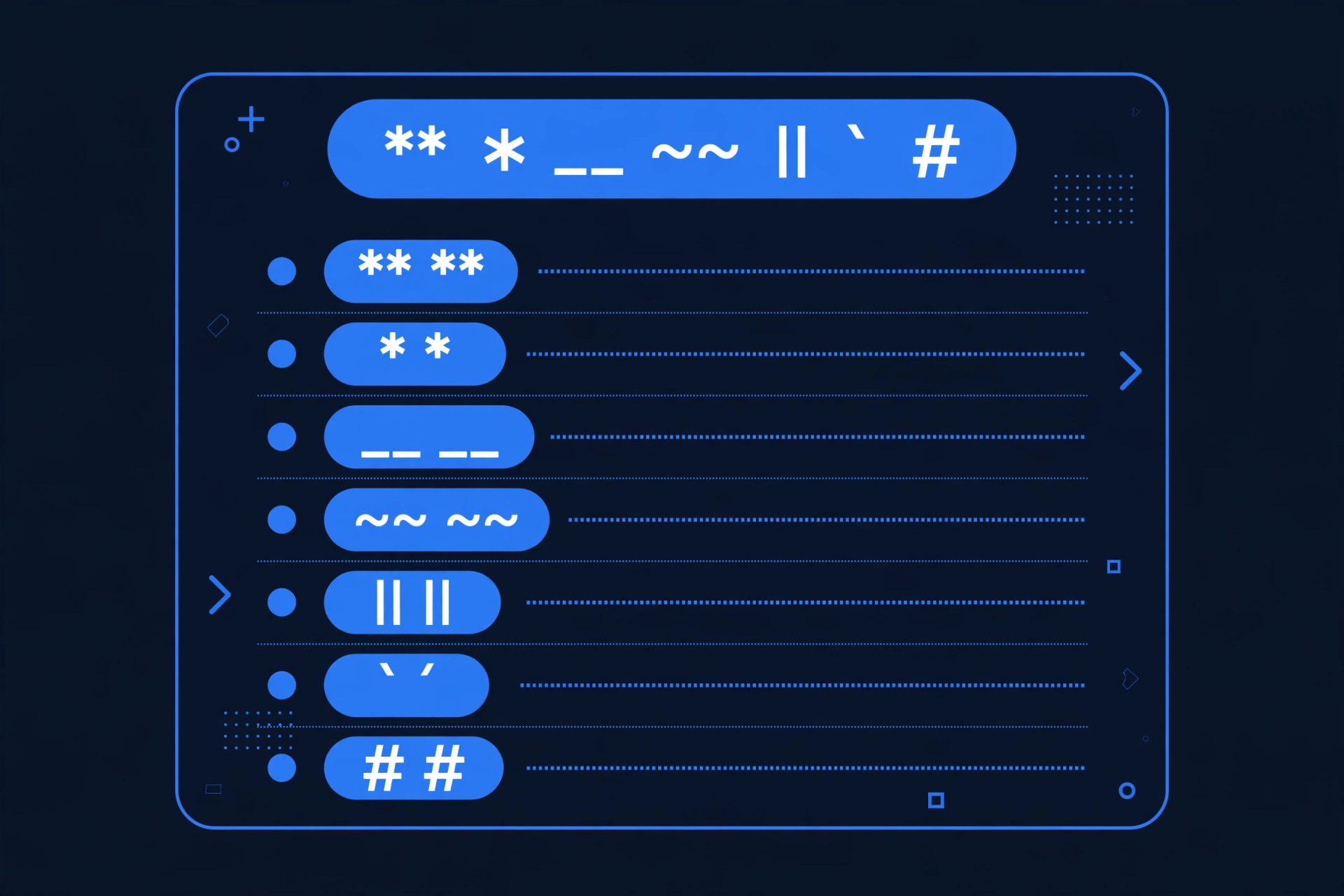
Discord text formatting uses Markdown symbols: wrap your text with special characters to change how it looks. The essentials:
- Bold:
**text** - Italic:
*text*or_text_ - Underline:
__text__ Strikethrough:~~text~~- Spoiler:
||text|| - Code:
`text`(inline) or```text```(block)
Type the symbols into the message box — Discord renders them when you send. The full reference table, mobile guide, and advanced tricks are below.
What Is Discord Text Formatting?
Discord supports a lightweight version of Markdown: type special characters around your text, and Discord converts them into styled text when the message sends. No toolbar clicks needed.
Because it uses only ordinary keyboard characters, formatting works identically on Windows, Mac, iPhone, Android, and the web app. The same symbols even work in other Markdown-based platforms like Reddit and GitHub.
Tip: Learn bold, italic, and spoiler tags first — those three cover about 80% of daily chatting.
The Complete Discord Formatting Cheat Sheet
Bookmark this section. Every Discord text format in one table:
| Format | Syntax | Notes |
|---|---|---|
| Bold | **text** | Two asterisks each side |
| Italic | *text* or _text_ | One asterisk or underscore |
| Bold Italic | ***text*** | Three asterisks |
| Underline | __text__ | Two underscores each side |
| Underline Italic | __*text*__ | Combine both |
| Underline Bold | __**text**__ | Combine both |
~~text~~ | Two tildes each side | |
| Spoiler | ||text|| | Double pipes; hidden until clicked |
| Inline code | `text` | Single backtick each side |
| Code block | ```text``` | Triple backticks, own lines |
| Header 1 | # text | Line start + space |
| Header 2 | ## text | Line start + space |
| Header 3 | ### text | Line start + space |
| Subtext | -# text | Small gray text |
| Block quote | > text | Single line |
| Multi-line quote | >>> text | Quotes everything after |
| Bulleted list | - item | Dash + space at line start |
| Numbered list | 1. item | Number + period + space |
| Masked link | [label](url) | Hides URL behind text |
| Timestamp | <t:unix:F> | Shows local time for each reader |
| Cancel formatting | \*text\* | Backslash shows the symbol literally |
Basic Formatting: Bold, Italic, Underline & Strikethrough
These four styles handle almost all everyday formatting needs in Discord chats and DMs.
Bold text
Wrap your text in double asterisks: **important** renders as important — the best choice for keywords and announcements. For every bold method (toolbar, shortcuts, mobile), see our guide on how to make text bold on Discord.
Italic text
Wrap your text in single asterisks or underscores: *note this* or _note this_ render as note this. Use italics for emphasis within a sentence, titles, and quoted words.
Underline text
Wrap your text in double underscores: __heading__ renders as heading — handy for section titles.
Strikethrough text
Wrap your text in double tildes: ~~old price~~ renders as old price. Use it for corrections, jokes, and price changes.
Combining styles
Styles can nest. These combinations all work:
***bold italic***→ bold italic__**bold underline**__→ bold underline__*italic underline*__→ italic underline~~**bold strikethrough**~~→bold strikethrough||**bold spoiler**||→ a bolded spoiler, hidden until clicked
Important: The order of the symbols matters when combining. Discord resolves nesting from the outermost marker inward — underline, then bold, then italic, then strikethrough. If a combination refuses to render, rearrange the markers into that order.
Headers, Subtext & Lists
For longer messages — rules, announcements, guides — these formats keep your text organized:
Headers
Put #, ##, or ### at the start of a line, followed by a space:
# Big header— largest, with a divider line## Medium header— section heading### Small header— compact bold heading
Headers only work at a line start — not mid-sentence.
Subtext
Type -# at a line start: -# This renders small and gray. Use it for footnotes, disclaimers, and “last updated” lines.
Lists
Use a dash or asterisk plus a space for bullets, or a number plus a period for numbered lists. Indent with spaces for nested items:
- First item
- Second item
  - Nested item
1. Step one
2. Step two
Tip: Discord auto-increments numbered lists. Type 1. on every line and Discord renumbers them 1, 2, 3 automatically when you send.
Block Quotes & Spoilers
Block quotes
Start a line with > for a single-line quote, or >>> to quote everything from that line onward:
> This is a single-line quote.>>> Everything from this line
to the end of the message
is quoted.Quotes are ideal for replies, rule citations, and highlighting context in busy channels.
Spoilers
Wrap text in double pipes: ||the killer was the butler|| — it appears as a black bar until clicked. Spoiler tags work on images too: name the file starting with SPOILER_ or use the spoiler option when uploading.
Code Blocks, Inline Code & Colored Text
Inline code and code blocks
For a command or value inside a sentence, use one backtick: `npm install`. For multi-line code, put triple backticks on their own lines before and after:
```python
def greet():
    print("Hello")
```
Add a language name after the opening backticks (like python or js) for syntax highlighting.
Colored text (the secret trick)
Discord has no color picker — but code blocks support syntax highlighting, and that’s your loophole. Different “languages” color the text differently:
```diff— prefix lines with+for green or-for red```fix— renders text in yellow```css— renders text in light green```ini— renders text in blue```md— supports#for blue and>for orange text```ansi— full ANSI color control (desktop and web only)
Example:
```diff
+ This line is green
- This line is red
```
Important: ANSI-colored text renders only on the Discord desktop and web apps — mobile apps show the raw codes. For anything your mobile readers must see, stick with the diff/fix/css tricks, which work everywhere.
Masked Links & Timestamps
Masked links
Hide a long URL behind readable text: [Server rules](https://example.com/rules) renders as a clickable link. To post a bare URL without a preview embed, wrap it in angle brackets: <https://example.com>.
Timestamps
Discord can show a time in every reader’s local timezone. Use <t:UNIX:F>, where UNIX is a Unix timestamp — for example, <t:1798675200:R> renders as a relative time like “in 2 hours” for each viewer. Perfect for event announcements in international servers.
Formatting on iPhone & Android (Mobile Guide)
The mobile app has no formatting toolbar — type the Markdown symbols manually from the symbols keyboard:
- Open the channel or DM and tap the message box.
- Switch to the symbols keyboard: tap 123 (iPhone) or ?123 (Android), then #+= if needed.
- Find
*,_,~,|, and the backtick`(usually on the second symbols page). - Type the markers, your text, then the markers again — no spaces between the markers and the text.
Alternatively, long-press selected text on mobile for a context menu with basic formatting options — but the manual symbols always work.
Tip: The tilde (~) and pipe (|) hide on the second or third mobile symbols page — find them once and you’ll remember the spot.
Desktop Shortcuts & the Formatting Toolbar
On the desktop and web apps, you get two extra conveniences:
Keyboard shortcuts
| Action | Windows | Mac |
|---|---|---|
| Bold | Ctrl + B | Cmd + B |
| Italic | Ctrl + I | Cmd + I |
| Underline | Ctrl + U | Cmd + U |
Highlight text and press the shortcut — Discord wraps it in the right symbols automatically.
The pop-up toolbar
Select text in the desktop message box and a small toolbar appears above it. Clicking a style wraps your selection in the right symbols.
7 Common Formatting Mistakes (and Fixes)
- Spaces between markers and text.
** hello**won’t render — the markers must touch the text:**hello**. - Headers not at line start.
# helloin the middle of a line stays literal. Headers only work as the first character of a line, followed by a space. - Wrong combination order. If
***__text__***fails, reorder to underline → bold → italic → strikethrough. - Forgetting the closing markers. Every opening marker needs a matching closer.
**half formattedshows literal asterisks. - Expecting colors on mobile. ANSI codes only render on desktop/web. Use the
diff/fixtricks for mobile-safe colors. - Masked links in plain messages.
[label](url)renders as a masked link mainly in embeds and bot messages; in plain user messages it may show the raw syntax. Use it where supported, or post the clean URL. - Markdown inside code blocks. Nothing renders inside
```blocks — that’s the point. If your formatting “stopped working,” check you didn’t accidentally wrap it in backticks.
Putting It Together: A Real Example
Here’s what a polished server rules post looks like using the formats from this guide:
# Server Rules
Please read before chatting.

**1. Be respectful.** No harassment, hate speech, or personal attacks.
**2. No spam.** Don't post the same message in multiple channels.
**3. Keep it on-topic.** Use #memes for memes, #gaming for gaming.

> Breaking rules may result in a mute or ban.

-# Rules last updated this month. Questions? Ask a @moderator.
Want an even more distinctive look for your Discord name, bio, or server? Standard Markdown covers styling — for actual font styles (bold script, cursive, small caps), use a fancy text generator to create Unicode-styled text you can paste anywhere.
Frequently Asked Questions
Why is my Discord formatting not working?
The most common cause is a space between the marker and the text — markers must touch the text (**hello**, not ** hello**). Other causes: headers not at a line start, missing closing markers, or formatting inside a code block, which disables all rendering.
How do I make colored text in Discord?
Use a code block with a language tag: ```diff with + (green) or - (red), ```fix for yellow, ```css for light green, ```ini for blue. Full ANSI colors render on desktop and web only — not mobile.
How do I hide spoilers in Discord?
Wrap the text in double pipes: ||spoiler text||. It appears as a black bar until clicked. For images, start the file name with SPOILER_ or use the spoiler option when uploading.
Does Discord support Markdown tables?
No — Discord does not render Markdown tables. Workarounds: paste the table inside a code block for aligned monospace columns, use bot embeds with inline fields, or screenshot the table and upload it as an image.
How do I format text on Discord mobile?
Type the Markdown symbols manually from the symbols keyboard (123 / ?123): place the asterisk, underscore, tilde, pipe, or backtick around your text with no spaces.
What’s the difference between * and _ for italics?
Nothing — *text* and _text_ render identically as italic. Single underscores inside words (like some_variable) are ignored so code-like text doesn’t break.
Discord text formatting takes five minutes to learn and pays off every day. Start with bold, italics, and spoilers — then work through the cheat sheet whenever you need more. Your messages will be clearer and your server posts will look sharper.