

Table of Contents
- The Quick Answer
- What Is an Instagram Font Generator?
- How to Use an Instagram Font Generator (Copy and Paste in 4 Steps)
- Where Instagram Fonts Work
- The Most Popular Font Styles for Instagram
- How to Change the Font on Your Instagram Bio
- How to Add Stylish Fonts to Instagram Stories
- 5 Mistakes to Avoid
- Free Font Generators: What to Look For
- Frequently Asked Questions
Open any standout Instagram profile and you’ll notice it: the name in elegant cursive, the bio headline in bold, decorative dividers between the lines. Instagram itself offers no font menu — so how is everyone doing it?
The answer is an Instagram font generator: a free online tool that converts plain text into stylish Unicode characters you copy and paste into your bio, captions, comments, and Stories. No app, no account — about thirty seconds, start to finish. This guide covers how it works, where styled text works, the most popular styles, and the mistakes that make profiles look amateur.
The Quick Answer
To change fonts on Instagram: type your text into a free font generator, browse the styles, tap Copy, then paste into Instagram. The “fonts” are special Unicode characters — no setting to change, no app needed.
What Is an Instagram Font Generator?
An Instagram font generator is a free online tool that takes normal text and instantly rewrites it in decorative Unicode styles — 𝗯𝗼𝗹𝗱, italic, 𝓬𝓾𝓻𝓼𝓲𝓿𝓮, 𝔤𝔬𝔱𝔥𝔦𝔠, ⓑⓤⓑⓑⓛⓔ, and many more. You copy the result and paste it wherever Instagram accepts text.
Here’s the key insight most guides skip: these aren’t fonts at all. Instagram renders your bio and captions in a single system typeface, and there is no legitimate way to change it. What generators produce are Unicode symbols — characters from the mathematical alphanumeric ranges of the Unicode standard that happen to look like styled letters. Because the styled letters are the text (not a font file your phone has to load), they survive copy-paste into any app.
Note: What font does Instagram use natively? The app renders interface text in its own system sans-serif (a clean, neutral typeface similar to what your phone uses elsewhere). Since there’s no built-in way to change it, Unicode generators are the only method that works — any app claiming to “install Instagram fonts” is misleading you.
How to Use an Instagram Font Generator (Copy and Paste in 4 Steps)
The whole process is the same on iPhone, Android, and desktop:
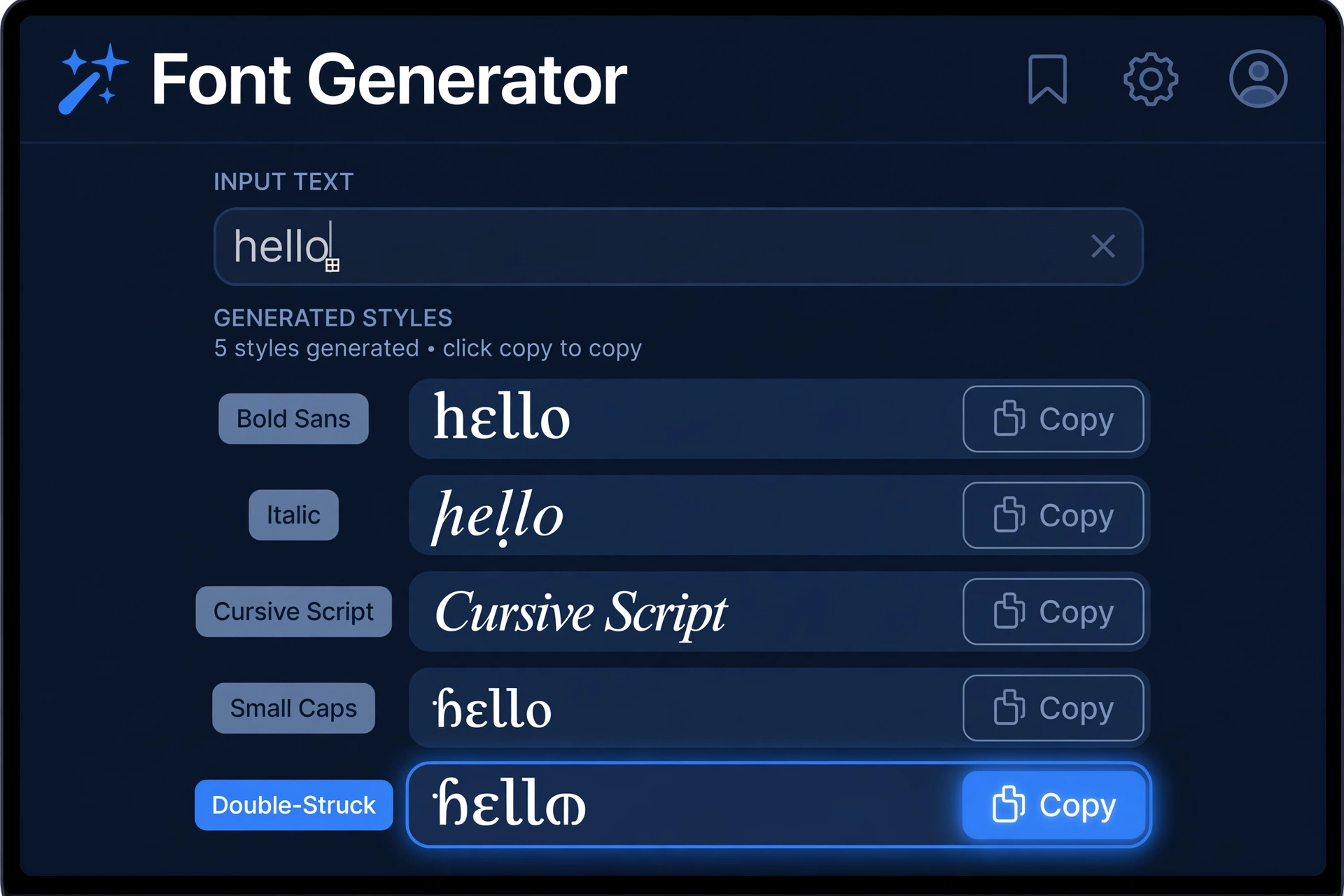
Step 1: Type your text
Open a fancy text generator and type the exact text you want styled — your name, one bio line, or a short caption heading. Keep bio lines short: Instagram wraps bio text at roughly 30 characters on mobile screens, so one punchy line per style works best.
Step 2: Browse the styles
The tool instantly renders your text in every available style. Scroll and compare — what looks good as a standalone word can look cluttered in a full sentence.
Step 3: Copy your favorite
Tap the Copy button next to the style you want. Good generators copy the exact Unicode text to your clipboard — no extra spaces, no formatting junk.
Step 4: Paste into Instagram
Open Instagram → your profile → Edit Profile → tap the Bio or Name field → paste → Done (the checkmark, top right). For captions: paste into the caption box before sharing your post. For comments: paste into the comment field like normal text.
Tip: Style sparingly. One cursive name line plus one bold headline reads as polished; five different styles in four bio lines reads as chaotic. The best-looking profiles use a maximum of two styles.
Where Instagram Fonts Work
Styled Unicode text works anywhere Instagram accepts plain text input — but a few spots have quirks worth knowing:
| Location | Works? | Notes |
|---|---|---|
| Bio | Yes | The #1 use case. Keep each styled line under ~30 characters so it doesn’t wrap awkwardly on mobile. |
| Name field | Yes | Searchable — but note that unusual Unicode can make your name harder to find via search. Many creators keep the name readable and style only the bio. |
| Captions | Yes | Great for headings inside long captions (“𝗪𝗲𝗲𝗸𝗲𝗻𝗱 𝗿𝗲𝗰𝗮𝗽”). Don’t style the entire caption — it hurts readability. |
| Comments | Yes | Styled comments stand out, which is exactly why brands use them — sparingly. |
| Stories (text sticker) | Partially | You can paste styled text into a Story text box, but Instagram Stories also has 5+ built-in font styles of its own (see below) — most people just use those. |
| DMs | Yes | Renders like any other text in chat. |
| Username / handle | No | Handles are restricted to letters, numbers, periods, and underscores. No Unicode styling allowed. |
The Most Popular Font Styles for Instagram
Generators offer dozens of styles, but a handful do 90% of the work on real profiles:
| Style | What it looks like | Best for |
|---|---|---|
| Bold sans | 𝗜𝗻𝘀𝘁𝗮𝗴𝗿𝗮𝗺 | Bio headlines, “link in bio” lines, caption headings. The most readable styled option. |
| Italic serif | Instagram-style slant | Quotes, soft emphasis, second bio lines. |
| Script / cursive | 𝓘𝓷𝓼𝓽𝓪𝓰𝓻𝓪𝓶 | Names and signatures. The classic “creator” look — elegant but harder to read in long lines. |
| Calligraphy | Flowing decorative strokes | Beauty, wedding, and lifestyle accounts where the aesthetic is the brand. |
| Small caps | ɪɴsᴛᴀɢʀᴀᴍ | Understated second lines, contact info, professional bios. Clean and highly readable. |
| Small / tiny text | ᶦⁿˢᵗᵃᵍʳᵃᵐ | Subtle footnotes and aesthetic captions. Use sparingly — tiny text strains eyes. |
| Gothic / fraktur | 𝔍𝔫𝔰𝔱𝔞𝔤𝔯𝔞𝔪 | Streetwear, music, and gaming aesthetics. Dramatic, but the least readable — one word max. |
| Double-struck | 𝕀𝕟𝕤𝕥𝕒𝕘𝕣𝕒𝕞 | Playful bios, Gen-Z humor accounts. |
| Aesthetic dividers | »• •«, ─── ✦ ─── | Separating bio sections. Not letters at all — just decorative Unicode. |
A script font generator is what most people mean when they ask for “that cursive Instagram font” — it’s the single most-searched style family. Calligraphy variants add extra flourishes for a more decorative feel, while a small font generator produces the tiny superscript-style text popular in minimalist bios.
Note: Some decorative styles (especially gothic/fraktur and heavily ornamented scripts) don’t render on older Android devices — they show as empty boxes (□). If your audience is broad, stick to bold, italic, script, and small caps, which render virtually everywhere.
How to Change the Font on Your Instagram Bio
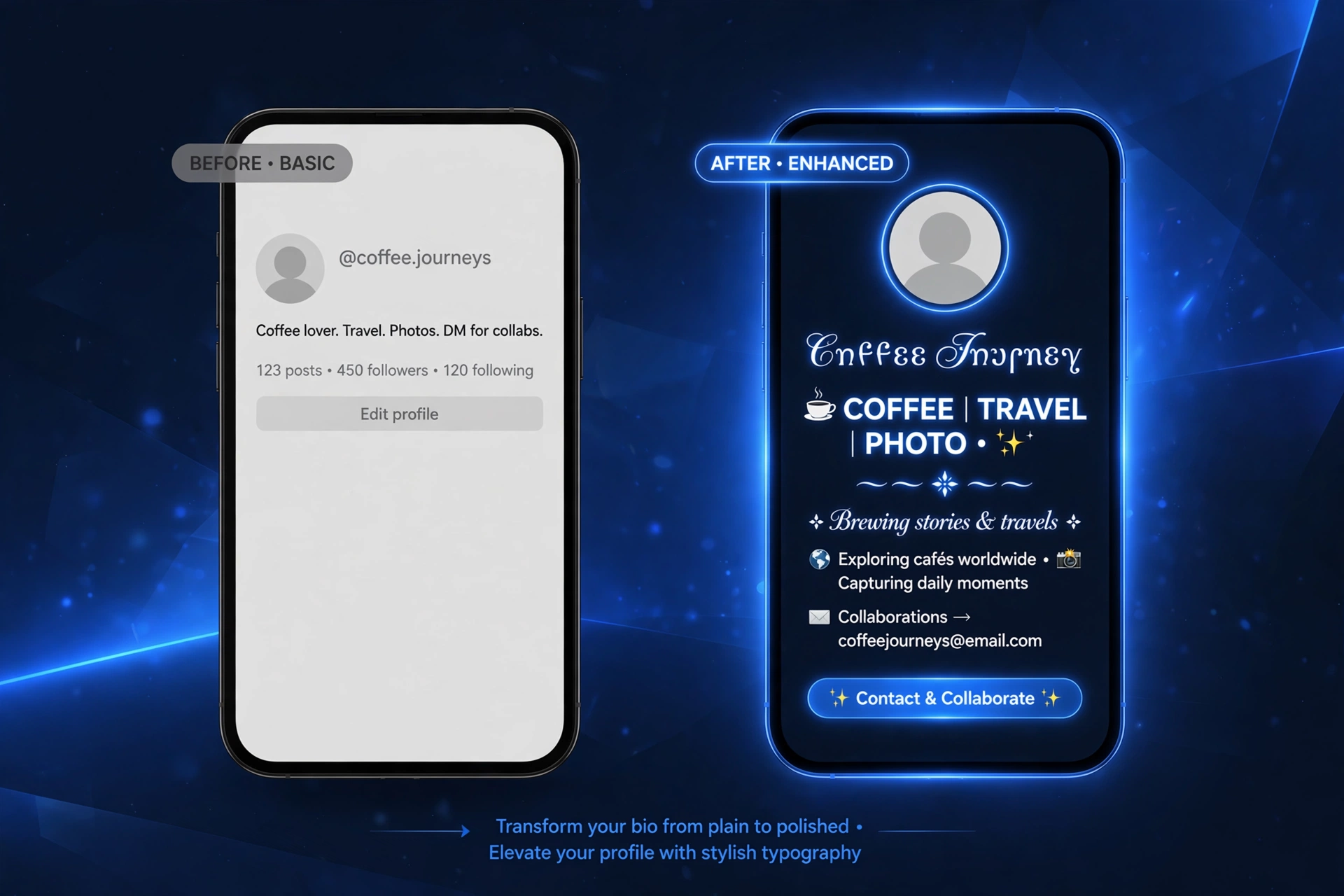
The bio is where styled text pays off most — it’s the first thing profile visitors read. Here’s the exact flow:
On iPhone and Android
- Generate and copy your styled text in the font generator.
- Open Instagram → your profile → Edit Profile → tap the Bio field.
- Tap and hold (iPhone) or long-press (Android) → Paste. Repeat for each styled line.
- Tap Done / the checkmark (top right) to save, then check your public profile to confirm the styling survived.
The same paste flow works for the Name field. One caution: Instagram search matches against your name field, so stuffing it with exotic Unicode can make you harder to find. A common pro setup is a readable name plus a styled bio — discoverability and polish.
How to Add Stylish Fonts to Instagram Stories
Stories are a special case: the Story editor already includes built-in text styles (classic, modern, neon, typewriter, strong across the top of the text tool). For most Story designs those built-ins are the better choice — they’re made for the format and always render correctly.
You can still paste generator text into a Story: copy the styled text, create your Story, tap the Aa text tool, long-press, and paste. Resize and position it like any Story text element.
Tip: Pasted Unicode text in Stories can’t use Instagram’s text animations or background effects the way native Story fonts can. Use the built-ins for animated text; use pasted Unicode when you want a script or decorative style the built-ins don’t offer.
5 Mistakes to Avoid
- Styling everything. A bio in five different fonts looks messy, not premium. Two styles maximum — one for the name/headline, one for accents.
- Choosing unreadable styles for important info. Gothic and heavy decorative scripts strain the eyes. Contact lines, locations, and calls-to-action belong in a readable style (bold sans or small caps).
- Ignoring screen readers. Screen readers spell out Unicode styled text letter-by-letter, a poor experience for visually impaired followers. Keep critical info in plain text somewhere on your profile.
- Using “font” apps that ask for your password. Styling text is pure copy-paste — you never need to give any app your Instagram login. Any “fonts” keyboard demanding credentials is a phishing risk. Delete it.
- Forgetting to check rendering. After pasting, view your profile on a second device — especially Android if you’re on iPhone. Some ornamental characters show as boxes on older systems; catch it before your audience does.
Free Font Generators: What to Look For
Not all free font generator tools are equal. A good one has: live preview of every style on your actual text (not generic samples); one-tap copy buttons per style; no signup and no app install — the job is text transformation, anything demanding an account is overkill; 30–50 genuinely distinct styles (beats 200 near-duplicates); and a clean, fast page that loads instantly on your phone.
Our free font generator tool covers all five: type once, compare dozens of styles live, and copy any of them in one tap — then paste straight into Instagram. If you enjoy styling text for social apps generally, our Discord text formatting guide covers bold, italics, code blocks, and color tricks for Discord’s markdown.
Frequently Asked Questions
What is the Instagram font generator?
It’s a free online tool that converts plain text into stylish Unicode characters — bold, italic, cursive, small caps, and more — that you copy and paste into Instagram. Instagram has no built-in font picker, so generators are the standard workaround creators use to style bios, captions, and comments.
What font does Instagram use?
Instagram renders bio, caption, and interface text in its own system sans-serif typeface, and there’s no setting to change it. The “different fonts” you see on stylish profiles aren’t fonts at all — they’re Unicode symbols that look like styled letters, pasted in from a generator.
How do I get IG fonts on my bio?
Type your text into a font generator, tap Copy on the style you like, then open Instagram → Edit Profile → Bio → paste → Done. The whole process takes under a minute and works identically on iPhone and Android.
What is the Instagram caption font?
Captions use the same default system font as everything else on Instagram. To make a caption heading stand out, generate a bold or script version of the heading with a font generator and paste it at the top of your caption — the rest of the caption stays in normal text for readability.
How does font generator copy paste work technically?
Generators map each letter you type to a lookalike character from Unicode’s mathematical alphanumeric symbols block. When you hit Copy, the styled characters go to your clipboard as ordinary text — that’s why they paste into Instagram, TikTok, WhatsApp, or anywhere else without any special support.
Are Instagram font generators safe to use?
Yes — reputable ones are just text-in, text-out web pages with no login. Never enter your Instagram password into a “fonts” app or keyboard; real generators never ask for it. Also note that some highly decorative styles don’t render on older devices, so preview your profile on a second phone after styling.
Your bio is your profile’s first impression — one styled headline and a clean layout take a minute with a free font generator and make the whole account look intentional. Try a style above, paste it in, and check it on a second device before you call it done.