
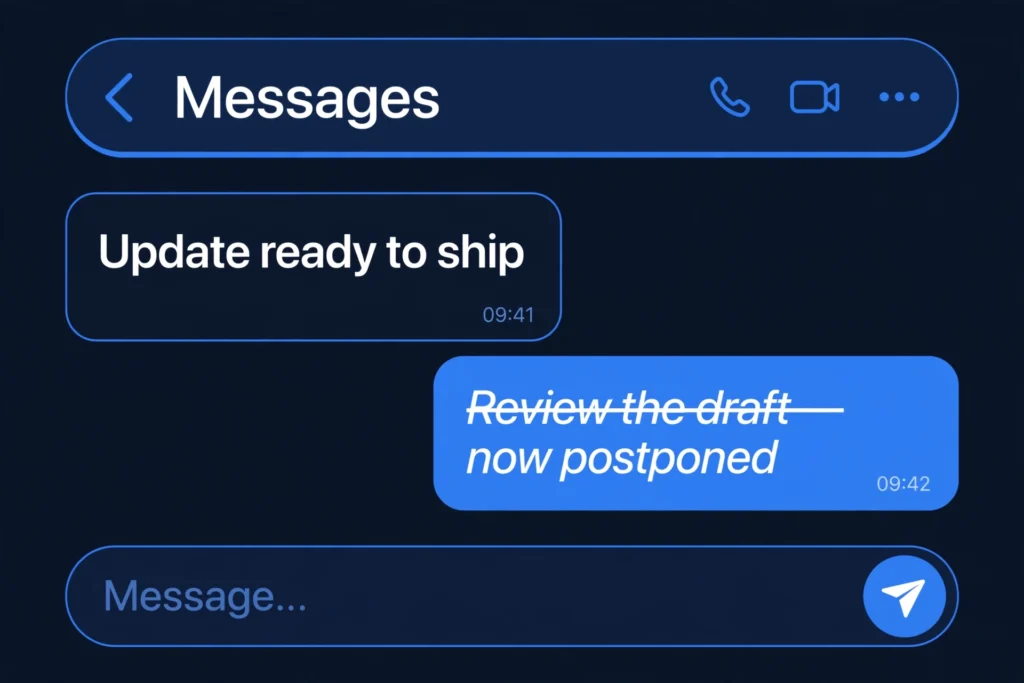
To format text in Telegram, select the text in any chat, then use the built-in formatting menu or type simple shortcut symbols around your words: **bold**, __italic__, ~~strikethrough~~, ||spoiler||, and `code`. This works on the Telegram mobile apps, desktop app, and web version.
Telegram’s formatting options go well beyond bold and italic — you can underline text, hide spoilers, add monospace code blocks, quote other messages, and insert clickable links. This guide, prepared by Zyrro, walks you through every method step by step: the tap-and-select menu on iPhone and Android, right-click formatting on desktop, the keyboard shortcuts, and what to do when formatting refuses to work.
In this guide
- What text formatting does Telegram support?
- How do you format text in the Telegram app on mobile?
- How do you format text in Telegram Desktop?
- What are the Telegram text formatting shortcuts?
- How do you make text bold in Telegram?
- How do you italicize text in Telegram?
- How do you strikethrough text in Telegram?
- How do you hide text with spoilers in Telegram?
- How do you use monospace and code blocks in Telegram?
- Can you change the font style or text size in Telegram?
- Why is my Telegram formatting not working?
- Frequently asked questions
What text formatting does Telegram support?
Telegram supports nine text styles in regular chats, group messages, channel posts, and message captions. Formatting is a presentation layer: the underlying text stays the same, so it copies and pastes cleanly everywhere.
| Style | What it looks like | Symbol shortcut | Also available in the menu |
|---|---|---|---|
| Bold | bold | **text** | Yes |
| Italic | italic | __text__ | Yes |
| Underline | underline | — | Yes |
| Strikethrough | ~~text~~ | Yes | |
| Spoiler | hidden until tapped | ||text|| | Yes |
| Inline code | code |
`text` | Yes |
| Code block |
code block |
“`text“` | Yes |
| Quote | quoted line | > at line start | Yes |
| Link | clickable text | [text](url) | Yes |
Tip: the formatting menu is the most reliable method because it works identically on every device. Shortcut symbols are faster once memorized, but they can behave slightly differently across Telegram clients and app versions, so test them in your own Saved Messages chat first.
How do you format text in the Telegram app on mobile?
On both iPhone and Android, you format text by selecting it before you send the message. The steps are nearly identical on both platforms.
- Type your message in the chat’s text box, but do not send it yet.
- Long-press (or double-tap) a word to select it, then drag the selection handles to cover the exact text you want to format.
- A small pop-up toolbar appears. On Android it shows BIU; on iPhone it shows formatting options in the selection menu. Tap it (on iPhone you may need to tap the arrow to reveal more options).
- Choose Bold, Italic, Underline, Strikethrough, Spoiler, Mono, or Link from the list.
- Telegram applies the style instantly. Send the message as normal.
You can stack styles — for example, bold plus italic — by selecting the already-formatted text and applying a second style. This works in one-to-one chats, groups, channels where you can post, and even in photo captions.

How do you format text in Telegram Desktop?
On Telegram Desktop (Windows, Mac, or Linux) and Telegram Web, select the text with your mouse, then right-click it and choose Formatting from the context menu. A sub-menu lists every style: Bold, Italic, Underline, Strikethrough, Spoiler, Code, Pre, Quote, and Create Link.
Desktop is also where keyboard shortcuts shine. With text selected, press Ctrl+B for bold, Ctrl+I for italic, Ctrl+U for underline, or Ctrl+K to turn the selection into a clickable link (on Mac, use Cmd instead of Ctrl). For strikethrough and monospace, the right-click Formatting menu is the fastest route.
What are the Telegram text formatting shortcuts?
Telegram understands Markdown-style symbols typed directly around your words. Type the symbols, and Telegram converts them into formatting when the message is sent.
| To get this | Type this | Example |
|---|---|---|
| Bold | **word** | **important** |
| Italic | __word__ (two underscores) | __maybe__ |
| ~~word~~ | ~~old price~~ | |
| Spoiler (tap to reveal) | ||word|| | ||the ending|| |
Inline code |
`word` (backticks) | `npm install` |
| Code block | “`lines“` | “`print(“hi”)“` |
| Quoted line | > at the start of a line | > as you said |
Important: there is no symbol shortcut for underline in the app — use the formatting menu for that. And if a symbol pair does nothing when you send the message, your app version may be outdated (see the troubleshooting section below).
How do you make text bold in Telegram?
You make text bold in Telegram by selecting it and choosing Bold from the formatting menu, by typing **double asterisks** around the words, or by pressing Ctrl+B (Windows) or Cmd+B (Mac) on desktop.
Bold is the most-used Telegram style — perfect for deadlines, names, prices, and the key point of a long message. If you need bold text outside Telegram too, such as in apps with no formatting support, try a fancy text generator that creates bold Unicode characters you can paste anywhere.
How do you italicize text in Telegram?
To italicize text in Telegram, select it and pick Italic from the formatting menu, or wrap the words in double underscores like __this__. On desktop, Ctrl+I (or Cmd+I on Mac) works with the text selected.
Italics are ideal for emphasis within a sentence, book and movie titles, foreign words, and quoted thoughts — anywhere you want a softer stress than bold.
How do you strikethrough text in Telegram?
To strikethrough text in Telegram, select the text and choose Strikethrough from the formatting menu, or type ~~double tildes~~ around the words before sending.
Strikethrough draws a line through the text without deleting it, which makes it perfect for showing corrections, old prices next to new ones, or playful “I definitely did not eat the cake” jokes. If you want crossed-out text for platforms that have no formatting menu at all, use a free strikethrough text generator — it produces real Unicode characters that render as struck-through text anywhere you paste them.
How do you hide text with spoilers in Telegram?
To hide spoiler text in Telegram, select the text and choose Spoiler from the formatting menu, or wrap it in double vertical bars like ||this||. The text appears blurred or hidden until the reader taps it.
Spoilers are a community favorite in movie, gaming, and book groups — you can discuss plot twists without ruining them for everyone. Unlike strikethrough, which is always visible, spoiler text stays concealed until tapped, so use spoilers when the content itself should be hidden, not just crossed out.
How do you use monospace and code blocks in Telegram?
For monospace text in Telegram, select the text and choose Mono from the formatting menu, or wrap it in single backticks like `this`. For multi-line code, wrap the block in triple backticks.
Monospace uses a fixed-width font where every character takes the same space, which keeps code, commands, passwords, and ASCII art perfectly aligned. Developers sharing snippets in Telegram groups rely on code blocks daily — triple backticks preserve line breaks exactly as typed.

Can you change the font style or text size in Telegram?
You cannot change the message font itself — Telegram uses its own built-in font for all messages, and there is no font picker for chat text. The Mono style (monospace) is the only alternative typeface available inside messages.
What you can change is the text size across the whole app: open Settings → Appearance → Text Size and drag the slider. This resizes all chat text on your device, which is genuinely useful on small phones. For decorative fonts in display names, bios, or channel descriptions, third-party fancy text generator tools create Unicode-styled text you can paste into those fields.
Why is my Telegram formatting not working?
When Telegram formatting does nothing, the cause is almost always one of these:
| Symptom | Likely cause | Fix |
|---|---|---|
| Symbols like ** show as plain text | Outdated app version | Update Telegram from your app store — symbol parsing improved in recent versions |
| Formatting menu does not appear | Text sent before styling, or unsupported chat | Format before sending; some bots and anonymous channel comments strip formatting |
| Formatting disappears after sending | Receiving client is outdated or a third-party client | Ask the recipient to update; official clients render all styles |
| Formatting works for you but looks plain to others | Markdown conflicts with the Bot API | If you run a bot, check whether it uses MarkdownV2 or HTML parse mode — the symbol sets differ |
| You want zero formatting in a message | Auto-formatting from pasted rich text | Paste as plain text, or select the text and clear styles via the formatting menu |
Tip: if you format text and it still looks wrong, send a test message to your own Saved Messages chat. That isolates the problem to your device instead of guessing about the recipient’s app.
If you also use Discord, the idea is the same but the symbols differ slightly — see our Discord text formatting guide for the side-by-side comparison.
Frequently asked questions
How do I make text bold in a Telegram message?
Select the text before sending and choose Bold from the formatting menu, type **double asterisks** around the words, or press Ctrl+B (Cmd+B on Mac) on desktop. All three methods produce the same bold text, and you can combine bold with italic or underline for extra emphasis.
How do I remove bold or other formatting in Telegram?
Before sending, select the formatted text, open the formatting menu again, and tap the active style to toggle it off. After sending, you can only fix it by editing the message (tap and hold, then Edit) within 48 hours and removing the style there.
How do I change the font style in Telegram?
You cannot change Telegram’s message font — the app uses its own built-in font with no font picker. Your options are the Mono (monospace) style inside messages, adjusting the overall text size in Settings → Appearance, or pasting Unicode-styled text from a fancy text generator into names and bios.
How can I adjust the text size in Telegram?
Open Settings, go to Appearance, and drag the Text Size slider. This changes the size of all chat text on your device. On Telegram Desktop the same setting lives under Settings → Appearance → Chat text size, and Ctrl+plus zooms the whole interface.
Which font is used in Telegram?
Telegram uses its own built-in default font for messages, and it does not publish a customizable font setting for chat text. If you want a different look inside a message, the Mono style gives you a fixed-width typeface — otherwise, style comes from bold, italic, and the other formatting options in this guide.
Does text formatting work in Telegram channels and groups?
Yes. Formatting works in group messages, channel posts (when you have posting rights), message captions, and your bio — anywhere the formatting menu appears. Some bots and anonymous admin posting modes may strip formatting, so test with a quick post if you are unsure.
Telegram’s formatting toolkit is small but mighty: nine styles, three ways to apply them, and zero cost. Master the menu method first, memorize the **bold** and __italic__ symbols second, and you will never send a wall of plain text again. For more free utilities like this one, explore Zyrro’s free online tools — including text generators that work anywhere Telegram’s formatting cannot reach.