

Quick answer: To strikethrough text on WhatsApp, wrap the words in one tilde on each side — type ~text~ and send. It works on iPhone, Android, WhatsApp Web, and the desktop app, in one-to-one and group chats. You can also select typed text and choose Strikethrough from the Format menu on iPhone or the three-dot menu on Android.
You have seen it in a group chat: a price crossed out and replaced — ~Rs. 2,000~ Rs. 1,500 — or a joke where the “wrong” word stays visible. WhatsApp has a built-in strikethrough format that takes two characters to use. This guide from Zyrro shows you every way to do it, plus the cases where it does not work.
Strikethrough draws a horizontal line through words while leaving them readable. On WhatsApp it shows a correction, a changed plan, a price drop, or a joke — the original words stay visible, so everyone can see what changed.
Table of Contents
- How to Strikethrough Text on WhatsApp
- How to Strikethrough Text on WhatsApp on iPhone
- How to Strikethrough Text on WhatsApp on Android
- How to Strikethrough Text on WhatsApp Web and Desktop
- What Is the Keyboard Shortcut for Strikethrough Text in WhatsApp?
- How to Strikethrough Text in a WhatsApp Group Name
- Can You Strikethrough Text in a WhatsApp Status?
- How to Combine Strikethrough with Bold and Italic on WhatsApp
- Why Is Strikethrough Not Working on WhatsApp?
- Frequently Asked Questions
How to Strikethrough Text on WhatsApp
Put one tilde (~) directly before the first word and one directly after the last word, with no spaces between the tildes and the text. Type ~text~, send the message, and WhatsApp draws a line through the words — the tildes disappear.
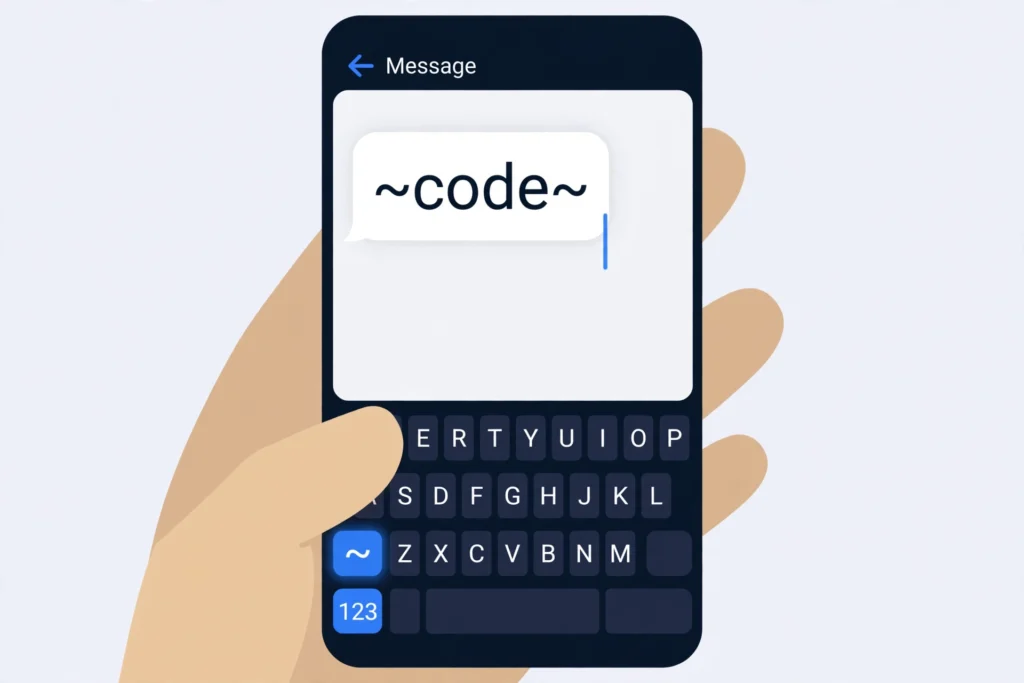
- Open any chat. The tilde method works in one-to-one chats and group chats, and in the WhatsApp Business app exactly the same way.
- Type a tilde (~) before your words. On a phone it lives on the symbols keyboard; on a computer keyboard it is the key at the top left, under Esc.
- Type the words, then close with another tilde. For example, type
~meeting at 3 PM~— no space after the first tilde and no space before the second one. - Send the message. WhatsApp renders the line the moment you send.
| What you type | What everyone sees |
|---|---|
~wrong~ right | |
The price is ~Rs. 2,000~ Rs. 1,500 | The price is |
~3 PM~ 4 PM, see you then |
You can cross out a single word or a whole message. The most common uses are correcting yourself without deleting the message, showing a price cut, and jokes where the crossed-out word is the punchline.
Tip: The tildes must touch the text. ~ text ~ with spaces inside will not work — WhatsApp sends it as plain text with visible tildes. Keep the symbols snug against the first and last letters.
How to Strikethrough Text on WhatsApp on iPhone
On iPhone you have two options: type the tildes, or use the built-in Format menu — easier if you cannot find the tilde key, because you type normally and format afterwards.
Method 1: Type the tildes
Open the chat, tap the message box, then tap 123 and #+= for the second symbols page. The tilde (~) is there. Type ~, your words, then ~ again, and send.
Method 2: Use the Format menu
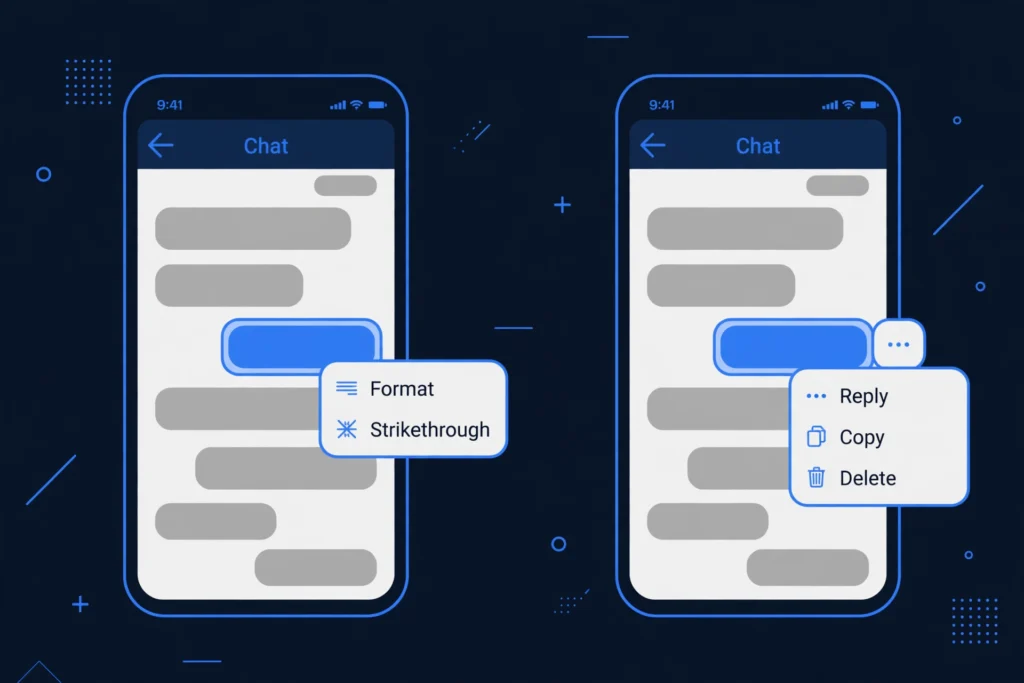
Type your message normally, long-press to select the words, drag the handles over them, then tap Format in the pop-up menu and choose Strikethrough. On older WhatsApp versions the same option sits under the BIU button. Send the message and the selected words appear crossed out.
The Format menu is also where Bold, Italic, and Monospace live on iPhone. If you do not see Format, update WhatsApp from the App Store — very old versions only support the tilde method.
How to Strikethrough Text on WhatsApp on Android
On Android, strikethrough works the same way in every chat, including group chats and the WhatsApp Business app.
Method 1: Type the tildes
Open the chat, tap the message box, then tap ?123 for the symbols keyboard. On Gboard the tilde (~) is on the symbols page — on some keyboards tap =< for the second symbols page first. Type ~, your words, then ~ again, and send.
Method 2: Use the three-dot menu
Type your message normally, long-press to select the words, drag the handles over them, then tap the three-dot menu (⋮) in the pop-up toolbar and choose Strikethrough. Send the message.
On Samsung phones the steps are identical — Samsung Keyboard also puts the tilde under ?123, and the three-dot menu appears the same way. If the menu does not show Strikethrough, update WhatsApp from the Play Store, or use the tilde method, which has worked on Android for years.
How to Strikethrough Text on WhatsApp Web and Desktop
On WhatsApp Web and the desktop app for Windows and Mac, strikethrough works exactly as on the phone: type ~text~ and send.
- Open WhatsApp Web or the desktop app and click into a chat.
- Type a tilde (~) before your words and one after them. On Windows and Mac the tilde is the key at the top left, under Esc — press Shift with it on a US layout.
- Press Enter to send. The line appears for everyone in the chat.
Important: There is no Ctrl+Shift+X shortcut for strikethrough in WhatsApp. That shortcut belongs to Slack and Google Docs, not WhatsApp. If a guide tells you to press it in WhatsApp Web, it will do nothing. The tilde is the shortcut.
What Is the Keyboard Shortcut for Strikethrough Text in WhatsApp?
There is no keyboard shortcut for strikethrough text in WhatsApp — no Ctrl, Alt, or Cmd combination applies it. The tilde method is the shortcut: type ~, your words, ~, and send.
| App | Strikethrough shortcut |
|---|---|
| WhatsApp (phone, Web, desktop) | ~text~ — no key combination |
| Slack | Ctrl+Shift+X (Windows) or Cmd+Shift+X (Mac), or ~text~ |
| Google Docs | Alt+Shift+5 (Windows) or Cmd+Shift+X (Mac) |
| Discord | ~~text~~ (double tilde) |
| Microsoft Word | Alt+H+4, or Ctrl+D then Alt+K |
Do not confuse WhatsApp’s single tilde with Discord’s double tilde: in Discord, ~~text~~ makes strikethrough and a single tilde does nothing, while in WhatsApp it is the opposite. For the full Discord method, see our guide on how to strikethrough text in Discord.
How to Strikethrough Text in a WhatsApp Group Name
You cannot strikethrough text in a WhatsApp group name with the tilde method. Typing ~name~ as a group name shows the tildes literally — the name field does not process formatting codes at all. The same is true of profile names and your About line. Formatting codes only render inside messages.
The workaround is Unicode strikethrough text, where the line is baked into the characters themselves. It looks like this: G̶r̶o̶u̶p̶ ̶N̶a̶m̶e̶. Because the line is part of the characters, WhatsApp displays it anywhere text is accepted — including group names.
- Open Zyrro’s free Strikethrough Text Generator — no signup, runs on your device.
- Type your group name into the box and pick the classic long strikethrough style — it has the widest support across phones.
- Tap Copy, then in WhatsApp open the group, tap its name, and paste the crossed-out text.
- Save. Every member now sees the crossed-out name.
Keep styled group names short: each letter carries an extra invisible character, so a long name eats into WhatsApp’s group-name character limit faster than plain text.

Can You Strikethrough Text in a WhatsApp Status?
Maybe — status support is inconsistent: some versions render ~text~ in a text status, but many users find the tildes show up literally. Try the tilde method first and preview before posting. If you see literal tildes, paste crossed-out text from Zyrro’s Strikethrough Text Generator into your status instead — the line shows on every phone because it is part of the characters. The same rule covers your profile name, your About line, and broadcast list names.
How to Combine Strikethrough with Bold and Italic on WhatsApp
Yes — nest the formatting codes inside each other, opening and closing each pair in the correct order. The tilde goes on the outside, and the bold or italic code goes on the inside.
| Effect | What you type |
|---|---|
| Bold strikethrough | ~*text*~ |
| Italic strikethrough | ~_text_~ |
| Bold, italic, and strikethrough | ~*_text_*~ |
| Bold and italic (no strikethrough) | *_text_* |
The order matters: ~*text*~ and *~text~* can render differently, so if one order fails, try the other. Pairing two styles is the sweet spot: bold strikethrough for a price drop (“~*Rs. 2,000*~ Rs. 1,500”), italic strikethrough for a correction. Bold is *text*, italic is _text_, monospace is triple backticks — and for more on bold, see our guide on how to bold text in WhatsApp.
Why Is Strikethrough Not Working on WhatsApp?
If strikethrough is not working, the cause is almost always one of five things:
- Spaces inside the tildes.
~ text ~will not format. The tildes must touch the first and last letters:~text~. This is the most common mistake by far. - A missing tilde. One tilde with no partner does nothing — WhatsApp needs the opening and closing symbol on the same line.
- A lookalike tilde. Some keyboards insert a similar-looking character instead of the standard tilde (~). Delete both tildes and retype them with the standard ~ key.
- An old WhatsApp version. The tilde method has worked for years, but the select-text Format menu needs a recent version — update WhatsApp and try again.
- The wrong field. Formatting codes only work inside messages. Group names, profile names, About lines, and often statuses ignore them — use the Unicode generator for those.
Frequently Asked Questions
How to strikethrough in WhatsApp on iPhone?
On iPhone, type a tilde before and after the words — ~text~ — and send. Find the tilde by tapping 123, then #+=. Or type normally, long-press to select the words, tap Format, and choose Strikethrough. Both methods work in one-to-one and group chats.
What is the keyboard shortcut for strikethrough text in WhatsApp?
There is no keyboard shortcut for strikethrough in WhatsApp — no Ctrl, Alt, or Cmd combination exists for it. The shortcut is the tilde itself: type ~, your words, then ~. Ctrl+Shift+X belongs to Slack and Google Docs, not WhatsApp, and does nothing in WhatsApp Web.
Can you strikethrough text in a text message?
In a WhatsApp message, yes — wrap the words in tildes, like ~text~, and WhatsApp draws the line when you send. In a plain SMS text message, no: SMS has no formatting, so tildes would show literally. For SMS, paste Unicode crossed-out text from a strikethrough generator instead.
How to type strikethrough text on phone?
On any phone, open WhatsApp and type a tilde (~) before and after the words. On iPhone the tilde is under 123, then #+=. On Android it is under ?123 on the symbols keyboard. Or type first, select the words, and choose Strikethrough from the Format menu (iPhone) or the three-dot menu (Android).
How can I generate crossed out text?
Use a free strikethrough text generator: type your words, pick a style, and copy the crossed-out result. Zyrro’s Strikethrough Text Generator offers 11 styles, works entirely in your browser, and needs no signup. Paste the result anywhere — WhatsApp chats, group names, bios, statuses, Instagram, or Discord — because the line is part of the characters.
How to strikethrough text on WhatsApp on Samsung?
On a Samsung phone, type ~text~ in any WhatsApp chat — the tilde is on the symbols keyboard under ?123. Or type normally, long-press to select the words, tap the three-dot menu, and choose Strikethrough. The steps are identical to any other Android phone.
Strikethrough on WhatsApp is a two-character trick — one tilde on each side — and it works on iPhone, Android, Web, and desktop, in every chat. For the places it cannot reach, like group names and statuses, Zyrro’s free Strikethrough Text Generator fills the gap with crossed-out text that pastes anywhere.