
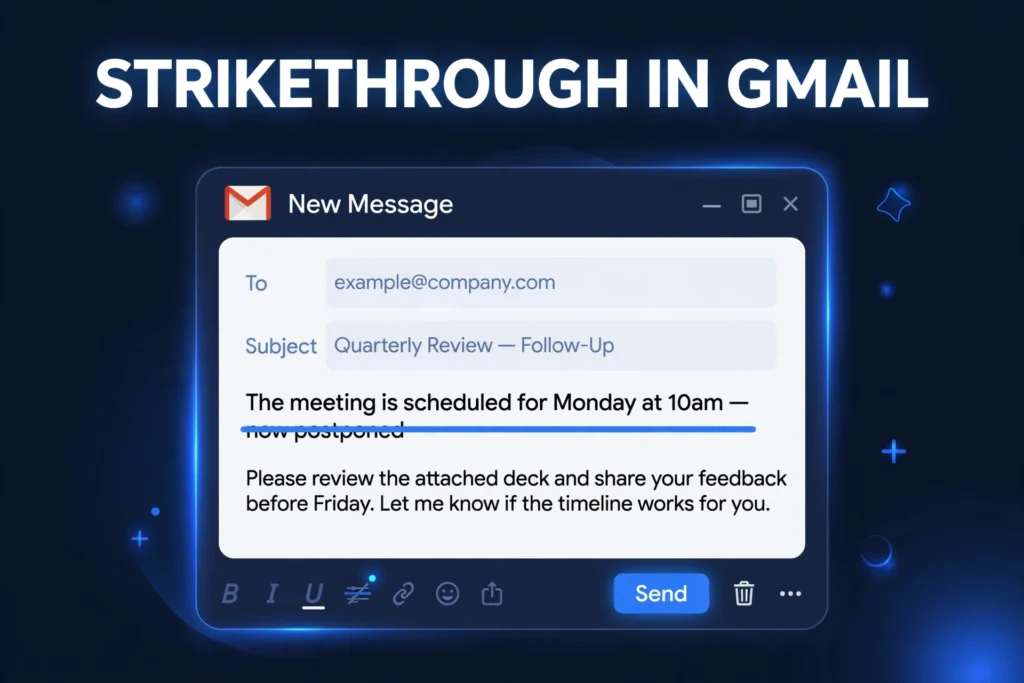
Short answer: on Gmail desktop, select your text and press Alt + Shift + 5 (Windows or Chromebook) or Command + Shift + X (Mac) — the strikethrough applies instantly. You can also click the underlined A icon at the bottom of the compose window, open More formatting options, and click the S-with-a-line icon. The Gmail mobile app has no built-in strikethrough button, so on Android or iPhone you need a workaround: format the text in the Google Docs app or paste pre-crossed text from a strikethrough generator.
Strikethrough is the formatting that draws a horizontal line through text — like this: this text is crossed out — without deleting it. People use it to mark completed tasks in email lists, show a price drop (“$99 now $49″), track edits in drafts, or add a joking correction to a sentence. At Zyrro we get asked about text formatting constantly, and Gmail’s strikethrough is one of the most searched-for because the button is genuinely hard to find. This guide covers every method: the keyboard shortcut, the hidden toolbar button, the mobile workarounds, and the subject-line trick.
Table of Contents
- What Is the Gmail Strikethrough Shortcut?
- Where Is the Strikethrough Button in Gmail?
- Strikethrough Methods Compared
- How Do You Add Strikethrough in the Gmail App?
- How Do I Remove Strikethrough in Gmail?
- Can You Strikethrough Text in a Gmail Subject Line?
- Why Is My Gmail Strikethrough Shortcut Not Working?
- Frequently Asked Questions
What Is the Gmail Strikethrough Shortcut?
The fastest way to strikethrough text in Gmail is a two-key-plus-one-key shortcut that mirrors Google Docs:
- Windows, Chromebook, or Linux: press Alt + Shift + 5
- Mac: press Command + Shift + X
Here is the exact sequence:
- Open Gmail in your browser and click Compose (or open a reply).
- Type your message, then select the words you want to cross out — clicking and dragging with the mouse, or holding Shift with the arrow keys.
- Press the shortcut for your operating system.
The line appears instantly — no menus, no dialog boxes. Gmail uses the same formatting shortcuts as Google Docs, so if you already know them from Docs, they carry straight over. To cross out more text later, just select it and press the shortcut again.

Where Is the Strikethrough Button in Gmail?
If shortcuts aren’t your thing, Gmail has a clickable strikethrough button — it is just buried. Google hides the less-used formatting controls behind a second menu to keep the compose toolbar compact. Here is how to find it:
- In the compose window, look at the formatting bar along the bottom.
- Click the underlined A icon (formatting options) if the bar looks minimal — this expands the full toolbar.
- Click the three-dot “More formatting options” button on the right side of the toolbar.
- Click the S with a horizontal line through it — that’s the strikethrough button.
Select your text first, then click the button, and the line appears. The button is a toggle: click it once to apply strikethrough, select the text and click it again to remove it.
Note: the toolbar method takes a few seconds of hunting the first time, which is why so many people search for the shortcut. Once you know the shortcut, you’ll never open that menu again.
Strikethrough Methods Compared
Gmail actually gives you four ways to get crossed-out text. This table compares them so you can pick the right one for your situation:
| Method | Works On | Speed | Best For |
|---|---|---|---|
| Keyboard shortcut (Alt+Shift+5 / Cmd+Shift+X) | Desktop browser | Instant | Everyday use — fastest once memorized |
| Toolbar button (A icon → More options → S) | Desktop browser | ~5 seconds | Mouse users, discovering the feature |
| Google Docs method (Format → Text → Strikethrough, then copy-paste) | Desktop + mobile | ~1 minute | Mobile app, where Gmail has no button |
| Unicode generator (paste pre-crossed characters) | Everywhere, including subject lines | ~30 seconds | Subject lines, apps with no formatting at all |
For the Unicode generator route, our free strikethrough text generator converts any text into crossed-out Unicode characters you can paste anywhere — including Gmail subject lines, where normal formatting is impossible.
How Do You Add Strikethrough in the Gmail App?
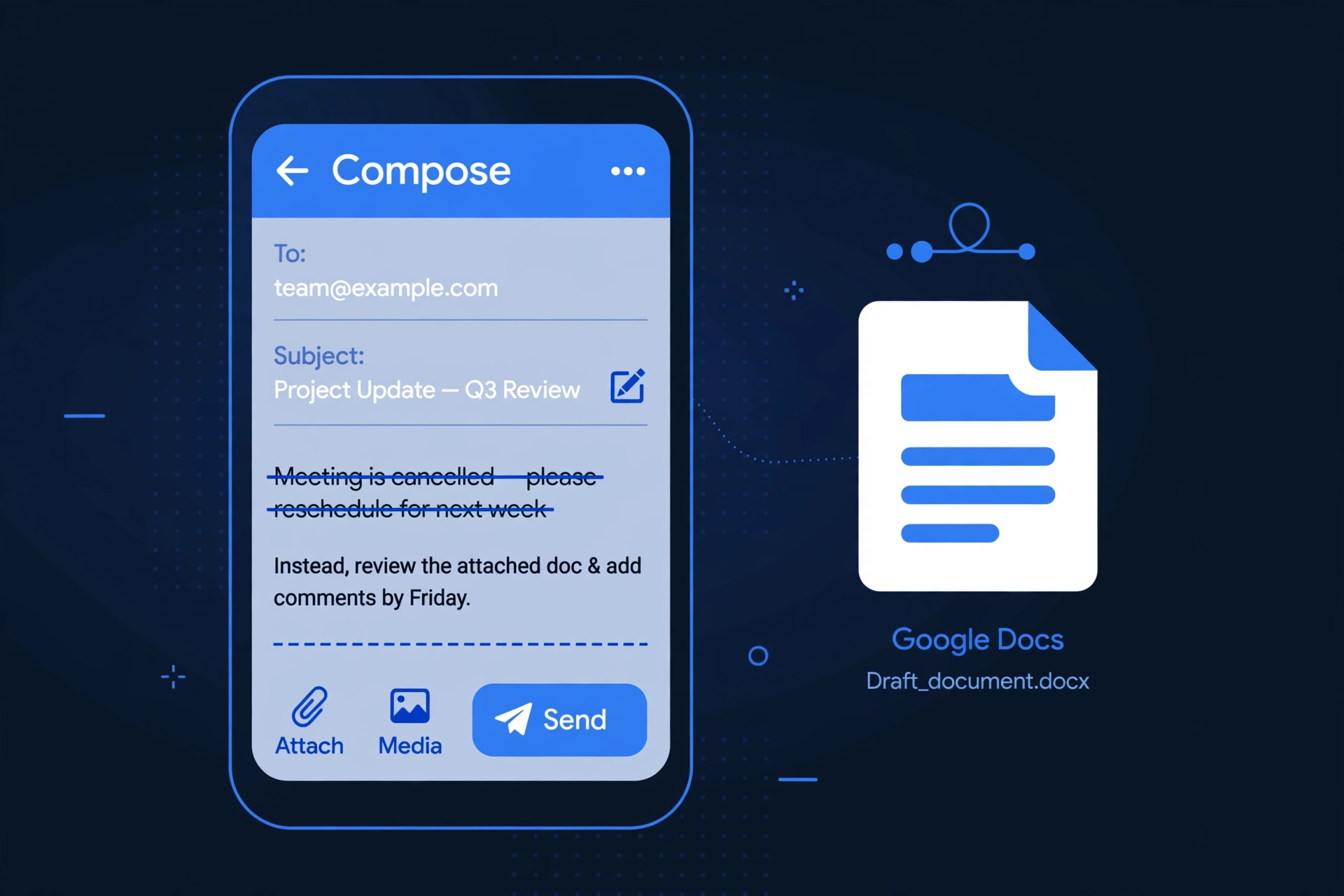
Here is the honest answer: the Gmail mobile app (Android and iPhone) has no native strikethrough button. Google’s own Gmail Help page for Android lists the mobile formatting options — Bold, Italic, Underline, Text colour, Background colour, Unordered list, Font, and Clear formatting — and strikethrough is not among them. Multiple guides confirm the same limitation, so if you’re composing on your phone, you need one of these two workarounds:
Workaround 1 — The Google Docs app (best quality):
- Open the Google Docs app on your phone and start a blank document.
- Type the text, select it, then tap Format → Text → Strikethrough.
- Copy the formatted text and paste it into your Gmail compose window.
Pasting from Docs preserves real HTML formatting, so the recipient sees proper strikethrough — and screen readers announce it correctly, unlike the Unicode trick below.
Workaround 2 — A strikethrough text generator (fastest):
- Open a strikethrough text generator in your phone’s browser.
- Type your text, copy the crossed-out version it produces.
- Paste it into Gmail.
This works in seconds, but with a caveat: the “strikethrough” is made of special Unicode characters (each letter followed by a combining stroke mark), not real formatting. Screen readers announce it character by character, which can be tedious — so for anything important, like pricing or legal terms, the Google Docs method is the accessible choice.
How Do I Remove Strikethrough in Gmail?
Removing strikethrough is the exact reverse of applying it:
- Select the crossed-out text.
- Press Alt + Shift + 5 (Windows/Chromebook) or Command + Shift + X (Mac) — or click the strikethrough button in the toolbar again.
The line disappears and your text returns to normal. This works because the button and shortcut are toggles: the same action that applies the formatting removes it.
If pasted Unicode strikethrough text won’t clear, that’s expected — it isn’t formatting at all, just special characters. You’ll need to delete and retype those words, or paste plain text from your generator’s output.
Can You Strikethrough Text in a Gmail Subject Line?
Not with normal formatting — but yes with a trick. Gmail’s subject field is plain text: no bold, no italic, no strikethrough, and no way to enable it. The toolbar and shortcuts only work in the message body.
The trick is Unicode. Paste crossed-out Unicode text (e.g. from Zyrro’s strikethrough text generator tool) directly into the subject line and it displays with a line through it, because those characters are text, not formatting. Use it sparingly — overuse looks spammy, and some older email clients render the combining characters unevenly, so test by sending yourself a preview first.
Why Is My Gmail Strikethrough Shortcut Not Working?
If the shortcut does nothing, one of these is almost always the cause. Work through this checklist:
| Problem | Fix |
|---|---|
| Your cursor is in the To, Subject, or CC field | The shortcut only fires inside the message body. Click into the body text first — this is the #1 cause. |
| No text is selected | Unlike bold-as-you-type, strikethrough needs a selection first. Highlight the words, then press the shortcut. |
| Plain-text mode | Gmail is in plain-text mode (Compose menu → check “Plain text mode” is OFF). Rich formatting needs to be enabled. |
| OS or browser conflict | Some input methods and extensions capture Alt+Shift+5. Try the toolbar button instead, or test in an incognito window. |
| You’re on mobile | The mobile app has no strikethrough support at all — use the workarounds above. |
Still stuck? The toolbar method (A icon → More formatting options → S icon) bypasses every shortcut conflict, so it always works on desktop.
Strikethrough is just one of many text tricks worth knowing — if you chat on Discord, our guide to strikethrough in Discord covers the double-tilde method for messages and channel topics.
Frequently Asked Questions
How do I strikethrough in Gmail on iPhone?
The Gmail iPhone app has no strikethrough button — Google’s mobile formatting menu only offers bold, italic, underline, colors, lists, and font. To cross out text, format it in the Google Docs iOS app (Format → Text → Strikethrough), copy it, and paste into Gmail; or paste pre-crossed Unicode text from a strikethrough generator, which takes seconds but is less screen-reader friendly.
How do I remove strikethrough in Gmail?
Select the crossed-out text and press Alt + Shift + 5 on Windows or Command + Shift + X on Mac, or click the strikethrough button in the formatting toolbar again. The formatting is a toggle, so the same action removes it. This only works for real formatting — pasted Unicode strikethrough characters must be deleted and retyped.
How do I strikethrough a single word in Gmail?
Double-click the word to select it (triple-click selects the whole line), then press Alt + Shift + 5 on Windows or Command + Shift + X on Mac. You can cross out any length of text this way — a single character, one word, a sentence, or the entire message body.
How do I put a line through text in an email?
In Gmail’s desktop compose window, select the text and press Alt + Shift + 5 (Windows) or Cmd + Shift + X (Mac), or use the strikethrough button under the formatting toolbar’s More options menu. On the Gmail mobile app, which lacks the button, format the text in the Google Docs app and paste it over, or use a Unicode strikethrough generator.
What is the strikethrough shortcut for Gmail on Mac?
On a Mac, select your text in the Gmail compose window and press Command + Shift + X. It works in Safari, Chrome, and Firefox, and it’s identical to the Google Docs Mac shortcut — so it applies anywhere in Gmail’s rich-text message body, but not in the To, Subject, or CC fields.
How do I insert strikethrough in Gmail without a shortcut?
Click the underlined A (formatting options) icon at the bottom of the compose window, click the three-dot “More formatting options” button, then click the S-with-a-line strikethrough icon. This toolbar method works on any desktop browser and is the reliable fallback whenever the keyboard shortcut conflicts with another app.
Conclusion
Strikethrough in Gmail is easy once you know where Google hid it: Alt + Shift + 5 on Windows or Cmd + Shift + X on Mac for instant results, the toolbar’s More-formatting-options menu for mouse users, the Google Docs app as your mobile workaround, and Unicode characters for subject lines. Bookmark the shortcut and you’ll use it far more than you expect — price changes, task lists, and joke edits all read better with a line through them. For crossed-out text anywhere else on the web, Zyrro’s free online tools include a strikethrough generator that works in every app.