
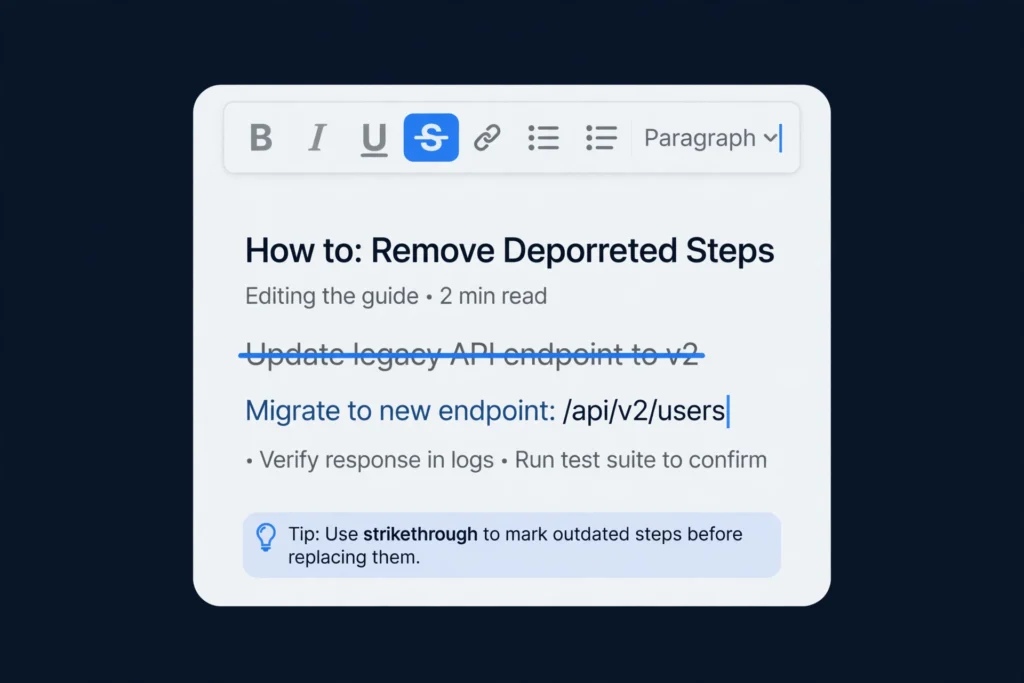
To strikethrough text in Google Docs, select the text, then click Format, Text, Strikethrough. The fastest way is the keyboard shortcut: Alt+Shift+5 on Windows or Chromebook, or Command+Shift+X on Mac. On mobile, select the text, tap the Format (A) icon, then tap the strikethrough (S) button.
Strikethrough keeps a crossed-out word visible, so readers can see what changed, was removed, or is done, without you deleting anything. At Zyrro, this guide covers every way to strikethrough text in Google Docs: the menu, the shortcuts, the mobile app, and the fixes for when the shortcut seems to do nothing.
Table of Contents
- What is strikethrough in Google Docs?
- How do you strikethrough text in Google Docs using the menu?
- What is the keyboard shortcut for strikethrough in Google Docs?
- How do you strikethrough text in Google Docs on mobile?
- How do you remove strikethrough in Google Docs?
- Is there a strikethrough button on the Google Docs toolbar?
- When should you use strikethrough instead of Suggesting mode?
- What if you need strikethrough text outside Google Docs?
- Why is the strikethrough shortcut not working in Google Docs?
- Frequently Asked Questions
What is strikethrough in Google Docs?
Strikethrough is a text format that draws a horizontal line through selected text while leaving the words readable. In Google Docs, it is purely visual: it does not delete the text, so a crossed-out paragraph still counts toward the word count.
People use strikethrough in Google Docs for several everyday jobs:
- Editing drafts: mark sentences for deletion while keeping them visible.
- To-do lists: cross off completed items without removing them.
- Price and plan changes: show an old price or date next to its replacement.
- Revision notes: show a collaborator which wording you propose to cut.
- Humour: the classic crossed-out correction, where the original word is still read.
If you want the reader to see that something changed, strikethrough is the right tool. If you want the change tracked and approved, Suggesting mode, covered later, is usually better.
How do you strikethrough text in Google Docs using the menu?
The menu method works on every computer, in every browser, and never depends on remembering a shortcut. It is the method to teach someone new to Google Docs.
- Open your document in Google Docs in a web browser.
- Select the text to cross out. Click and drag across the words, or double-click a single word.
- Click Format in the menu bar at the top of the page.
- Hover over Text in the drop-down menu. A second menu appears.
- Click Strikethrough. A line immediately appears through the selected text.
That is the whole method. If you selected only part of a word, only that part is crossed out.
What is the keyboard shortcut for strikethrough in Google Docs?
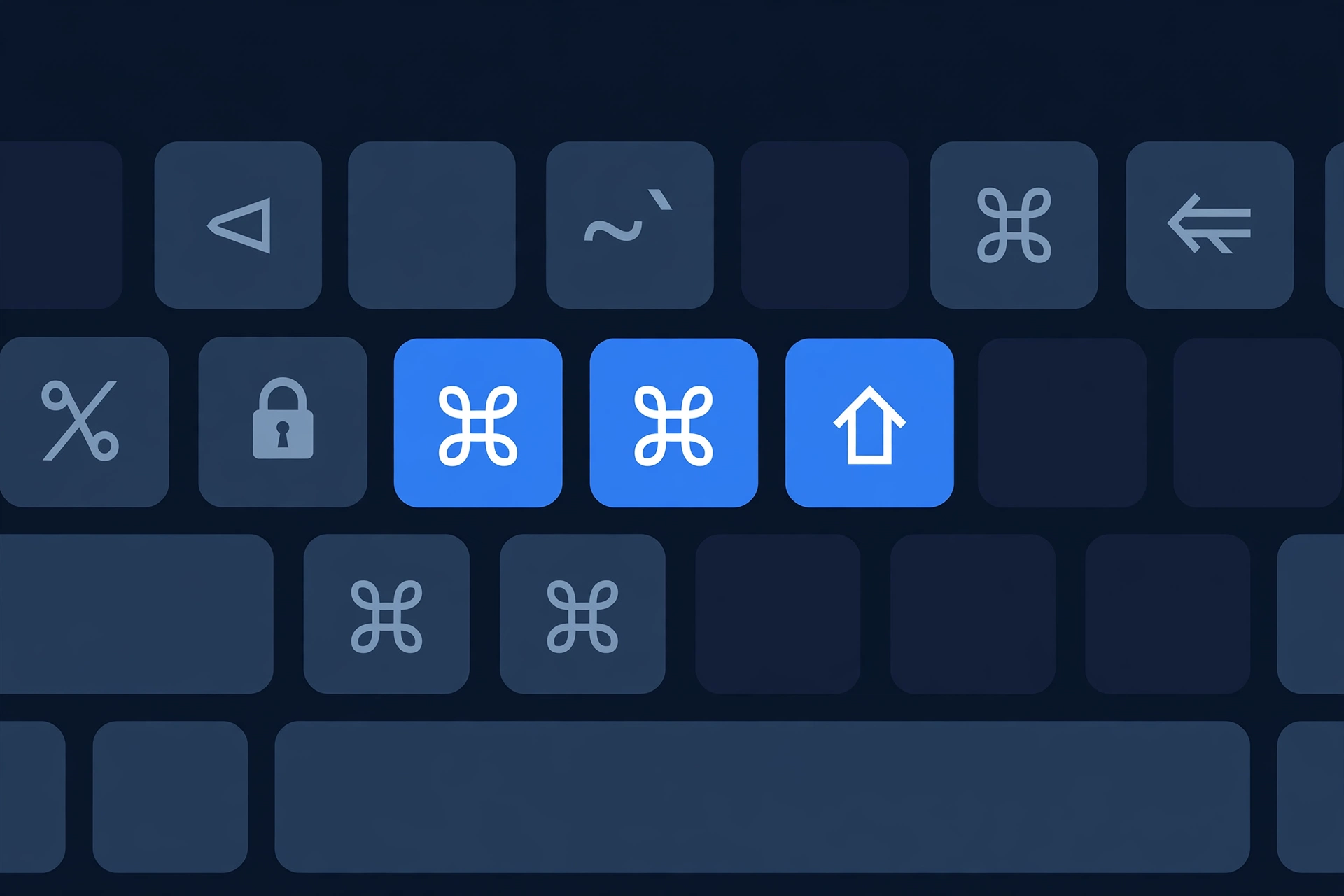
The keyboard shortcut for strikethrough in Google Docs depends on your computer. On Windows and Chromebook, press Alt plus Shift plus 5. On Mac, press Command plus Shift plus X. Select the text first, then press the shortcut.
| Device | Strikethrough shortcut | Notes |
|---|---|---|
| Windows | Alt + Shift + 5 | Number-row 5, not the numpad. |
| Chromebook | Alt + Shift + 5 | Same as Windows. |
| Mac | Command + Shift + X | Command key, not Option. |
The shortcut is a toggle: press it once to add strikethrough, select the same text and press it again to remove it. On a Chromebook, the shortcut is the same as on Windows, because Chromebooks run Google Docs in the Chrome browser. In tablet mode, use the mobile app method through the Format icon instead. For the same trick in email, see our guide to strikethrough in Gmail, which uses a different shortcut.
How do you strikethrough text in Google Docs on mobile?
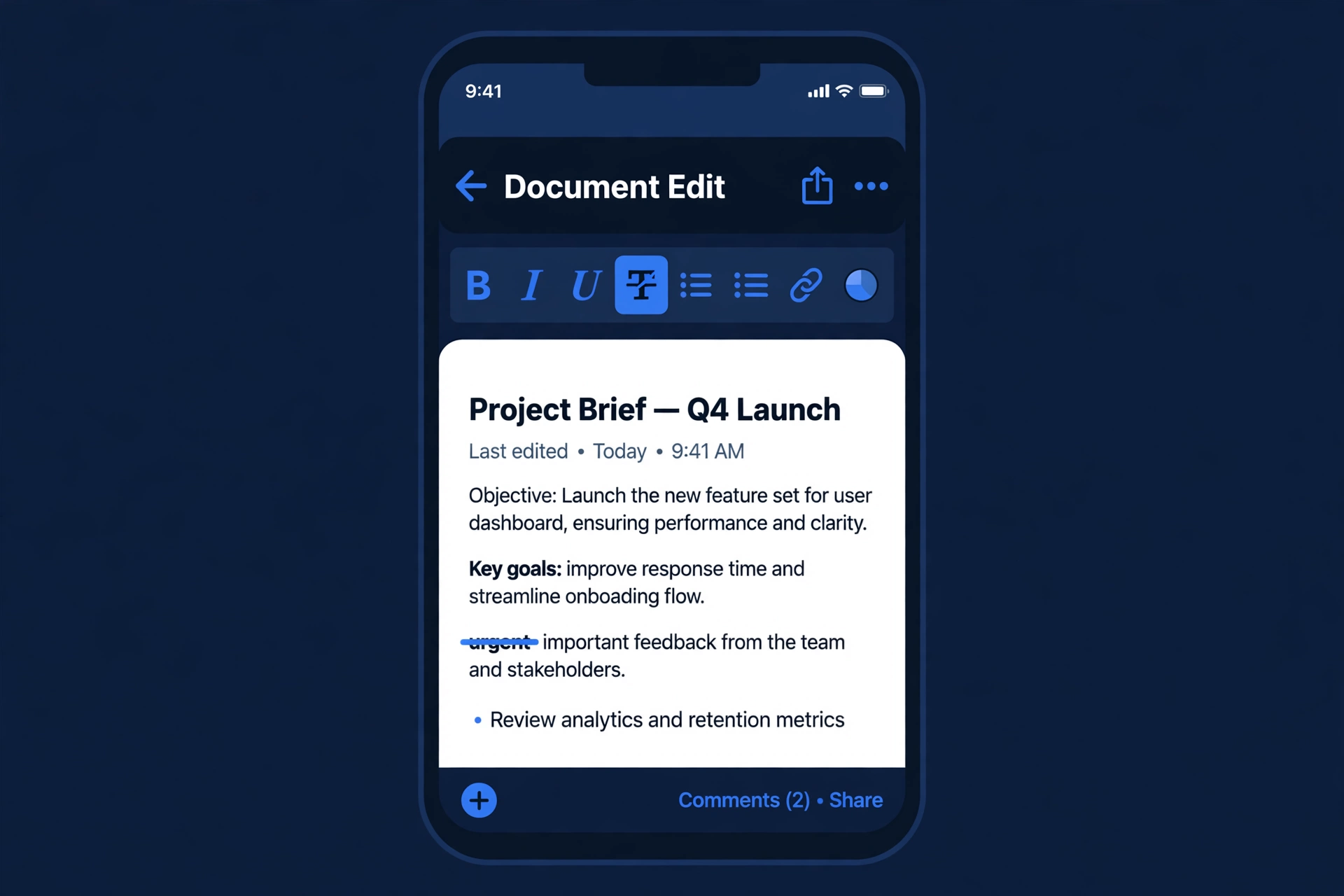
On the Google Docs mobile app, you strikethrough text from the formatting toolbar, not from a menu or keyboard shortcut. The steps are the same on Android and iPhone.
- Open the document in the Google Docs app and tap the pencil icon to enter edit mode if needed.
- Select the text to cross out. Double-tap a word, then drag the handles to cover a longer phrase.
- Tap the Format icon, which looks like a capital A with horizontal lines, above the keyboard.
- Tap the strikethrough button, which looks like an S with a line through it.
- Tap elsewhere to close the formatting panel and check the result.
On a phone screen, the formatting panel can hide the strikethrough button below the first row of options, so scroll the panel if you do not see it at once. The mobile app has no keyboard shortcut, so the Format icon is the only route on a phone.
How do you remove strikethrough in Google Docs?
To remove strikethrough, select the crossed-out text and apply the same command again: Alt plus Shift plus 5 on Windows or Chromebook, Command plus Shift plus X on Mac, or Format, then Text, then Strikethrough.
On the mobile app, select the crossed-out text, tap the Format icon, and tap the strikethrough button again to switch it off. If only part of a passage needs restoring, select just that part: strikethrough applies to exactly the text you select.
Important: Clear formatting also removes strikethrough, but it strips bold, italics, and every other format at the same time.
Is there a strikethrough button on the Google Docs toolbar?
No, Google Docs does not put a strikethrough button on the default toolbar. The toolbar shows bold, italic, and underline, but strikethrough lives only in the Format menu and behind the keyboard shortcut. This is the most common reason people think Google Docs cannot do strikethrough: they look for a button that is not there. There is also no built-in way to add a custom strikethrough button to the toolbar, so the shortcut and the Alt plus forward slash menu search are the practical workarounds.
When should you use strikethrough instead of Suggesting mode?
Strikethrough and Suggesting mode solve different problems. Strikethrough is a format you apply to your own document: the line is part of the document, and everyone who opens it sees the same crossed-out text. Suggesting mode records a proposed edit that the owner can accept or reject, with a comment explaining why.
| Situation | Use strikethrough | Use Suggesting mode |
|---|---|---|
| Your own draft, marking cuts | Yes | No |
| A to-do list, crossing off finished items | Yes | No |
| Proposing a deletion to a collaborator | For a quick visual note | Yes, so they can accept or reject it |
| A price or date change that stays visible | Yes | No |
| Formal review, where changes need approval | No | Yes |
A useful rule: if the crossed-out text stays in the final document, as in a to-do list or a before-and-after price, use strikethrough. If it is a proposal someone else should approve, use Suggesting mode, with a comment explaining the cut.
What if you need strikethrough text outside Google Docs?
Google Docs strikethrough is document formatting: it does not travel when you paste the text into a chat app, a social post, or a plain-text field. Most other apps drop the line and leave plain text. For text that must stay crossed out anywhere, the answer is Unicode struck-through characters, which carry a combining line built into each character.
You can generate that kind of text with the strikethrough text generator, then copy and paste the result into chats, bios, and posts, where it keeps its line because the line is part of each character. Use it for short phrases, not whole documents: Unicode struck-through text is harder for screen readers to read, and cannot be searched or spell-checked like normal text. Inside Google Docs itself, the Format menu method is always better. The same distinction applies in chat apps: our guide to strikethrough in Discord shows how a different app handles the same effect.
Why is the strikethrough shortcut not working in Google Docs?
If the strikethrough shortcut does nothing, work through these checks in order:
- No text selected. The shortcut formats the current selection, so select the text first.
- The numpad 5 key. On Windows and Chromebook, use the 5 key on the number row above the letters, not the numpad 5.
- The wrong Mac key. On Mac, the shortcut is Command plus Shift plus X, not Option plus Shift plus 5.
- A shortcut conflict. Some browser extensions claim Alt plus Shift plus 5 first. If the menu method works but the shortcut does not, try a private window with extensions off.
- A different keyboard layout. On some international layouts, Shift plus 5 produces a different character. Use the Format menu to confirm strikethrough works at all.
- You are not in edit mode. In a view-only document, or in the mobile app before you tap the pencil icon, formatting is unavailable.
If the menu method works and the shortcut still does not, keep using the menu and the Alt plus forward slash menu search: both reach the same command.
Frequently Asked Questions
What is the shortcut for strikethrough in Google Docs?
On Windows and Chromebook, the shortcut is Alt plus Shift plus 5, using the number-row 5 key. On Mac, it is Command plus Shift plus X. Select the text first, then press the shortcut. Pressing it again on the same selection removes the strikethrough, because the command works as a toggle.
How do I cross out text in Google Docs on mobile?
Open the document in the Google Docs app, select the text, tap the Format icon that looks like a capital A, then tap the strikethrough button that looks like an S with a line through it. The mobile app has no keyboard shortcut, so the Format icon is the only route on phones.
How do I remove strikethrough in Google Docs?
Select the crossed-out text and apply the same command again: Alt plus Shift plus 5 on Windows or Chromebook, Command plus Shift plus X on Mac, or Format, then Text, then Strikethrough from the menu. On mobile, select the text, tap the Format icon, and tap the strikethrough button again to switch it off.
Why is Alt plus Shift plus 5 not working for strikethrough in Google Docs?
The usual causes are no text selected, pressing the numpad 5 instead of the number-row 5, or a browser extension claiming the shortcut first. Select the text, use the number-row 5 key, and test in a private window with extensions off. If the menu method works, strikethrough itself is fine, and only the shortcut is being intercepted.
Can you strikethrough text in a Google Docs comment?
No, comment text in Google Docs does not offer formatting options like strikethrough, because comments have no formatting toolbar. If you need to show a deletion, edit the document text itself in Suggesting mode, where the proposed deletion is visible to collaborators, and add a comment explaining why the text should go.
Does Google Docs have a strikethrough button?
No, Google Docs does not show a strikethrough button on the default toolbar, which only carries bold, italic, and underline. Strikethrough lives in the Format menu under Text, and behind the keyboard shortcut Alt plus Shift plus 5 on Windows or Chromebook, or Command plus Shift plus X on Mac.
Can I strikethrough text in Google Docs on a Chromebook?
Yes, on a Chromebook you use the same method as on Windows: select the text, then press Alt plus Shift plus 5, or use Format, then Text, then Strikethrough. Chromebooks run Google Docs in the Chrome browser, so there is no separate Chromebook command. In tablet mode, use the mobile app method through the Format icon instead.
Strikethrough in Google Docs tells the reader, at a glance, that something changed, finished, or was replaced, without deleting the evidence. Learn the shortcut for your device, remember there is no toolbar button to hunt for, and use Suggesting mode when a collaborator must approve the cut. At Zyrro, that covers nearly every document you will edit.