
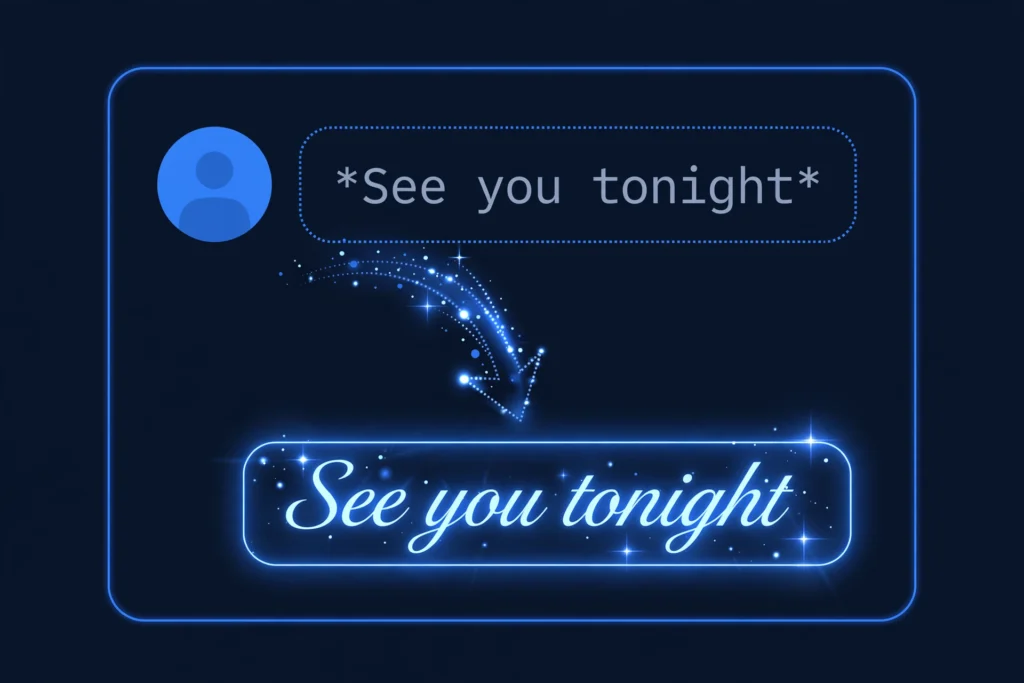
Learning how to italicize text in Discord is the fastest way to add emphasis without shouting. One asterisk on each side — like *this* — turns plain text into elegant italic the moment you hit send. It is perfect for emphasis, quotes, book and movie titles, sarcasm, and the occasional dramatic whisper in your server.
This beginner guide covers every method: the asterisk trick, the underscore alternative, keyboard shortcuts, mobile steps for iPhone and Android, combining italic with bold and underline, and fixes for when italics refuse to render.
Table of Contents
- The Quick Answer
- Why Italicize Text in Discord?
- Method 1: Italicize With Asterisks
- Method 2: Italicize With Underscores
- Method 3: Italicize Without Typing Symbols
- Asterisk vs Underscore: Which Should You Use?
- How to Italicize Text on Discord Mobile
- Combining Italic With Bold, Underline and Spoiler
- 6 Reasons Your Italics Aren’t Working (and Fixes)
- Where Italics Do and Don’t Work
- Frequently Asked Questions
The Quick Answer
To italicize text in Discord, type a single asterisk (*) immediately before and after your text, with no spaces between the asterisk and the words:
*See you tonight*When you send the message, it renders as See you tonight. That is the whole trick — everything below covers the situations where it is not quite that simple, like mobile keyboards, the underscore alternative, and combining italic with other formats.
Tip: Italics are part of Discord’s Markdown formatting system. For the full reference — bold, strikethrough, underline, spoilers, code blocks and more — see our complete Discord text formatting guide.
Why Italicize Text in Discord?
- Emphasis inside a sentence: “I said your turn, not mine.” The italic word carries the stress you would put on it when speaking.
- Titles of works: book, movie, album and game titles go in italics — Dune: Part Two looks more polished than plain capitals.
- Quotes and thoughts: many roleplay servers use italics for inner thoughts or whispered dialogue, e.g. he’s definitely lying.
- Sarcasm and tone: “Oh, great, another meeting” reads exactly the way it sounds in your head.
Because italic is subtler than bold, it is the better choice when you want one word to pop without making the whole message feel loud.
Method 1: Italicize With Asterisks
This is the method most Discord users learn first, and it works identically on desktop, web, and mobile:
- Open the channel or DM where you want to post.
- Click the message box and type a single asterisk:
*. - Type your text with no space after the asterisk.
- Type a single asterisk again, with no space before it.
- Press Enter. Discord renders the text in italics.
Example:
The meeting is *mandatory* this timeOnly the wrapped word becomes italic; the rest of the message stays normal. You can italicize several words in one message: *Please* read the *rules* channel first.
Important: The italics do not appear while you are typing — you will see the asterisks in the message box. The formatting only renders after you send the message.
Method 2: Italicize With Underscores
Discord also accepts a single underscore on each side of the text:
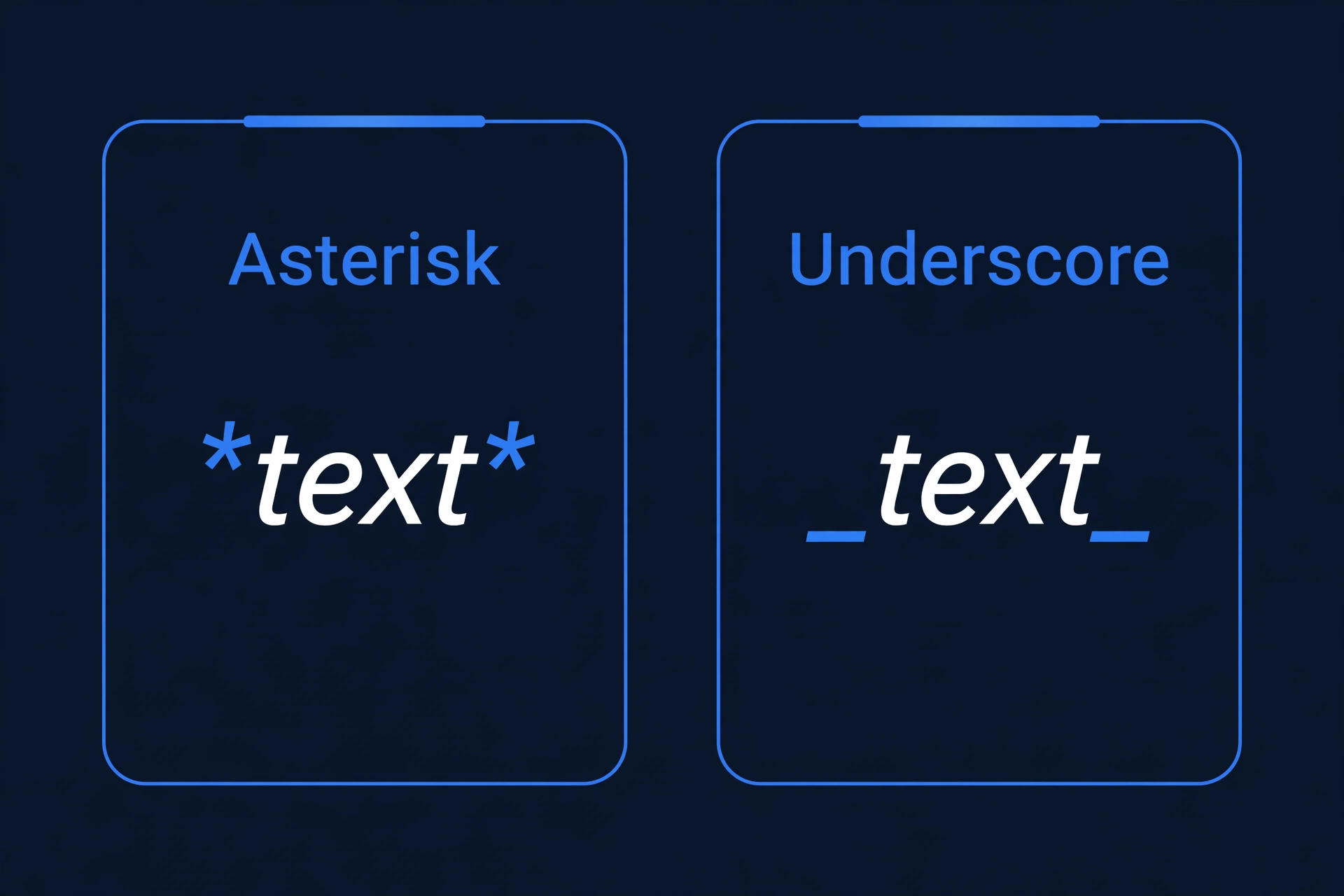
_See you tonight_This renders exactly the same as *See you tonight*. It exists because Discord’s formatting is based on Markdown, where *text* and _text_ are interchangeable for italics.
Most people stick with asterisks, but the underscore method is worth knowing: it is the only way to italicize text that itself contains an asterisk.
Method 3: Italicize Without Typing Symbols
Two no-typing options on desktop:
Option A: The highlight popup menu
- Type your message in the message box.
- Highlight the text you want to italicize.
- A small formatting toolbar pops up above the selection. Click the I (italic) button.
- Discord wraps the text in asterisks automatically.
Option B: The keyboard shortcut
Highlight the text and press Ctrl + I on Windows or Cmd + I on Mac. Discord inserts the asterisks for you. Note that you must highlight text first — pressing Ctrl + I on an empty message box does nothing.
Both options also work when editing a sent message: hover over it, click the pencil icon, highlight a phrase, and apply italics without retyping anything.
Asterisk vs Underscore: Which Should You Use?
Both methods produce identical italics, but they are not perfectly interchangeable. Here is the honest comparison:
| Factor | Asterisk (*text*) | Underscore (_text_) |
|---|---|---|
| Ease of typing | Shift + 8 on most keyboards; one extra symbols-page tap on mobile | Usually on the main symbols page; slightly easier on some phones |
| Reliability | Always works | Can fail inside usernames or words with underscores, e.g. user_name does not italicize |
| Text containing asterisks | Breaks if your text has its own asterisks | Works fine — the safe choice here |
| What most people use | Yes — the community standard | Rare in practice |
Bottom line: use asterisks by default. Switch to underscores only when the text contains an asterisk itself (for example, a math expression like 2*3). And be consistent within a message — mixing *this* _and_ *that* looks sloppy.
How to Italicize Text on Discord Mobile
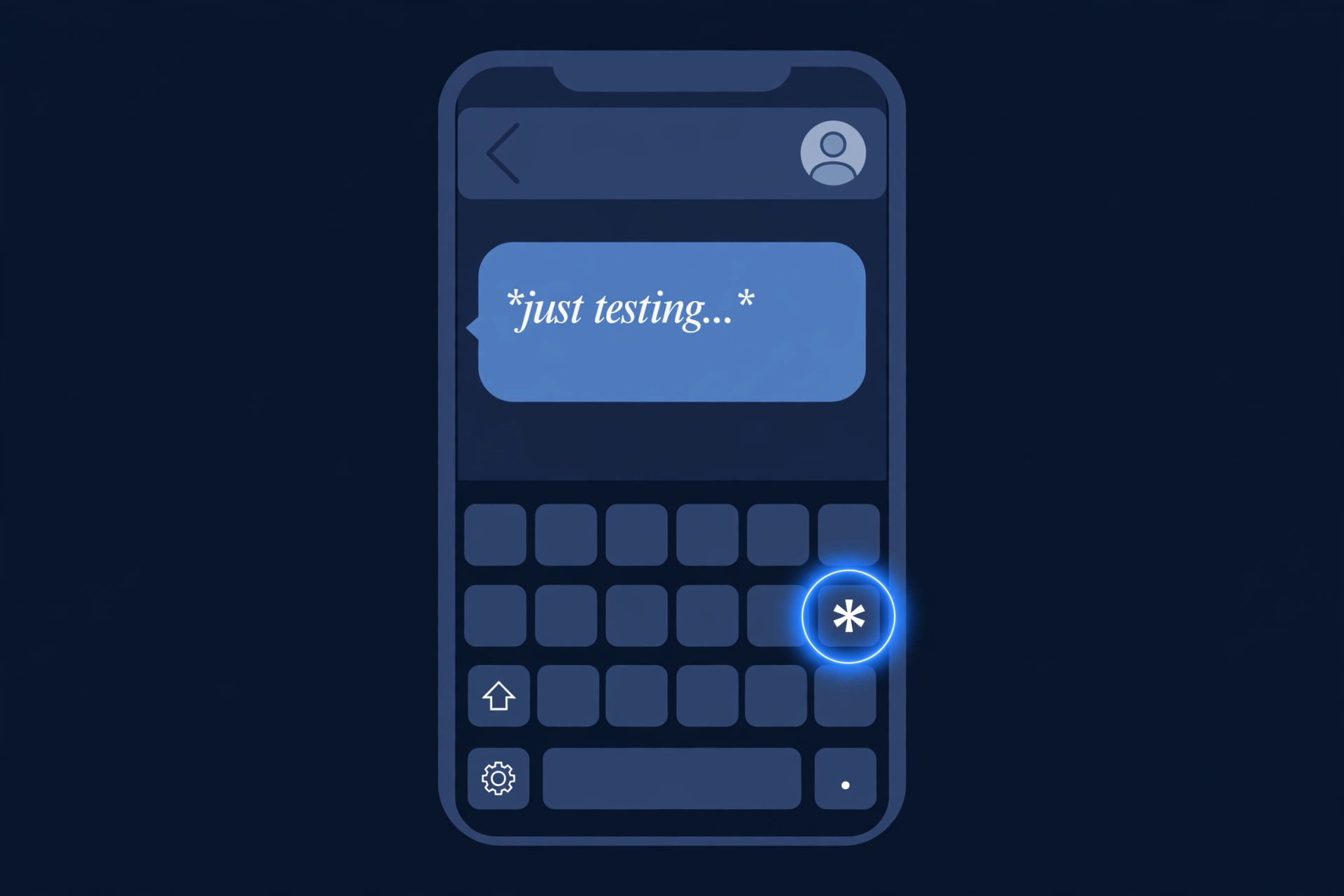
The syntax is identical on iPhone and Android — the only real challenge is finding the asterisk key on a phone keyboard:
- Open the Discord app and go to the channel or DM.
- Tap the message box to bring up your keyboard.
- Type
*— tap123or?123for the symbols page, then find the asterisk. On the iPhone keyboard, tap#+=after123to reach the second symbols page where*lives. - Type your text with no space after the asterisk, then type
*again with no space before it. - Hit send. The text renders in italics.
Alternatively, use the underscore method on mobile if _ is easier to reach on your keyboard — it sits on the first symbols page on both iPhone and Gboard.
Combining Italic With Bold, Underline and Spoiler
Discord lets you stack formatting symbols. The order of the symbols does not matter much, but the count does — each effect needs its own pair of markers:
| Combination | Syntax | Result |
|---|---|---|
| Bold + Italic | ***text*** |
text |
| Italic + Underline | __*text*__ |
text |
| Bold + Italic + Underline | __***text***__ |
text |
| Italic + Spoiler | ||*text*|| |
Hidden until clicked, revealed in italics |
| Italic + Strikethrough | ~~*text*~~ |
The most useful combo by far is bold italic (***text***) — three asterisks on each side. It gives you maximum emphasis in a single word, ideal for the key word in an announcement. Learn how to make text bold in Discord first and this combo becomes second nature.
Warning: the more formats you stack, the harder the message is to read. Reserve triple combos for a single word or short phrase, never whole paragraphs.
6 Reasons Your Italics Aren’t Working (and Fixes)
If your asterisks are showing up as plain text instead of turning into italics, one of these is almost always the cause:
1. There is a space next to the asterisk
* hello* and *hello * do not italicize. The asterisks must touch the text: *hello*. This is the most common mistake by far — delete the spaces and resend.
2. You used two asterisks instead of one
**text** is bold, not italic. For italics use exactly one asterisk per side; for bold italic use three: ***text***.
3. Your text contains its own asterisk
Something like *2*3=6* confuses Discord’s parser because it cannot tell which asterisks are markers and which are content. Fix it with the underscore method instead: _2*3=6_.
4. The underscore broke on a username or snake_case word
_user_name_ will not italicize because Discord sees the inner underscore as part of a word. Use asterisks for anything containing underscores: *user_name*.
5. You are looking at the unsent message box
Formatting never renders while you type — the message box always shows raw asterisks. Send the message (or preview it) to see the italics.
6. The platform you are pasting from added smart characters
If you copied the text from Word, Google Docs, or a website, the asterisks may have been converted to a lookalike Unicode character. Retype the asterisks manually and it will work.
Where Italics Do and Don’t Work
Italics render in almost every message surface on Discord, but not everywhere:
- Channel messages and DMs: Yes — the main use case.
- Message edits: Yes — edit the message and adjust the asterisks.
- Custom status messages: Yes — italics render in your “set a custom status” text.
- About Me profile section: Yes — markdown formatting including italics works here.
- Server names: No — server names are plain text; no markdown renders.
- Channel names: No — channel names do not support formatting.
- Nicknames and usernames: No — display names are plain text.
If you were hoping to italicize a channel or server name, the closest workaround is Unicode styling — decorative italic-looking characters that are technically different letters and work anywhere plain text works. Try our fancy text generator to create them in one click.
Frequently Asked Questions
How do I italicize text in Discord?
Type one asterisk before and after your text with no spaces, like *this*, then send the message. It renders as this. You can also use one underscore on each side (_this_), or highlight text and press Ctrl + I (Windows) or Cmd + I (Mac).
Can I italicize text on the Discord mobile app?
Yes. The syntax is identical — wrap your text in single asterisks. The only extra step is finding the asterisk key: open the symbols page on your phone keyboard (123, then #+= on iPhone; the first symbols page on Gboard), type *text*, and send.
Is there a keyboard shortcut for italics in Discord?
Yes. Highlight the text first, then press Ctrl + I on Windows or Cmd + I on Mac. Discord wraps the selection in asterisks automatically. There is also a formatting popup: highlight text in the message box and click the italic I button.
Why isn’t my text italicizing when I use asterisks?
Check three things: (1) no spaces between the asterisks and the text, (2) exactly one asterisk per side — two makes bold, and (3) your text does not contain its own asterisks. If it does, use underscores instead. Also remember italics only render after you send the message.
Can I italicize text in Discord server names or channel names?
No. Server names, channel names, nicknames and usernames are plain text — Discord markdown does not render in them. Italics work in messages, DMs, message edits, custom statuses, and your profile’s About Me section.
Can I use italics in Discord status messages?
Yes. Custom status text supports markdown, so *on a break* renders in italics under your name. Keep it short — statuses have a 128-character limit.
How do I make text both bold and italic at the same time?
Use three asterisks on each side: ***text***. This stacks bold (two asterisks) and italic (one asterisk) into bold italic. It is the highest-impact single-word emphasis available in Discord markdown.
Can I turn off text formatting in Discord?
There is no global setting to disable markdown rendering. If your own asterisks keep turning into italics when you do not want them to, put a backslash before the asterisk (\*) to show a literal asterisk.
What is the difference between asterisk and underscore italics?
Visually, nothing — both render identical italics. The asterisk is the community standard and always works. The underscore helps when your text contains asterisks, but it can fail on words that already contain underscores, like usernames.
Conclusion
Italicizing text in Discord comes down to one habit: one asterisk, no spaces, both sides — *like this*. The underscore alternative, the Ctrl + I shortcut, mobile keyboard tricks, and combos like ***bold italic*** are all small extensions of the same idea.
In a chat full of bold announcements and @everyone pings, a single well-placed italic word gets noticed precisely because it is not shouting. Pair it with the rest of your toolkit — our complete Discord text formatting guide covers every trick — and your messages will read exactly the way you hear them in your head.