
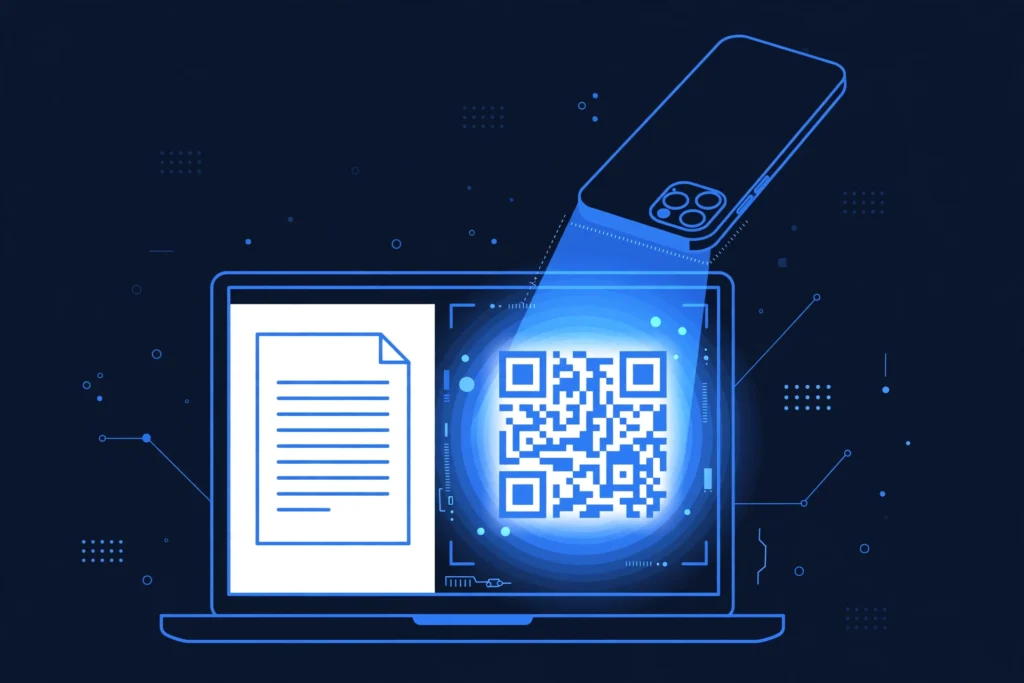
Quick answer: To make a QR code for a Google Doc, open the document, click Share, set General access to “Anyone with the link”, and copy the link. Paste it into a free QR code generator, download the image, and print or share it. It takes under two minutes, costs nothing, and anyone who scans the code opens your document.
If you share lesson plans, meeting notes, or event handouts, a QR code is the fastest way to get people into your Google Doc — no typing long URLs, no typos. A QR code (short for “Quick Response” code, invented by Denso Wave in 1994) is a square barcode a phone camera reads in a fraction of a second. At Zyrro, this guide walks you through every free method — including the one mistake that makes your code useless.
Table of Contents
- How Do I Get the Share Link for My Google Doc?
- How Do I Make a QR Code for a Google Doc for Free?
- Does Google Docs Have a Built-In QR Code Generator?
- How Do I Make a QR Code for a Google Doc on My Phone?
- How Do I Put a QR Code Inside a Google Doc?
- Can I Use the Same Steps for Google Sheets, Slides, and Drive Files?
- Which QR Code Generator Is Best for Google Docs?
- Do QR Codes for Google Docs Expire?
- How Big Should I Print a QR Code?
- Where Can I Use a Google Doc QR Code?
- Is It Safe to Scan QR Codes?
- Frequently Asked Questions
How Do I Get the Share Link for My Google Doc?
You get the share link from inside Google Docs: open your document, click the blue Share button in the top right, and under General access change “Restricted” to “Anyone with the link”. Choose a role — Viewer is the safe default — then click Copy link. That copied link is what your QR code will point to.
Two details that trip up beginners:
- Check permissions BEFORE you generate the code. A QR code only opens what the scanner is allowed to see. If access is still “Restricted”, everyone who scans it lands on a “Request access” page instead of your document — the most common reason a Google Doc QR code “doesn’t work”.
- Use the share link, not the address-bar URL. Copy it from the Share dialog, not from a tab where you are mid-edit.
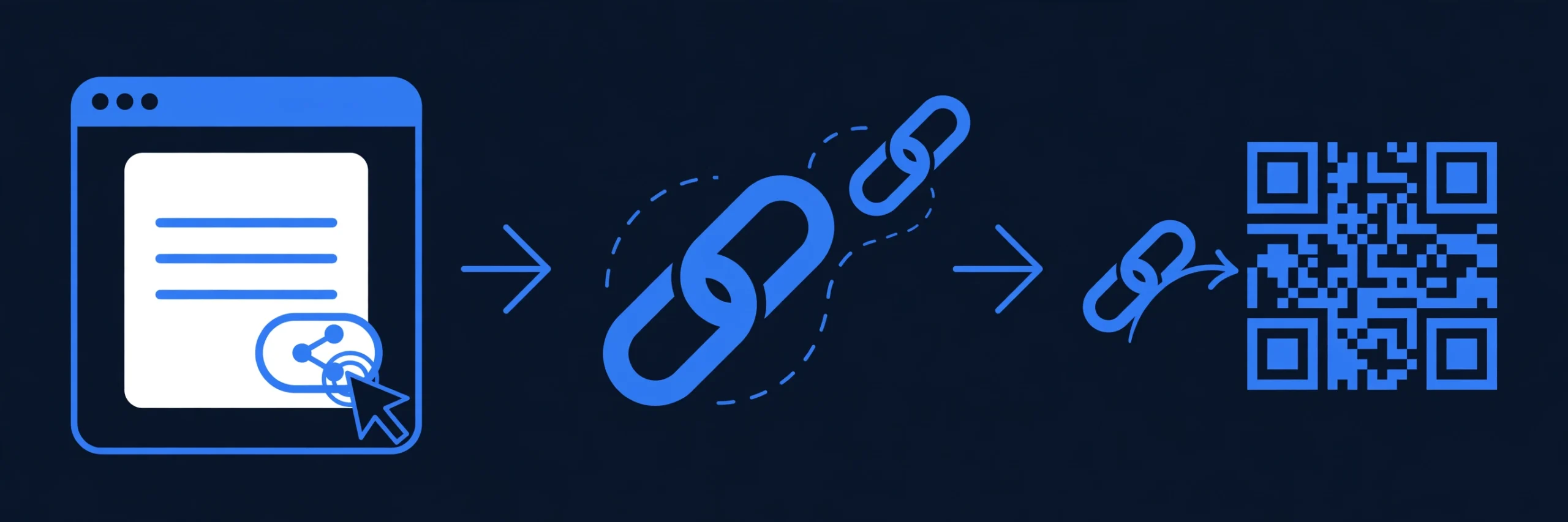
Once the link is in your clipboard, you are halfway done — the second half is turning that link into a scannable image.
How Do I Make a QR Code for a Google Doc for Free?
The free method is simple: paste your document’s share link into a free QR code generator, customize the look, and download the image. Using Zyrro’s tool:
- Open Zyrro’s free QR code generator — no sign-up, no watermark.
- Paste your Google Doc share link. The preview updates instantly.
- Optional: change the dot color, pick one of six dot designs, add your logo in the middle, or match the code to your brand colors. The built-in contrast check warns you before you download a code that might not scan.
- Click Download HD PNG (2048 × 2048 pixels, sharp enough for print) or Download SVG for posters and signage.
- Drop the image into your handout, slide, email, or poster.
Tip: A static QR code bakes your document’s URL directly into the pattern. It is free forever, never expires, and needs no account — perfect for Google Docs. You only need a paid dynamic code if you want to change the destination later without reprinting, or track scans.
If you want to create a QR code for any link — not just Docs — the same steps apply.
Does Google Docs Have a Built-In QR Code Generator?
No — Google Docs does not have a built-in QR code button. Some guides claim it does, but there is no “Create QR code” option inside the Docs menus as of October 2026. What does exist is Chrome’s built-in QR generator, which works on any open page, including a Google Doc.
On a computer, with your Doc open in Chrome, right-click anywhere on the page (not inside a text field) and choose “Create QR code for this page”. A small dialog shows your code with a Download button. You can also click the Share icon at the right end of the address bar and choose Create QR code.
Caveats worth knowing: Chrome generates the code from the current tab’s URL, so set sharing to “Anyone with the link” first. You cannot customize colors or add a logo, so the output is a plain black-on-white code: fine for handouts, less ideal for branded posters. The code is static, so it works forever and costs nothing.
On a Chromebook the same feature works exactly as on a Mac or Windows PC, because Chromebooks run full desktop Chrome: open the Doc, click the Share icon at the right end of the URL bar, choose Create QR code, then Download. For codes that need to survive on printed classroom posters, use a web generator instead — a Chrome code cannot be restyled or given a school logo.
How Do I Make a QR Code for a Google Doc on My Phone?
On iPhone: open your document in the Google Docs app or Safari, tap Share, set General access to “Anyone with the link”, and tap Copy link. Then open a free generator such as Zyrro’s QR code generator in Safari, paste the link, and save the image to Photos. If the Doc is open in Chrome on your iPhone instead, tap Share → Create a QR Code.
On Android: open your document’s share link in Chrome, tap the three-dot menu, then Share → QR Code — Chrome builds and downloads the code instantly. Or copy the link from the Docs app and paste it into any free generator in your mobile browser.
How Do I Put a QR Code Inside a Google Doc?
Sometimes the QR code belongs in the document — on a handout or lesson plan that points readers to a second document. Generate the code first and download it as a PNG, then open the Doc you want it in and click Insert → Image → Upload from computer (or Drive & Photos if you saved it to Drive). Click the image once to resize it, and drag it into place.
Keep the code at least 2 cm wide so phones can still read it on paper, and leave a blank margin around it — scanners need that empty space to find the code’s edges. If the code sits on a busy background, put it on a white box first.
Can I Use the Same Steps for Google Sheets, Slides, and Drive Files?
Yes — a Google Sheet, Slides deck, Form, or any file in Google Drive has a share link too, and the QR process is identical. The only thing that changes is where you find the link:
| File type | Where the share link lives | What scanners open |
|---|---|---|
| Google Doc | Share button → Anyone with the link → Copy link | The document (Viewer by default) |
| Google Sheet | Share button → Anyone with the link → Copy link | The spreadsheet |
| Google Slides | Share button → Anyone with the link → Copy link | The slide deck |
| Google Form | Send → link icon → Copy | The responder form (see our QR code for a Google Form guide) |
| Any Drive file | Right-click the file in Drive → Share → Copy link | The file, or a preview page |
One warning applies to all of them: check the permission role before you print. A Sheet shared as Editor lets anyone who scans the code change your numbers — for public codes, Viewer is almost always the right choice.
Which QR Code Generator Is Best for Google Docs?
The best generator is a free, no-sign-up static one — your Doc link is stable, so you do not need paid dynamic features:
| Generator | Free? | Sign-up needed? | Custom colors/logo | Best for |
|---|---|---|---|---|
| Zyrro QR Code Generator | Yes, unlimited | No | Yes | Free codes, no watermark |
| QRCode Monkey | Yes | No | Yes | Print-quality files |
| Chrome built-in | Yes | No | No | Fastest one-click codes |
| Adobe Express QR maker | Yes | Yes (free account) | Yes | Codes inside poster layouts |
For a single document, any of the first three is plenty. Choose a paid dynamic-code service (like QRCodeChimp or qr-code-generator.com) only if you need scan analytics or the ability to redirect the code to a different document later.
Do QR Codes for Google Docs Expire?
No — a static QR code for a Google Doc does not expire. The code is just a visual encoding of your document’s URL; as long as the Doc exists and its sharing is still set to “Anyone with the link”, the code keeps working. There is no timer, subscription, or renewal involved.
The exceptions are all on the link side, not the code side: you delete the document (scanners hit a dead page); you switch sharing back to “Restricted” (scanners see a request-access page); or you used a dynamic QR code from a paid service, which can stop working if the subscription lapses. None of this applies to free static codes.
How Big Should I Print a QR Code?
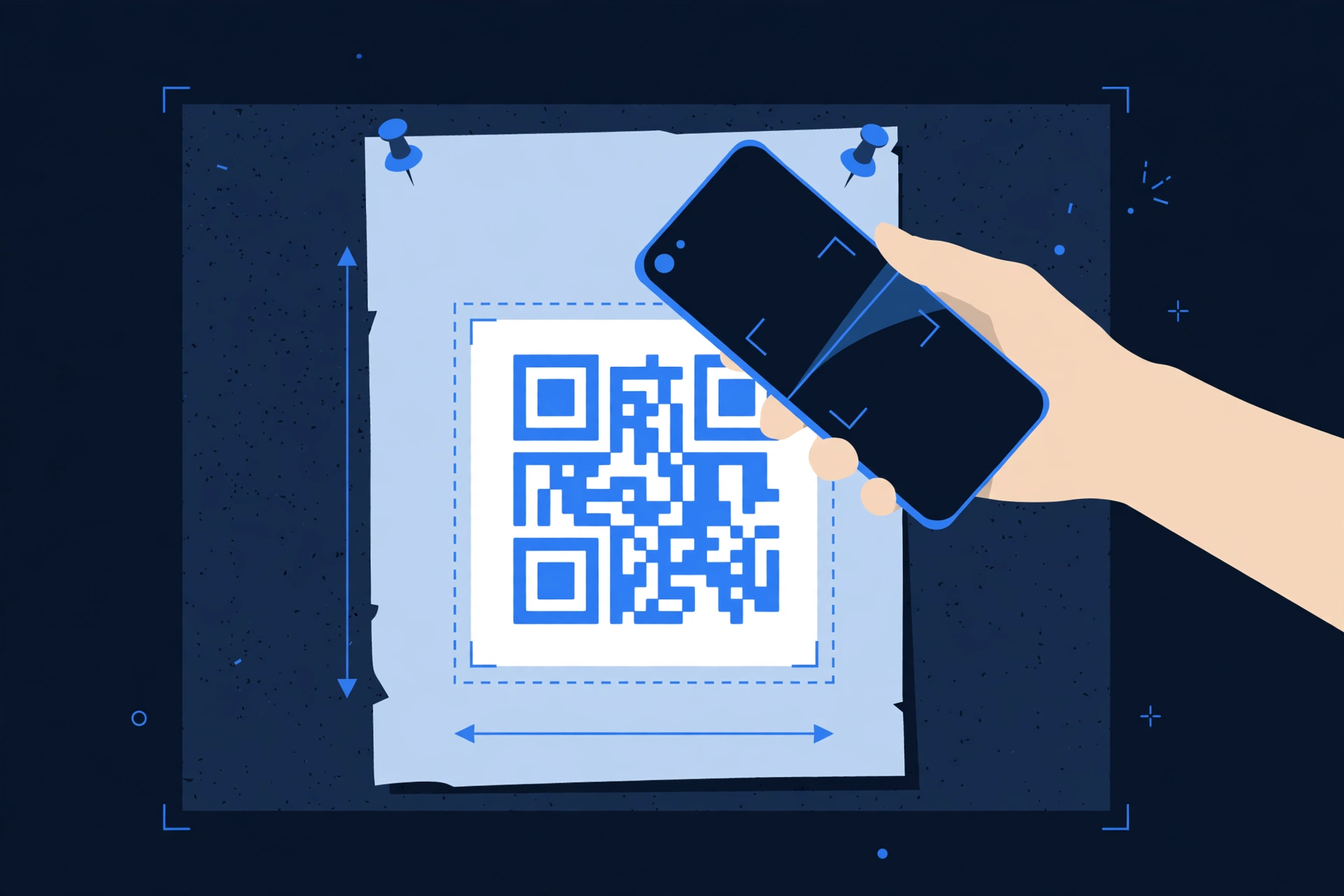
Print your QR code at least 2 × 2 cm (about 0.8 × 0.8 inches) — the widely cited minimum for reliable scanning at arm’s length. For posters scanned from meters away, scale up: roughly 1 cm of code width per 30 cm of scanning distance (about 1 inch per 10 feet).
Three print rules that prevent “it won’t scan” embarrassment: keep the quiet zone — a blank margin at least 4 modules wide (the width of 4 little squares) around the code, which scanners need to detect its edges; high contrast only — black on white is safest, since light-on-dark codes and busy photo backgrounds are the most common causes of dead scans; and test before you print 500 copies — scan the final artwork with both an iPhone and an Android phone, from the distance people will actually stand at.
Where Can I Use a Google Doc QR Code?
Anywhere people have a phone in hand and 20 spare seconds: classrooms (homework sheets and reading lists on the whiteboard), events (agendas and speaker notes on table tents), offices (meeting notes and policy docs on noticeboards), real estate (property details on “For Sale” boards), and restaurants (menus and feedback docs on table cards). Pair the code with a one-line call to action (“Scan to read the full guide”) plus a tiny URL underneath as a fallback.
Is It Safe to Scan QR Codes?
Scanning QR codes is generally safe, but a code can hide a malicious link — which is what the FBI warned about. In a January 2024 public service announcement, the FBI’s Internet Crime Complaint Center (IC3) warned that criminals tamper with QR codes — for example, by sticking their own code over a legitimate one — to steer victims to phishing sites that steal logins or payment details, a scam now called “quishing.”
Protect yourself and your audience: preview before you tap — both iPhone and Android show the destination URL in the banner, and if it does not say docs.google.com, do not tap; beware of stickers — a code pasted over another one is suspicious; never enter payment details after scanning a code found in a public place; and as a document owner, print your own codes and place them where tampering would show.
Frequently Asked Questions
Does Google Docs have a built-in QR code generator?
No. Google Docs has no built-in QR code button in its menus as of October 2026 — some guides claim otherwise, but that option does not exist. Use Chrome’s built-in generator instead (right-click the page and choose “Create QR code for this page”), or paste your Doc’s share link into a free QR code generator.
How do I get a QR code for a Google Doc?
Open the Doc, click Share, set General access to “Anyone with the link” with the Viewer role, and click Copy link. Then paste that link into a free QR code generator, or use Chrome’s built-in tool (right-click the page, then “Create QR code for this page”). Download the image and print or share it.
Do QR codes for Google Docs expire?
No. A static QR code never expires on its own — it works as long as the encoded link works. Your Google Doc QR code keeps functioning unless you delete the document, switch sharing back to “Restricted”, or used a dynamic code from a paid provider whose subscription lapses. Free static codes have no timer at all.
Can I make a QR code for a Google Doc on my phone?
Yes. On iPhone, copy the Doc link from the Docs app or Safari, then paste it into a free QR code generator in your browser — or open the Doc in Chrome and tap Share, then “Create a QR Code”. On Android, open the Doc link in Chrome and tap the three-dot menu, then Share, then “QR Code”.
How do I put a QR code in a Google Doc?
Generate the code first and download it as a PNG. Then open the Doc you want it in, click Insert, then Image, then “Upload from computer” (or “Drive and Photos” if you saved it to Drive). Click the image once to resize it to at least 2 cm wide, and keep a blank margin around it.
How do I share a Google Doc with a QR code without letting anyone edit it?
Set the permission role to Viewer before you generate the code. In the Share dialog, under General access, choose “Anyone with the link” and set the role dropdown to Viewer, then copy the link. Scanners can then read the document but cannot change it. You can change the role later without reprinting.
Conclusion
Making a QR code for a Google Doc comes down to two moves: set sharing to “Anyone with the link” and copy it, then run it through a free generator. Do it once and you have a permanent, cost-free bridge between the physical world and your document — on handouts, slides, posters, and whiteboards. Zyrro’s free QR code generator handles the second step in seconds, and our guides on a QR code for a Google Form or a QR code for Wi-Fi cover every other use.