
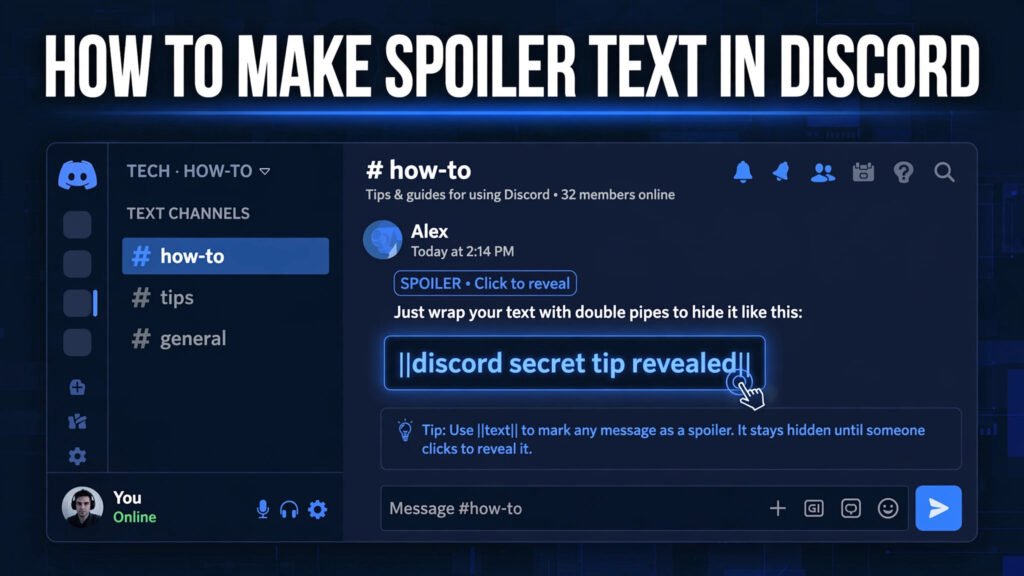
To make spoiler text in Discord, wrap your text in double pipes like this: ||this is a spoiler||. When you send the message, Discord blurs it into a dark block that other people must click or tap to reveal. It is the standard way to hide movie endings, game plot twists, giveaway answers, and anything else your friends should choose to see — and at Zyrro we consider it one of the most useful formatting tricks every Discord user should know.
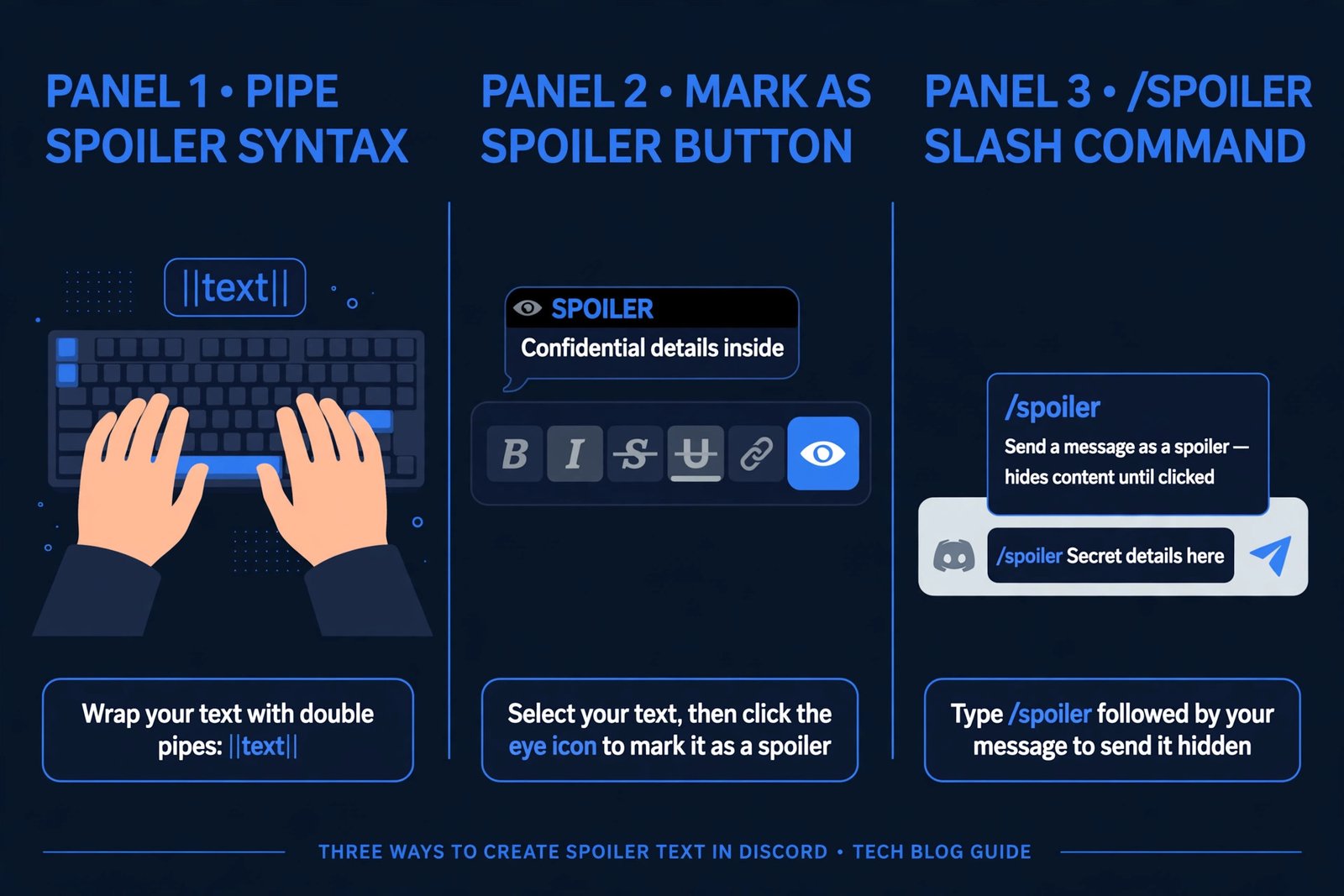
This beginner guide covers all three methods: typing the pipes by hand, using the eye-icon button in the formatting toolbar, and the /spoiler slash command. You will also learn how to spoiler text on Discord mobile (iPhone and Android), how to hide images and links, how to combine spoilers with bold and italic, where spoiler tags do and don’t work, and how to fix them when they refuse to cooperate.
Table of Contents
- The Quick Answer
- Why Use Spoiler Tags in Discord?
- Method 1: Type Double Pipes (Fastest)
- Method 2: The Eye-Icon Button (Desktop)
- Method 3: The /spoiler Command
- How to Make Spoiler Text on Discord Mobile
- How to Spoiler an Image or Attachment in Discord
- Combining Spoiler With Bold, Italic and Underline
- Where Spoiler Tags Work (and Where They Don’t)
- 5 Reasons Your Spoiler Text Isn’t Working (and Fixes)
- Spoiler Etiquette: When You Should (and Shouldn’t) Hide Text
- Frequently Asked Questions
The Quick Answer
Type two pipe characters (||) immediately before and after your text, like this:
||Darth Vader is Luke's father||When you hit send, Discord renders the message as a blurred block. Anyone who wants to read it clicks or taps the block once to reveal the hidden text. The pipes themselves disappear — readers only see the blur until they choose to uncover it.
On most keyboards the pipe character | lives on the same key as the backslash (\), usually above the Enter key. On phones it hides in the symbols keyboard (more on that in the mobile section).
Why Use Spoiler Tags in Discord?
Nothing sours a server faster than someone blurting out a plot twist in the general channel. Spoiler tags solve this social problem in the friendliest way possible: instead of banning fun topics outright, they let people share freely while giving everyone else the choice of when — or whether — to look.
Beyond movies and games, spoiler tags are genuinely useful for:
- Giveaways and quizzes — hide answers so latecomers can still play fair.
- Jump scares and surprises — warn friends before dropping a shocking meme or announcement.
- Sensitive content — tuck potentially upsetting details behind a click so nobody sees them by accident.
- Long rants — collapse a wall of text so the channel stays tidy for everyone else.
- Puzzle and riddle servers — hide solutions and hints until people are ready for them.
If you enjoy this kind of trick, you’ll love learning to format text in Discord — our complete Discord text formatting guide covers every style the chat supports.
Method 1: Type Double Pipes (Fastest)
The fastest way to spoiler text is to type the double pipes yourself. It works everywhere Discord renders markdown, and once it becomes muscle memory you’ll do it without thinking.
- Find the pipe key on your keyboard — hold
Shiftand press the backslash key (\) to type|. - Type
||immediately before your text and||immediately after it, with no spaces in between. - Press Enter to send. Your text posts as a blurred block.
A correct spoiler looks like this before you send it:
||The killer was the butler||The rule is simple: two pipes on each side, no spaces between the pipes and your text. Typing || like this || with spaces can fail to render on some clients, so keep the pipes snug against the words.
Method 2: The Eye-Icon Button (Desktop)
On Discord’s desktop and web apps you don’t have to remember the pipe key at all — there’s a spoiler button built right into the formatting toolbar.
- Type your message in the chat box, but don’t send it yet.
- Highlight the part of the text you want to hide.
- A small floating toolbar appears above your selection — click the eye icon (👁️), the spoiler button.
- Discord wraps the highlighted text in
||automatically.
This method is perfect for partial spoilers, where only part of a sentence needs hiding: “The ending was sad ||everyone dies|| but the acting was great.” Only the middle of the sentence blurs; the rest stays readable.
Method 3: The /spoiler Command
If you want to hide an entire message in a hurry, the /spoiler slash command is the quickest route — no pipe characters required.
/spoiler The treasure was under the floorboardsType /spoiler, press space, write your message, and hit Enter. Discord posts the whole message as one blurred block.
The trade-off: the command hides the entire message. You can’t spoiler just one phrase inside a longer sentence with it — for that, use the double pipes or the toolbar button instead.
| Method | Best for | Works on mobile? |
|---|---|---|
Type ||text|| | Everyday use, partial spoilers | Yes |
| Eye-icon toolbar button | Forgetting the pipe key, partial spoilers | No (desktop only) |
/spoiler command | Hiding a whole message fast | Yes |
How to Make Spoiler Text on Discord Mobile
Spoiler tags work exactly the same in the Discord mobile app — the only tricky part is finding the pipe character on a phone keyboard.
On iPhone:
- Tap the
123key to switch to the numbers keyboard. - Tap
#+=to open the second symbols page. - Tap
|twice to type||, write your text, then tap|twice more — with no spaces between the pipes and your text. - Send. The message posts blurred, just like on desktop.
On Android (Gboard):
- Tap
?123to switch to the symbols keyboard. - Tap the
=\<key to open the second symbols page and find|. - Type
||, your text, and||again, then send.
Short on patience? Just type the /spoiler command followed by your message — it needs no special characters at all. And remember: tap any blurred block once to reveal what’s underneath.
How to Spoiler an Image or Attachment in Discord
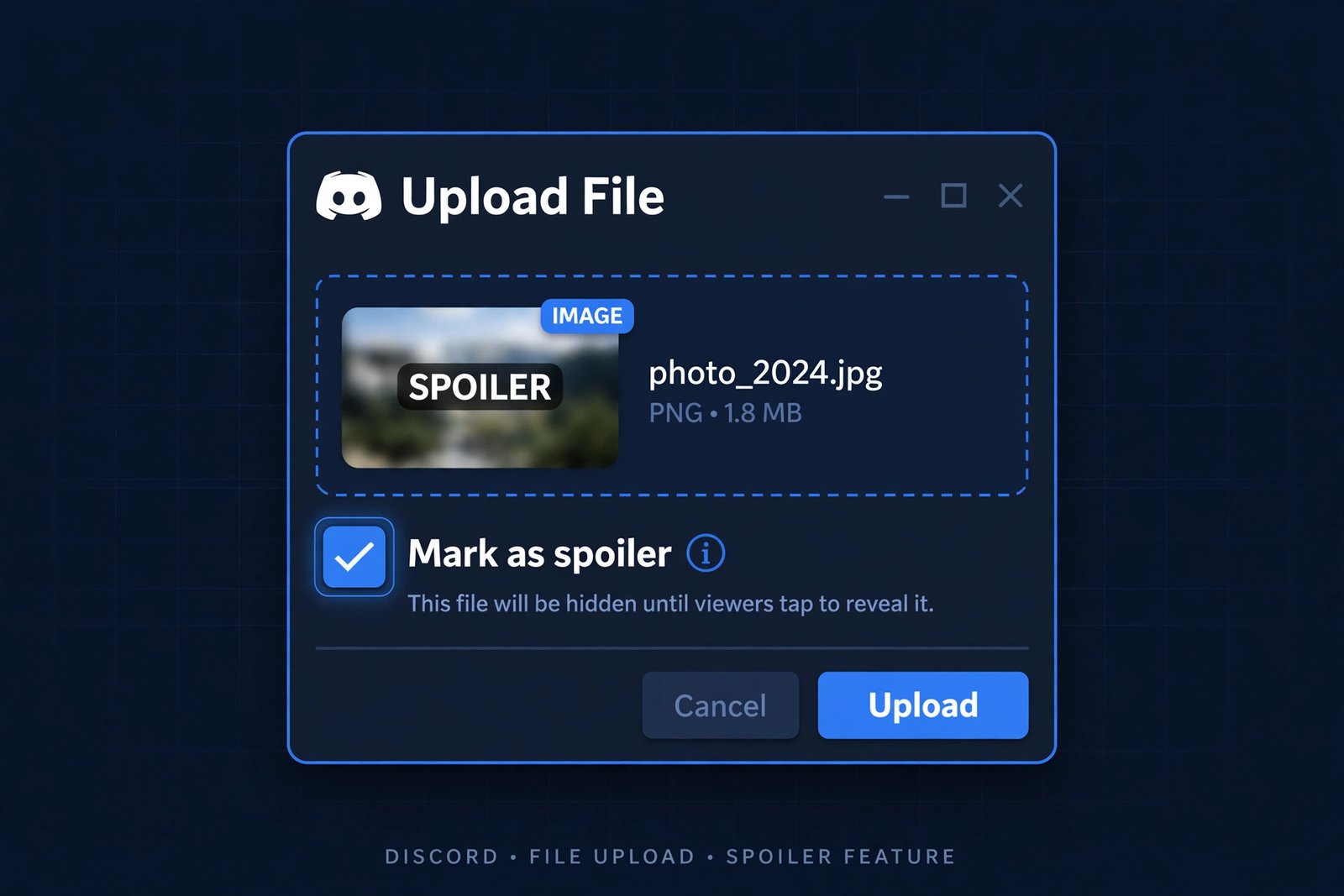
You can hide images, videos, and other attachments behind a spoiler blur too — perfect for fan art, screenshots, or memes that give something away.
- Click the
+button next to the chat box and choose the file you want to upload. - In the upload dialog, check the box labeled “Mark as spoiler”.
- Click Upload. Your file posts as a blurred thumbnail with a
SPOILERlabel.
One more tip: rename revealing file names before uploading. A blurred thumbnail named final-boss-death.png still spoils the surprise through the file name, so change it to something neutral first.
Combining Spoiler With Bold, Italic and Underline
Spoiler tags play nicely with Discord’s other formatting. The rule: keep the || pipes on the outside, and put the style symbols on the inside. If you haven’t mastered the basics yet, start with our guide on how to make text bold in Discord.
| What you type | What readers see |
|---|---|
||**bold spoiler**|| | bold spoiler |
||*italic spoiler*|| | italic spoiler |
||__underlined spoiler__|| | underlined spoiler |
||**_dramatic_**|| | dramatic |
Remember: the pipes always go outermost. For more underline tricks, see our guide on how to underline text in Discord, or browse the complete Discord text formatting guide.
Where Spoiler Tags Work (and Where They Don’t)
Spoiler tags work in most places you can chat on Discord — but not everywhere. Here’s the full rundown:
| Location | Spoiler works? |
|---|---|
| Channel messages | Yes |
| DMs and group DMs | Yes |
| Threads and forum posts | Yes |
| Message replies | Yes |
| Channel names | No — shows as plain ||text|| |
| Nicknames and usernames | No |
| Server name and channel topic | No |
Inside code blocks (```) | No — pipes render literally |
| Profile “About Me” bios | Partial — basic markdown only, test first |
One quirk worth knowing: when you quote-reply a spoilered message, the quoted text may display unblurred in the reply preview — so double-check before you quote someone else’s spoiler.
5 Reasons Your Spoiler Text Isn’t Working (and Fixes)
Typed the pipes but the text still shows up plain? One of these five culprits is almost always to blame.
- You’re using a single pipe.
|text|does nothing — you need double pipes:||text||. - It’s the wrong character. The broken bar
¦and the lowercase letter L look like pipes but aren’t. Retype the character carefully. - You’re in a no-markdown zone. Channel names, nicknames, and code blocks never render markdown — spoilers simply don’t work there.
- There’s a space between the pipes and the text.
|| text ||can fail on some clients; keep the pipes snug:||text||. - Your app is outdated. Spoiler rendering (especially the toolbar button) needs a reasonably recent Discord version — update the app and try again.
Still stuck? Test with ||test|| in a private DM to yourself. If that renders as a blur, the syntax is fine and something else — usually the location — is the problem.
Spoiler Etiquette: When You Should (and Shouldn’t) Hide Text
Spoiler tags are a courtesy tool, and like all courtesy tools they work best with a little judgment.
- Do spoil: plot twists, endings, and puzzle solutions in shared channels.
- Don’t spoil: things in dedicated spoiler channels where everyone expects them — hiding everything there just adds friction.
- Label big spoilers: add context before the blur, like “Endgame ending:
||...||“, so people know what they’d be revealing. - Respect channel rules: many servers ask members to spoiler new releases for 1–2 weeks after launch — follow the local norm.
Frequently Asked Questions
How do I unspoiler text in Discord?
Click or tap the blurred block once and the hidden text reveals instantly. To unspoiler your own unsent message, just delete the || pipes from the chat box before sending. Once a spoiler is sent, you can’t “un-blur” it for everyone — you’d need to delete the message and resend it without the pipes.
How do you make spoiler text on Discord mobile?
Type || before and after your text — the pipe character is in the symbols keyboard (123 then #+= on iPhone; ?123 then the second symbols page on Android). Alternatively, type the /spoiler command followed by your message, which needs no special characters. Tap any blurred block once to reveal it.
Can you spoiler text in a Discord bio?
Discord’s “About Me” profile section supports only basic markdown, and spoiler rendering there is unreliable — the pipes often show as plain text. Spoiler tags are designed for chat messages, DMs, and threads, where they always work. If you want hidden text in a bio, test it on an alt account first.
Why is my spoiler text not working in Discord?
The usual causes are typing a single pipe instead of double (|text| vs ||text||), using a lookalike character, placing spoilers where markdown never renders (channel names, nicknames, code blocks), or leaving a space between the pipes and your text. The fix that catches 90% of cases: retype it carefully as ||text|| with no spaces.
Does the /spoiler command work on mobile?
Yes. Type /spoiler, press space, write your message, and send — the entire message posts blurred on iPhone, Android, desktop, and web alike. It’s the easiest mobile method because it avoids hunting for the pipe character on phone keyboards entirely.
Can people see my spoiler without clicking?
No — the blur is applied by Discord’s clients, so the text stays hidden until someone deliberately clicks or taps it. Two caveats: push-notification previews on phones can show the raw text of a spoilered message, and bots or webhooks with message access receive the unblurred content. For truly sensitive material, don’t put it in Discord at all.
Conclusion
That is everything you need: ||double pipes|| for quick spoilers, the eye-icon button when you’d rather click than type, and /spoiler for whole-message hides — on desktop and mobile, for text and images alike. Used well, spoiler tags keep your server friendly for latecomers and your giveaways fair, which is exactly the kind of small quality-of-life skill Zyrro exists to teach. Now go hide something worth clicking.