
Table of Contents
- The Quick Answer
- How to Underline Text in Discord on Desktop
- Using the Formatting Toolbar
- The Ctrl+U Keyboard Shortcut
- How to Underline Text in Discord on iPhone
- How to Underline Text in Discord on Android
- Single vs Double Underscore: The #1 Mistake
- Where Underline Works (and Where It Doesn’t)
- Combining Underline with Bold and Italic
- 6 Fixes When Your Underline Won’t Render
- Underline vs Bold vs Italic vs Highlight
- Frequently Asked Questions
Underlining is one of the most useful — and most mistyped — text styles in Discord. It is perfect for section headings in long announcements, drawing eyes to a deadline or rule, and making key names and dates pop in busy channels.
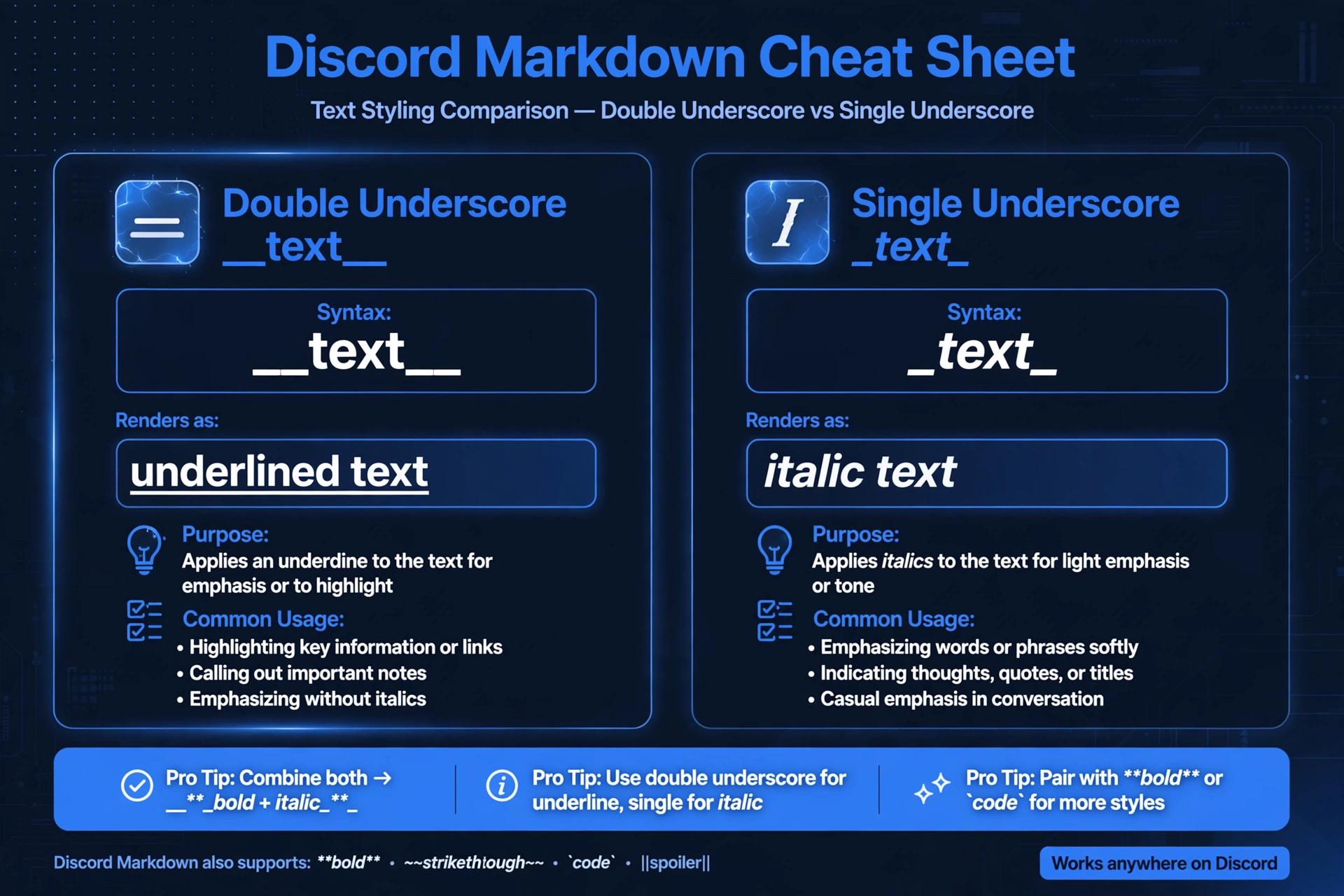
The catch: Discord’s underline syntax looks almost identical to its italic syntax. One underscore makes text italic; two underscores make it underlined. This guide shows you the exact syntax for desktop and mobile, where the underscore key hides on phone keyboards, the Ctrl+U shortcut, where underlining does and doesn’t work, and how to fix it when it silently fails.
The Quick Answer
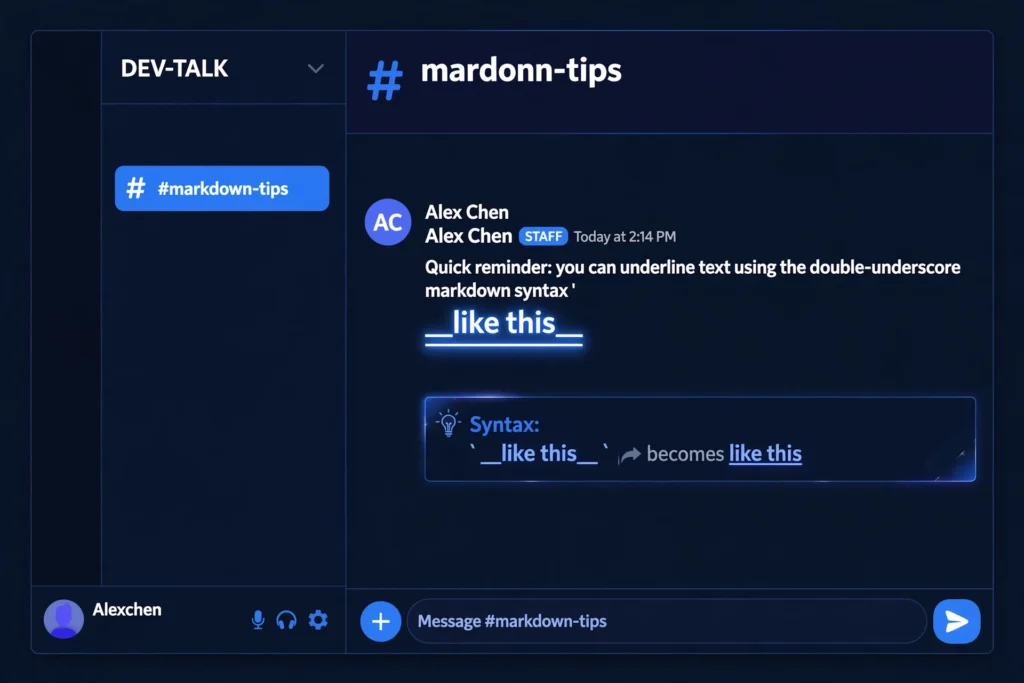
To underline text in Discord, wrap your text in two underscores on each side:
__This text will be underlined__
Type that into any message box and Discord renders it as This text will be underlined when you send. No settings, no bots, no plugins — it works on desktop, web, iPhone, and Android.
Tip: If your “underline” renders as italic instead, you typed one underscore per side. Count them: underline always needs two.
How to Underline Text in Discord on Desktop
On the Discord desktop or web app, you have three ways to underline: typing the syntax, the pop-up toolbar, or a keyboard shortcut. All three produce the same result.
Method 1: Type the double underscores
- Click into the message box where you want to type.
- Type two underscores:
__ - Type your text immediately after, with no space:
__important - Close with two more underscores:
__important__ - Press Enter. Discord renders it as important.
The markers must touch your text — __ important__ with a space after the opening markers will not render.
Method 2: Using the Formatting Toolbar
If you don’t want to memorize symbols, let Discord do it for you:
- Type your message normally in the message box.
- Highlight the words you want underlined with your mouse.
- A small formatting toolbar pops up above the selection.
- Click the U (underline) button.
- Discord wraps your selection in
__automatically — press Enter to send.
This is the fastest method when you’re editing a long announcement and only want to underline a few phrases.
Method 3: The Ctrl+U Keyboard Shortcut
| Action | Windows | Mac |
|---|---|---|
| Underline selected text | Ctrl + U | Cmd + U |
| Bold selected text | Ctrl + B | Cmd + B |
| Italic selected text | Ctrl + I | Cmd + I |
Type your text, highlight it, and press Ctrl + U (Windows) or Cmd + U (Mac). Discord wraps the selection in double underscores instantly. For the full set of Discord shortcuts, see our complete Discord text formatting guide.
How to Underline Text in Discord on iPhone
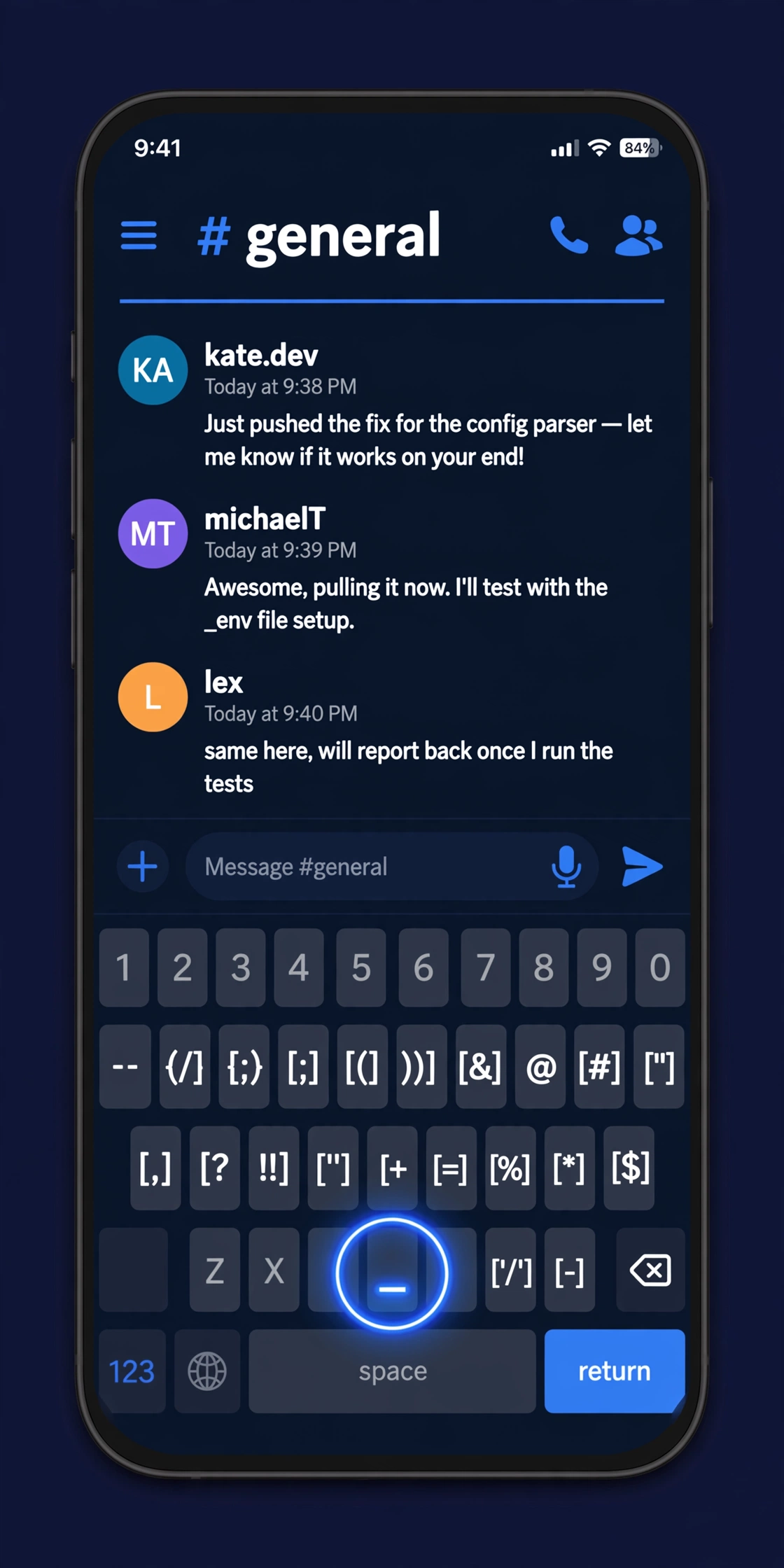
The iPhone app has no formatting toolbar, so you type the underscores manually. The only tricky part is finding the underscore key.
- Open the channel or DM and tap the message box.
- Switch to the symbols keyboard: tap 123, then #+=.
- Find the underscore key
_on the second symbols page. - Type
__, then your text, then__again — no spaces between the markers and the text. - Send. The message renders underlined.
Tip: iPhone autocorrect sometimes “helpfully” converts double underscores or inserts spaces. If your underline fails on iOS, check for a sneaky space right after the opening __ — that single space is the most common iPhone cause.
How to Underline Text in Discord on Android
The steps mirror iPhone, with one difference: keyboard layouts vary between Gboard, Samsung Keyboard, and others.
- Tap the message box in Discord.
- Switch to symbols: tap ?123 (then =< or a second symbols page if needed).
- Locate the underscore
_— on Gboard it’s on the second symbols page; on Samsung Keyboard check the symbols tab. - Type
__your text__with the markers touching the text. - Send.
Alternatively, long-press selected text on Android for a context menu with basic formatting options — but typing the symbols manually works on every keyboard and every Android version.
Single vs Double Underscore: The #1 Mistake
Almost every “my underline isn’t working” complaint comes down to this one confusion. The underscore does two different jobs depending on how many you type:
| You type | Discord renders | Style |
|---|---|---|
_text_ | text | Italic (one underscore each side) |
__text__ | text | Underline (two underscores each side) |
___text___ | text | Underline + italic (three each side) |
Read that table once and you’ll never mix them up again. One underscore = italic. Two = underline. Three = both.
Tip: Underscores inside words are ignored — some_variable_name stays plain text. Discord only treats underscores as formatting when they wrap a chunk of text with matching openers and closers.
If you want the bigger picture of how all the styles relate, our complete Discord text formatting guide has the full cheat sheet in one table.
Where Underline Works (and Where It Doesn’t)
Underline renders in most places you type messages — but not everywhere in Discord. Here’s the breakdown:
| Location | Underline works? | Notes |
|---|---|---|
| Text channels & DMs | Yes | The main use case — announcements, rules, emphasis |
| Threads & forum posts | Yes | Same Markdown engine as channels |
| “About Me” profile bio | Yes | Great for section headings in your bio |
| Server nicknames | No | Nicknames are plain text — __ shows literally |
| Channel names | No | Channel names don’t render Markdown |
| Custom status | No | Status text is plain, no formatting |
| Voice channel names | No | Same as text channel names |
How to underline text in your Discord bio: open User Settings → Profiles, and type __like this__ in the About Me box. It renders underlined on your profile — a nice way to add headings like About me, Rules, or Socials.
Why not nicknames? Discord renders nicknames as plain text everywhere (member lists, mentions, voice channels), so Markdown symbols display literally. If you want a styled nickname, use a fancy text generator to create Unicode-styled characters and paste those instead — Unicode styles aren’t Markdown, so they display anywhere.
Combining Underline with Bold and Italic
Discord lets you stack formats for extra emphasis. The markers nest from the outside in — underline goes outermost:
| Combination | Syntax | Result |
|---|---|---|
| Underline + bold | __**text**__ | text |
| Underline + italic | __*text*__ | text |
| Underline + bold + italic | __***text***__ | text |
| Underline + strikethrough | __~~text~~__ |
Use combinations sparingly — a whole paragraph of triple-formatted text is harder to read, not easier. One underlined phrase per message is the sweet spot for announcements. Learn the other styles individually in our guides on how to make text bold on Discord and how to strikethrough text in Discord.
Tip: If a combination refuses to render, the marker order is usually wrong. Discord resolves nesting outside-in: underline first, then bold, then italic, then strikethrough. Rearrange into that order and try again.
6 Fixes When Your Underline Won’t Render
- You typed one underscore, not two.
_text_makes italic. Count your underscores: underline needs exactly two per side. - There’s a space after the opening markers.
__ text__stays literal. The markers must touch the text:__text__. - You’re missing the closing markers. Every opening
__needs a matching closer.__half underlinedshows literal underscores. - You’re inside a code block. Nothing renders inside
```blocks — that’s their whole point. Check you didn’t accidentally wrap your message in backticks. - You’re in a nickname, channel name, or status. These are plain-text fields (see the table above) — Markdown never renders there.
- Your phone keyboard inserted a smart character. Some keyboards autocorrect
__or add a space. Retype the underscores manually from the symbols page.
Underline vs Bold vs Italic vs Highlight
People often search for “how to highlight text in Discord” when they really want underline-style emphasis. Here’s how the emphasis options actually compare:
| Style | Syntax | Best for |
|---|---|---|
| Underline | __text__ | Headings, deadlines, names and dates in announcements |
| Bold | **text** | Keywords and key points that must stand out |
| Italic | *text* or _text_ | Subtle emphasis, thoughts, titles, sarcasm |
~~text~~ | Corrections, jokes, price changes | |
| Colored “highlight” | ```diff blocks | Green/red/yellow text via syntax highlighting — the closest Discord gets to a highlighter |
Discord has no true highlighter pen. If you want colored emphasis, code blocks with a language tag are the trick: ```diff with a + prefix renders green, - renders red, and ```fix renders yellow. Our complete Discord text formatting guide covers the color trick in detail.
Frequently Asked Questions
How do I underline text in Discord?
Wrap your text in two underscores on each side: __like this__. On desktop you can also highlight text and press Ctrl + U (Windows) or Cmd + U (Mac), or click the underline button in the pop-up formatting toolbar.
How to underscore text in Discord?
“Underscore” and “underline” mean the same thing here — the underscore character _ is what creates the underline. Type two of them before and after your text: __text__. One underscore per side makes italic instead.
What does _ do in Discord?
A single underscore on each side (_text_) makes text italic. A double underscore on each side (__text__) makes text underlined. That’s the whole difference — count the underscores.
How do I underline text in Discord mobile?
Type the underscores manually from the symbols keyboard: tap 123 (iPhone) or ?123 (Android), go to the second symbols page, and type __text__ with no spaces between the markers and the text. The mobile app has no formatting toolbar, so manual symbols are the way.
How do I underline text in my Discord bio?
The “About Me” section on your profile supports Markdown. Go to User Settings → Profiles and type __like this__ in the About Me box. Note that server nicknames, channel names, and custom statuses do not support Markdown.
What is the underline shortcut in Discord?
Ctrl + U on Windows or Cmd + U on Mac underlines the selected text in the message box. Two related shortcuts people ask about: Ctrl + K opens the Quick Switcher (jump to any server, channel, or DM), and Ctrl + Shift + M toggles your microphone mute in voice channels.
How do I highlight text in Discord?
Discord has no highlighter tool, but code blocks with language tags color your text: type ```diff on its own line, then + your text for green or - your text for red, and close with ```. ```fix renders yellow. For simple emphasis, underline (__text__) or bold (**text**) is usually what people want.
Why is my underline showing as italic?
You typed one underscore per side instead of two. _text_ = italic; __text__ = underline. Add the second underscore on each side and it will render correctly.
Can I combine underline with bold?
Yes — nest the markers with underline outermost: __**text**__ renders as bold underlined text. You can also do underline + italic (__*text*__) or all three (__***text***__).
Underlining takes ten seconds to learn and makes your announcements, rules posts, and important messages instantly more scannable. Master the double underscore, remember the mobile symbols page, and you’ll never fumble the syntax again.
Want underlined text without Discord’s formatting limits? Try our free underline text generator — 15 Unicode underline styles you can copy and paste anywhere.
How do I underline text in Discord?
Wrap your text in two underscores on each side: __like this__. On desktop you can also highlight text and press Ctrl+U (Windows) or Cmd+U (Mac), or click the underline button in the pop-up formatting toolbar.
How to underscore text in Discord?
“Underscore” and “underline” mean the same thing here — the underscore character _ is what creates the underline. Type two of them before and after your text: __text__. One underscore per side makes italic instead.
What does _ do in Discord?
A single underscore on each side (_text_) makes text italic. A double underscore on each side (__text__) makes text underlined. That’s the whole difference — count the underscores.
How do I underline text in Discord mobile?
Type the underscores manually from the symbols keyboard: tap 123 (iPhone) or?123 (Android), go to the second symbols page, and type __text__ with no spaces between the markers and the text. The mobile app has no formatting toolbar, so manual symbols are the way.
How do I underline text in my Discord bio?
The “About Me” section on your profile supports Markdown. Go to User Settings → Profiles and type __like this__ in the About Me box. Note that server nicknames, channel names, and custom statuses do not support Markdown.
What is the underline shortcut in Discord?
Ctrl+U on Windows or Cmd+U on Mac underlines the selected text in the message box. Two related shortcuts people ask about: Ctrl+K opens the Quick Switcher (jump to any server, channel, or DM), and Ctrl+Shift+M toggles your microphone mute in voice channels.
How do I highlight text in Discord?
Discord has no highlighter tool, but code blocks with language tags color your text: type “`diff on its own line, then + your text for green or – your text for red, and close with “`. “`fix renders yellow. For simple emphasis, underline (__text__) or bold (**text**) is usually what people want.
Why is my underline showing as italic?
You typed one underscore per side instead of two. _text_ = italic; __text__ = underline. Add the second underscore on each side and it will render correctly.
Can I combine underline with bold?
Yes — nest the markers with underline outermost: __**text**__ renders as bold underlined text. You can also do underline + italic (__*text*__) or all three (__***text***__).